TP-Link Deco M4/M4R/E4/E4R/W2400 - AC1200 Home Mesh Wi-Fi System Manual
Introduction
This guide provides a brief introduction to Deco Whole Home Mesh Wi-Fi System and the Deco app, as well as regulatory information.
Please note that features of Deco may vary slightly depending on the model and software version you have, and on your location, language and internet service provider. All images, parameters and descriptions documented in this guide are used for demonstration only.
Conventions
In this guide, the following conventions are used:
| Convention | Description |
| Deco | Stands for Deco Whole Home Mesh Wi-Fi System/Unit. |
| Underline | Hyperlinks are in teal and underlined. You can click to redirect to a website or a specific section. |
| Teal | Key information appears in teal, including management page text such as menus, items, buttons and so on. |
 Note: Note: | Ignoring this type of note might result in a malfunction or damage to the device. |
 Tips: Tips: | Indicates important information that helps you make better use of your device. |
More Info
- Specific product information can be found on the product page at https://www.tp-link.com.
- A Technical Community is provided for you to discuss our products at https://community.tp-link.com.
- Our Technical Support contact information can be found at the Help centre of the Deco app and the Contact Technical Support page at https://www.tp-link.com/support.
Speed/Coverage/Device Quantity Disclaimer
Maximum wireless transmission rates are the physical rates derived from IEEE Standard 802.11 specifications. Range, coverage, and maximum quantity of connected devices are based on test results under normal usage conditions. Actual wireless data throughput. wireless coverage, and quantity of connected devices are not guaranteed and will vary as a result of
- environmental factors, including building materials, physical objects, and obstacles,
- network conditions, including local interference, volume and density of traffic, product location, network complexity, and network overhead, and
- client limitations, including rated performance, location, connection quality, and client condition.
MU-MIMO Disclaimer
Use of MU-MIMO requires clients to also support MU-MIMO.
Appearance
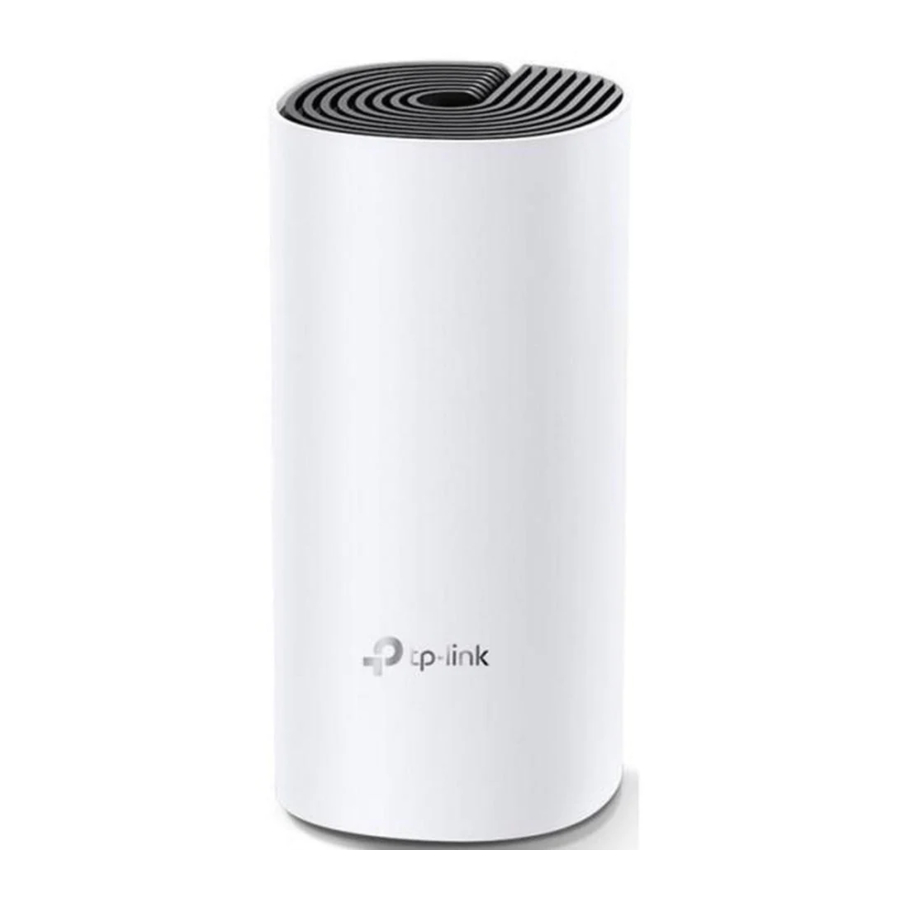
Each Deco has an LED that changes colour according to its status, two RJ-45 Ethernet ports, a power slot, and a Reset button. See the explanation below:

LED Colours
 Yellow pulse: Deco is resetting.
Yellow solid: Deco is starting up.
 Blue pulse: Deco is ready for setup.
Blue solid: Deco is setting up.
 White pulse: Deco is upgrading firmware.
White solid: Deco is registered and all is well.
 Red pulse: Deco is disconnected from main Deco.
Red solid: Deco has an issue.
Ethernet Ports: For connecting Deco to your modem, the Ethernet outlet or other internet devices.
Power Slot: For connecting Deco to the power socket via the provided power adapter.
Reset Button: Press to reset Deco to factory default settings.
Set Up Your Deco
Follow the steps below to set up your Deco Whole Home Mesh Wi-Fi System.
- Download and install the Deco app
Scan the QR code below or go to Google Play or the Apple App Store to download the Deco app.
Install the app on your Android or iOS smartphone or tablet.

OR


- Log in or sign up with TP-Link ID
![]()
Open the app. Use your TP-Link ID to log in.
If you don't have a TP-Link ID, tap Sign Up. The Deco app will guide you through the rest. - Connect Deco to your modem
![]()
Find and power off your modem. Connect your Deco to the modem and power them both on.
If you don't have a modem, connect the Ethernet outlet directly to your Deco.
- Select a location
![]()
Select a location for this Deco. If its location is not listed, you can create a new one by choosing Custom. - Create your Wi-Fi network
![]()
Set a network name and a password. These will be the name and password you use to connect your devices to Wi-Fi. - Add more Decos
![]()
You can add more Decos to expand Wi-Fi coverage. The app will guide you through the process of adding more Decos one by one.


Dashboard
After you successfully set up your Deco network, you will see the dashboard of the Deco app. Here you can view the connected devices and their internet speeds, tap the  (Internet) icon to check the working status of all Decos, and tap the
  icon to display more features.
View connected devices

Check the working status of all Decos

Display more features

Wi-Fi Settings
You can change the network name and password of your main network, create a separate network for guests, and shake your device to share the network details easily with family and friends.
Change main network settings

Create a guest network

Shake to share Wi-Fi

Parental Controls
Create profiles for family members and specify the devices that belong to them. Set individualised parental controls including when and for how long each person can access the internet. Block inappropriate content and pause the internet if necessary.
Parental Controls

Select filter level

Set time controls

Advanced Features
Additional features are available under the Advanced menu. You can configure and change settings according to your needs.
Advanced features

Change IPv4 settings

Change IPv6 settings

Reserve IP addresses for specific devices

Set up port forwarding rules

Register a TP-Link DDNS domain name

Change VLAN settings

Enable fast roaming for wireless devices

Control the LED on Deco

Turn on/off notifications

Change the operating mode

Update Decos
TP-Link is dedicated to improving product features and providing a better customer experience. Update Deco when prompted in the Deco app.
Update Available

Updating Deco

Up-to-date

Managers
Add friends and family members to help manage your Deco network. Each manager should have their own TP-Link ID.
Managers

Add a manager

Manager list

Authentication
COPYRIGHT & TRADEMARKS
Specifications are subject to change without notice.  is a registered trademark of TP-Link Technologies Co., Ltd. Other brands and product names are trademarks or registered trademarks of their respective holders.
No part of the specifications may be reproduced in any form or by any means or used to make any derivative such as translation, transformation, or adaptation without permission from TP-Link Technologies Co., Ltd. Copyright © 2019 TP-Link Technologies Co., Ltd. All rights reserved.

References
![www.tp-link.com]() WiFi Networking Equipment for Home & Business | TP-Link
WiFi Networking Equipment for Home & Business | TP-Linkhttps://community.tp-link.com
TP-Link Product Support - Wireless Networking Equipment Support
![www.apple.com]() App Store - Apple
App Store - Apple![play.google.com]() Google Play
Google Play


Download manual
Here you can download full pdf version of manual, it may contain additional safety instructions, warranty information, FCC rules, etc.
Download TP-Link Deco M4/M4R/E4/E4R/W2400 - AC1200 Home Mesh Wi-Fi System Manual
