A Simple Guide to Update Your Sony WF-1000XM5 Earbuds
Are you struggling to get the latest features and bug fixes on your premium Sony WF-1000XM5 wireless earbuds? Keeping your earbuds updated is essential for the best performance and sound quality! Don't worry, the process is very straightforward, even if you are not technically inclined. Follow this simple guide to update your WF-1000XM5 firmware using the official Sony Sound Connect app.
Step 1: Get the Sony Sound Connect App
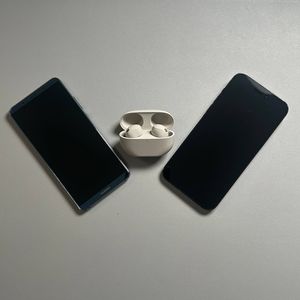
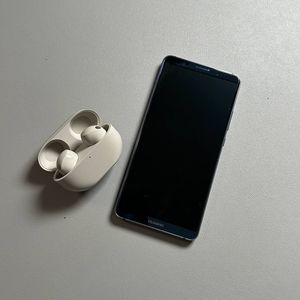
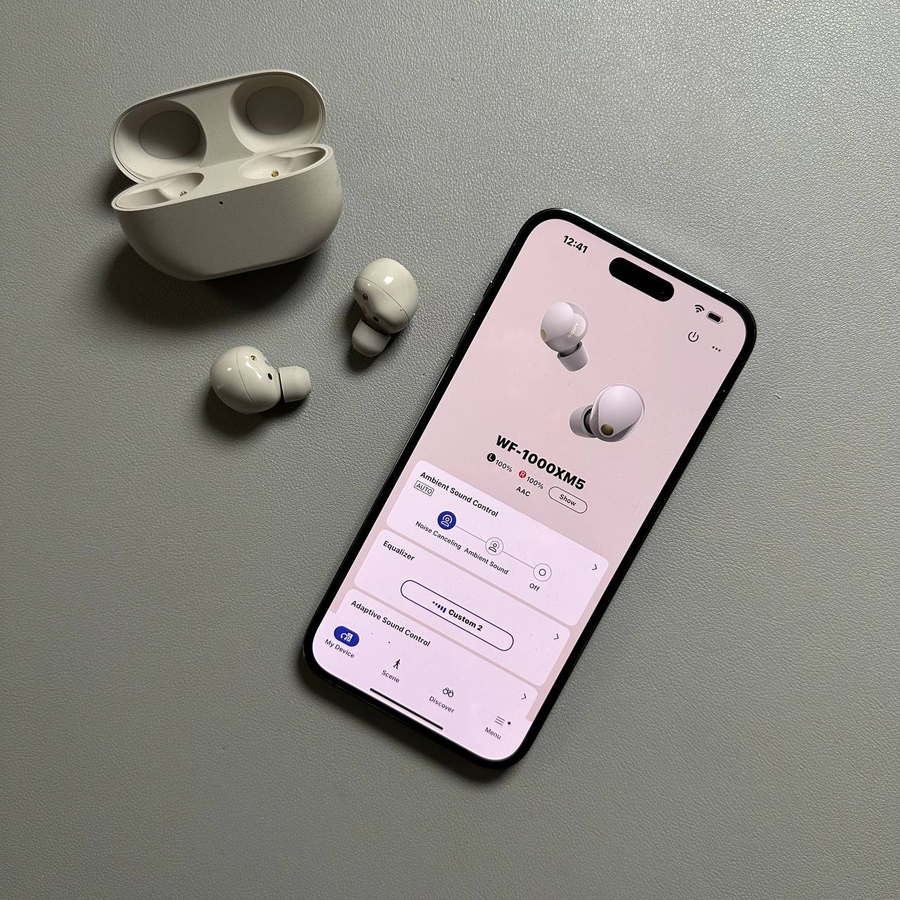
First things first, you need to have the official application from Sony. Download and open the Sony Sound Connect app on your smartphone or tablet. This app is the control centre (centre) for your Sony audio devices and handles all firmware updates.

Step 2: Verify Your Earbuds Are Connected
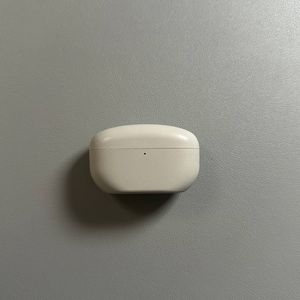
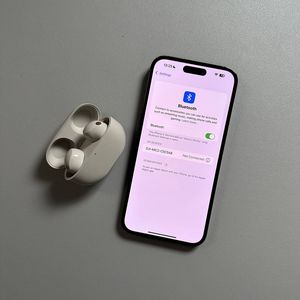
Ensure that your WF-1000XM5 earbuds are properly connected to your device via Bluetooth. Open the charging case, place the earbuds in your ears, or just verify the connection status within the Sony Sound Connect app. The app must recognise (recognize) your earbuds to begin the update process.

Step 3: Navigate to the Update Details
Inside the app, you will likely see a notification or section related to a new update. Look for and tap on the option labelled ("More Info") or a similar prompt about the available update. This will take you to the detailed firmware update screen, which explains what the update includes.

Step 4: Start the Download and Transfer
On the update screen, tap on the "Start" (start) option to begin the process. The app will first download the necessary update files to your phone. After downloading, it will automatically start transferring those files from your phone to the WF-1000XM5 earbuds. This transfer is the longest part of the process, so make sure your phone and earbuds have a good charge!

Step 5: Keep the Charging Case Open and the Earbuds connected
This is a crucial step! While the firmware is being installed on the earbuds, you must keep the lid of the charging case open and earbuds connected. This allows the connection to remain stable and uninterrupted. Do not close the lid until the app confirms the update is completely finished.

Step 6: Confirm and Finish the Update
Once the installation is complete, the app will notify you. Wait until the application explicitly confirms the update status has changed to "Up to date." Congratulations, you are all done! You can now close the case, disconnect your earbuds, and enjoy your updated Sony WF-1000XM5 with all the latest improvements.