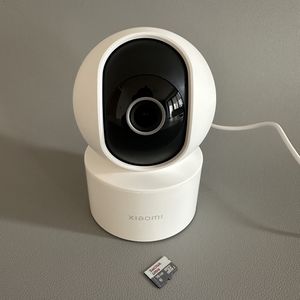
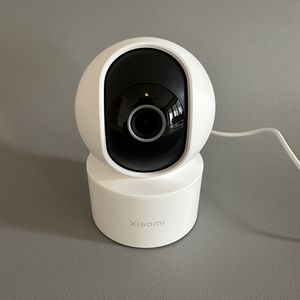
Xiaomi C200: How to Easily Connect Your Camera to WiFi
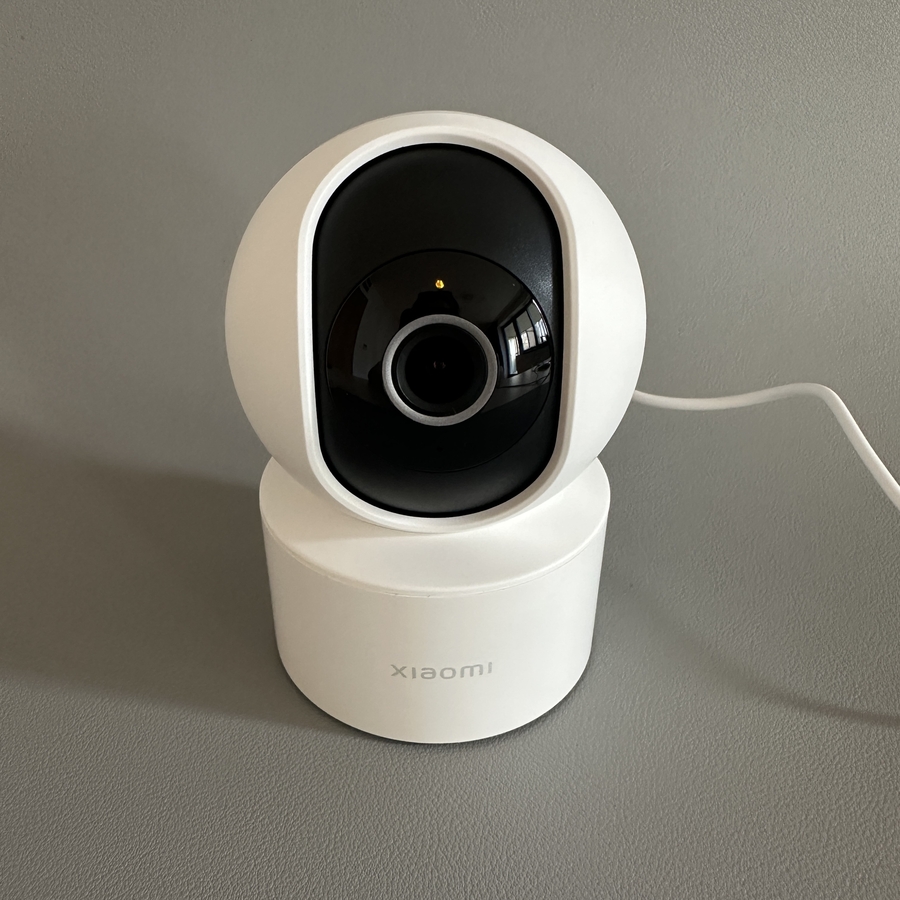
Setting up your Xiaomi C200 camera to connect to your WiFi network is a simple and straightforward process when using the Mi Home App. Whether you're an Android or iPhone user, this guide will walk you through every step to get your camera online in no time, ensuring that you can keep an eye on your space from anywhere.
Step 1: Download and Install the Mi Home App
To begin, unlock your mobile device and navigate to your app store. For Android devices, access the Google Play Store, and for Apple devices, use the App Store. In the search bar, type Mi Home and download the application. Once installed, open the Mi Home App. You may be prompted to enable notifications, so ensure that these are allowed for full functionality of the app.

Step 2: Set Up a Mi Account
On launching the Mi Home App, select your region. If you don't have a Mi Account, tap Create an account (create an account). Input your email address, create a secure password, and complete the registration process. Tap Okay to proceed. You will need to accept the User Agreement and Terms of Service. A verification code will be sent to your email; enter this code in the app to confirm your registration.

Step 3: Connect Your Camera via Cable and Verify
After setting up your account, you will need to connect your Xiaomi C200 camera to the network using the cable provided with the purchase. Wait until the camera's indicator light starts flashing yellow slowly. This signals that the camera is ready to be connected wirelessly. Be sure to grant location permissions to enhance connection accuracy.

Step 4: Add Your Camera to the Mi Home App
In the main screen of the Mi Home App, tap the plus icon to add a new device. Choose Add Device (add device) and allow any necessary permissions. Select Scan (scan) to add the camera. Locate the QR code at the bottom of your Xiaomi C200 camera and scan it using your phone. This will link the camera to the app.


Step 5: Connect to Your WiFi Network
You will now need to select your WiFi network from the list within the app and enter your network password. After entering the password, tap "Connect" (connect) to link the camera to your WiFi network. Once the connection is established, you can proceed to the next step.

Step 6: Finalise Setup and Enable Live View
Congratulations! Your Xiaomi C200 camera is now connected.