How to Enable or Disable Double Tap to Lock on CMF Phone 2 Pro
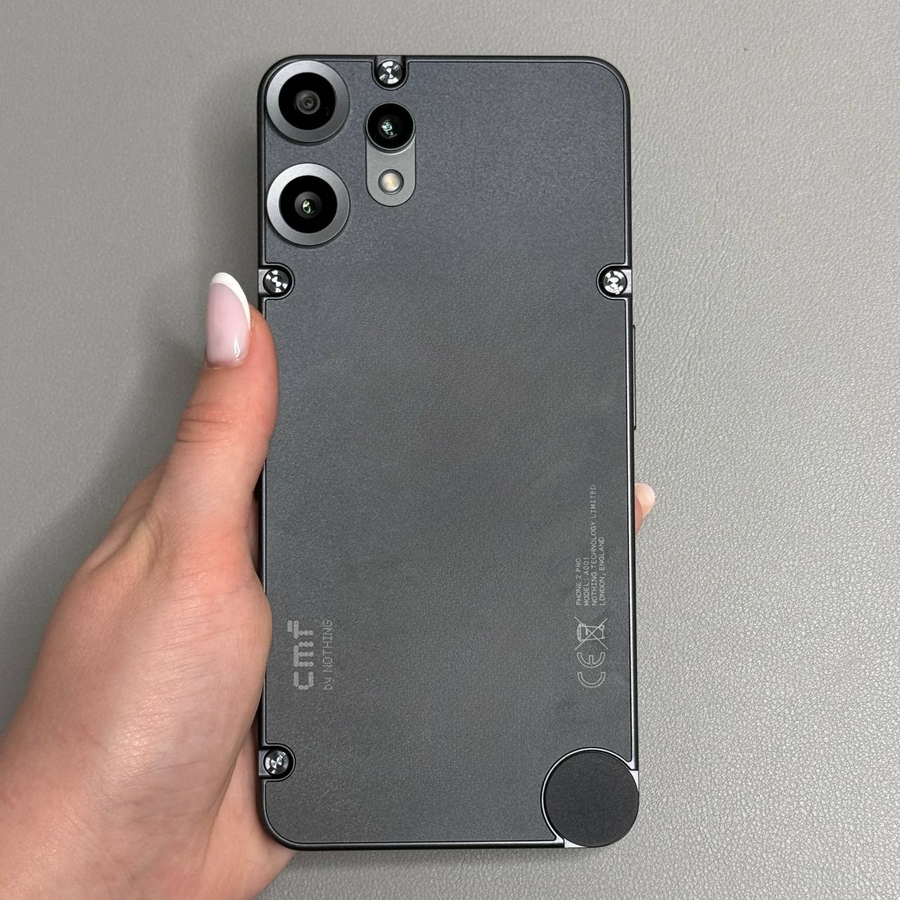
If you're looking to easily secure your CMF Phone 2 Pro by locking it with a simple double tap, or if you wish to disable this feature for any reason, this guide will walk you through the straightforward process. Follow these steps to manage the Double Tap to Lock functionality on your device effortlessly.
Step 1: Open Home Screen Settings
First, ensure your CMF Phone 2 Pro is unlocked and on the home screen. To initiate the process, press and hold your finger on an empty area of the home screen. This will trigger a quick-access menu, providing various customization options.

Step 2: Navigate to Home Settings
In the menu that appears, look for and select the option labeled 'Home Settings.' This section allows you to personalize how your home screen behaves according to your preferences.

Step 3: Locate 'Double Tap to Lock' Option
Once in the Home Settings menu, scroll and search for the feature named 'Double Tap to Lock.' This feature lets you lock your phone simply by double tapping a clear space on the home screen.

Step 4: Enable or Disable Double Tap to Lock
After finding the 'Double Tap to Lock' option, tap on it. Here, you can enable or disable this feature by simply toggling the switch. Make sure to set it according to your preference.

That's all there is to it! You can now enjoy the convenience of locking your phone with a double tap or keeping this feature disabled based on your choice.