How to Enable and Set Up Portable Hotspot on HONOR 400 Lite
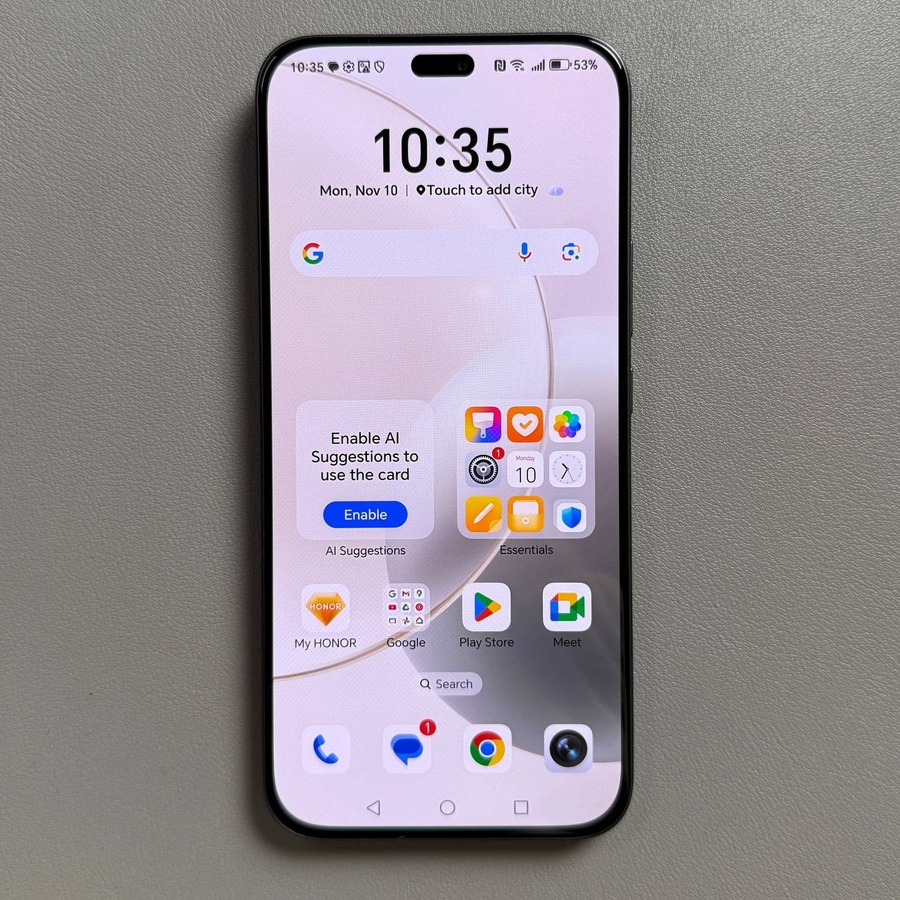
Welcome to your complete guide on configuring a portable hotspot on your HONOR 400 Lite. This handy feature allows you to share your mobile internet connection with other devices, ensuring you're connected wherever you go. Whether you need internet access for a tablet, laptop, or another smartphone, you can easily enable this function on your HONOR device following the steps below.
Step 1: Access the Quick Settings Menu
To begin, unlock your HONOR 400 Lite and swipe down from the top of your screen to reveal the notification shade. Swipe down once more to expand the list of quick settings icons. These icons offer fast access to many of your phone's features.

Step 2: Locate and Hold the Hotspot Toggle
Among the various icons displayed, look for the hotspot icon. Its position may vary; it might be at the forefront or you may need to scroll through the options to find it. Once located, press and hold the hotspot icon to navigate directly to the hotspot settings menu.

Step 3: Configure Your Hotspot Settings
In the hotspot settings, you will find the current hotspot password. This password is crucial as it determines who can connect to your hotspot. If you prefer not to memorize or use the existing password, you can easily change it here. Simply delete the existing password and input your desired one, ensuring it has at least eight characters composed of letters and/or numbers. When you are satisfied with your new password, press "OK" to confirm the changes.


Step 4: Enable the Portable Hotspot
Once your settings are configured and your new password is set, return to the quick settings menu by swiping down twice as previously described. Find the hotspot icon again and this time, simply tap on it to activate the portable hotspot. You can now connect to this hotspot with other devices. Be aware that running a hotspot can significantly consume your phone's battery, so it's best to turn it off from the same toggle when not in use.