How to Enable or Disable LED Flash on Incoming Calls for OnePlus 13R 5G
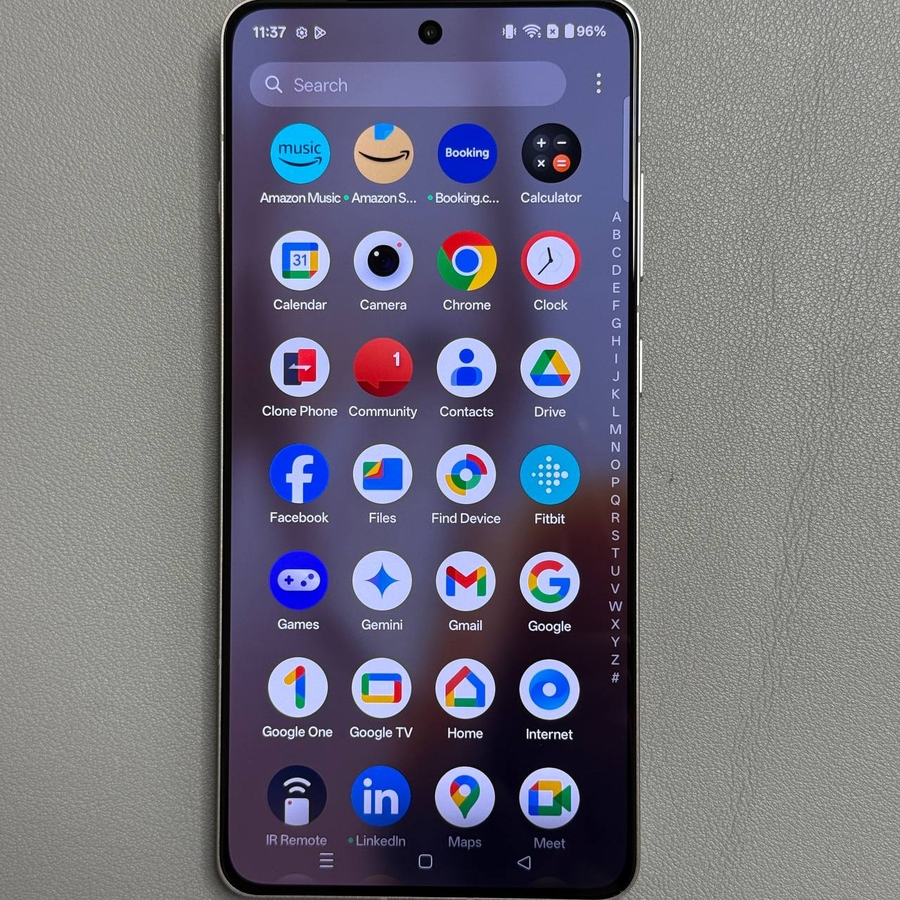
Are you looking for a way to enable or disable the LED flashlight on your OnePlus 13R 5G during incoming calls? This guide will take you through the necessary steps to easily manage the LED flash feature, ensuring you never miss an important call notification again. Whether in a silent mode or needing visual alerts, we'll help you adjust the settings effortlessly.
Open the Settings App on OnePlus 13R 5G
To begin, unlock your OnePlus 13R 5G device and locate the Settings app. You can find this app on your home screen or within the app drawer, represented by a gear-shaped icon. Tap on it to proceed.

Navigate to Mobile Network Settings
Once you're in the Settings menu, look for the option labeled "Mobile Network." Tap on this option to continue configuring your call settings.

Access Call Settings
In the Mobile Network settings, scroll down to find the section called "Call Settings." Tap this button, which will direct you to additional options related to incoming calls.

Find and Tap on More Settings
Next, look for the option labeled "More Settings" within the call settings. This selection opens up various advanced features and tweaks you can apply.

Toggle Flash On Call Feature
In the More Settings menu, locate the "Flash on Call" feature. By turning this setting ON, your device's camera flash will blink whenever you receive an incoming call, especially handy when the screen is locked. To customize its behavior, simply toggle the setting ON or OFF based on your preference.