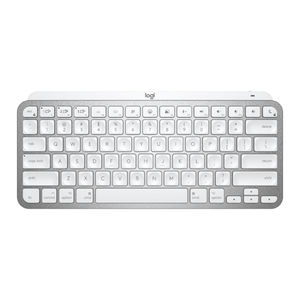
How to Use Standard Actions for F1, F2, F3 on Logitech MX Keys Mini Keyboard

Are you looking to get more out of your Logitech MX Keys Mini Keyboard by using the F1, F2, F3, and other function keys as standard keys instead of their default special functions? This guide will walk you through the simple steps to change these settings using the Logitech Options Plus software. Follow along to customize your keyboard experience.
Step 1: Download and Open Logitech Options Plus
To begin, you will need to download and install the Logitech Options Plus software if you haven't already. This software is available from the official Logitech website. Launch your preferred web browser and search for "Logitech Options Plus download." Once you find the official download page, click to download and follow the on-screen instructions to install it on your computer.

Step 2: Navigate to Keyboard Settings
After you have successfully installed and opened Logitech Options Plus, you will see a list of connected Logitech devices. Click on your Logitech MX Keys Mini Keyboard to open its settings. This will allow you to access configuration options specific to your keyboard model.

Step 3: Enable Standard Function Keys
Once you're in the settings menu for your keyboard, look for an option labeled "Use F1, F2, etc., as standard function keys." You can toggle this setting on or off depending on your preference. Enabling this option will allow you to use the function keys for their standard actions instead of their default special functions like adjusting volume or brightness.

And there you have it! Your Logitech MX Keys Mini Keyboard is now set up to use the F1, F2, F3, and other keys as standard function keys.