How to Customize Notification Settings on Your Eufy Indoor Cam E220 2K
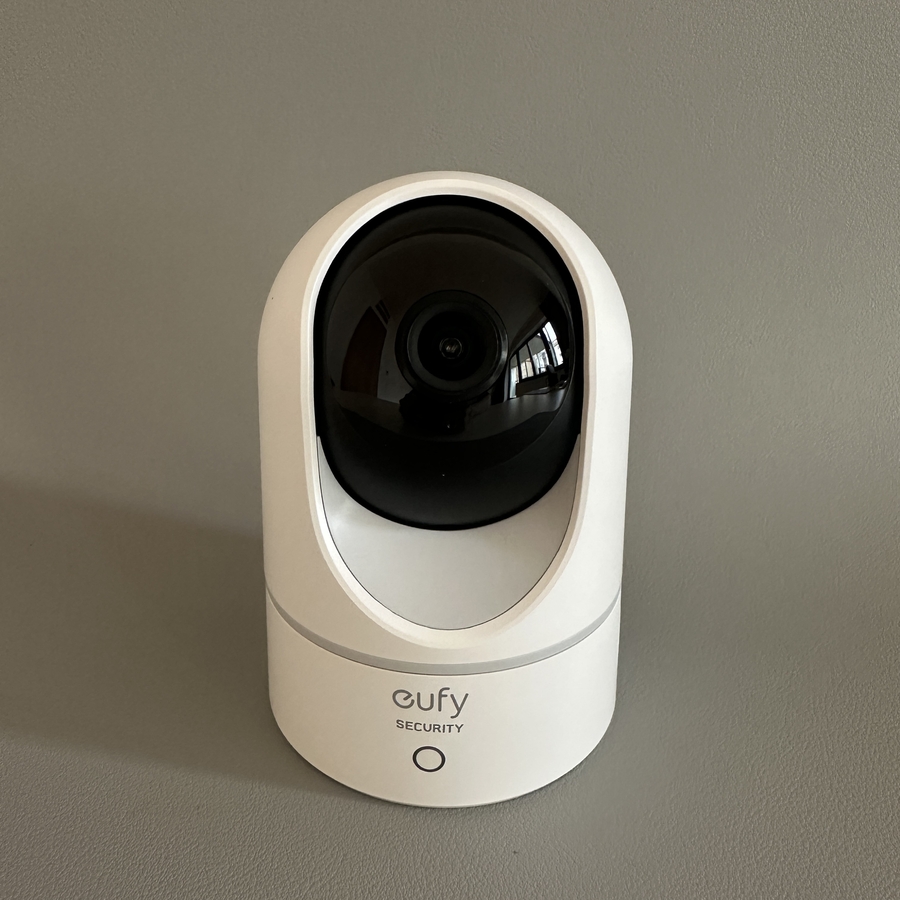
In this guide, we will walk you through the process of customising the notification settings on your Eufy Indoor Cam E220 2K. Tailoring these settings can ensure you receive alerts that are most relevant to your needs, whether it's for general motion detection, sound alerts, or specific activities such as detecting when your pet is moving around the house.
Step 1: Open the Eufy Security App
To begin, unlock your device and navigate to the home screen. Here, locate and open the Eufy Security app.

Step 2: Access the Camera Settings
Once the app is open, you will see the live feed from your Eufy Indoor Cam E220 2K. Select your camera and tap on the gear icon to access the device settings.

Step 3: Navigate to the Notifications Tab
Scroll through the settings menu until you locate the tab labelled "Notifications" (Notifications). This is where you'll find a variety of options to customise how you receive alerts for activities detected by your camera.

Step 4: Customize Detection Alerts
In the Notifications tab, you can choose which types of detections you want to be notified about. Options include motion detection, specific sounds like crying, and even unique settings for detecting pets and humans. Simply check the boxes for the events you want notifications for. If you wish to stop receiving alerts for certain activities, just tap the corresponding option again to uncheck it.

Step 5: Set Notification Interval
Next, determine how quickly you want to receive notifications by setting the interval. You have five choices ranging from 0 to 5 minutes. For instant alerts, it's best to set this to 0.

Step 6: Choose Notification Content
You can also decide on the content format of your notifications. Options include receiving the most efficient text notifications, full-effect notifications with text and thumbnail images, or including additional detailed thumbnails. For a comprehensive alert experience, select the full-effect option.

Step 7: Fine-Tune Motion Alerts
Finally, explore additional motion alert settings offered by the app. By tapping on the motion alerts section, you'll find various extra options to customise how the Eufy Indoor Cam E220 2K reacts when motion is detected. Choose the settings that best suit your needs to ensure you are always in the know.