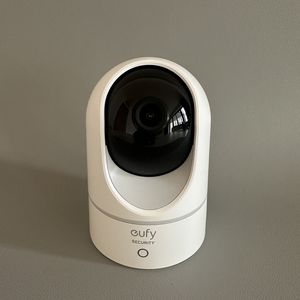
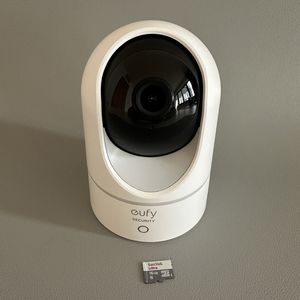
Eufy Indoor Cam E220 2K: How to Set Up Activity Zones
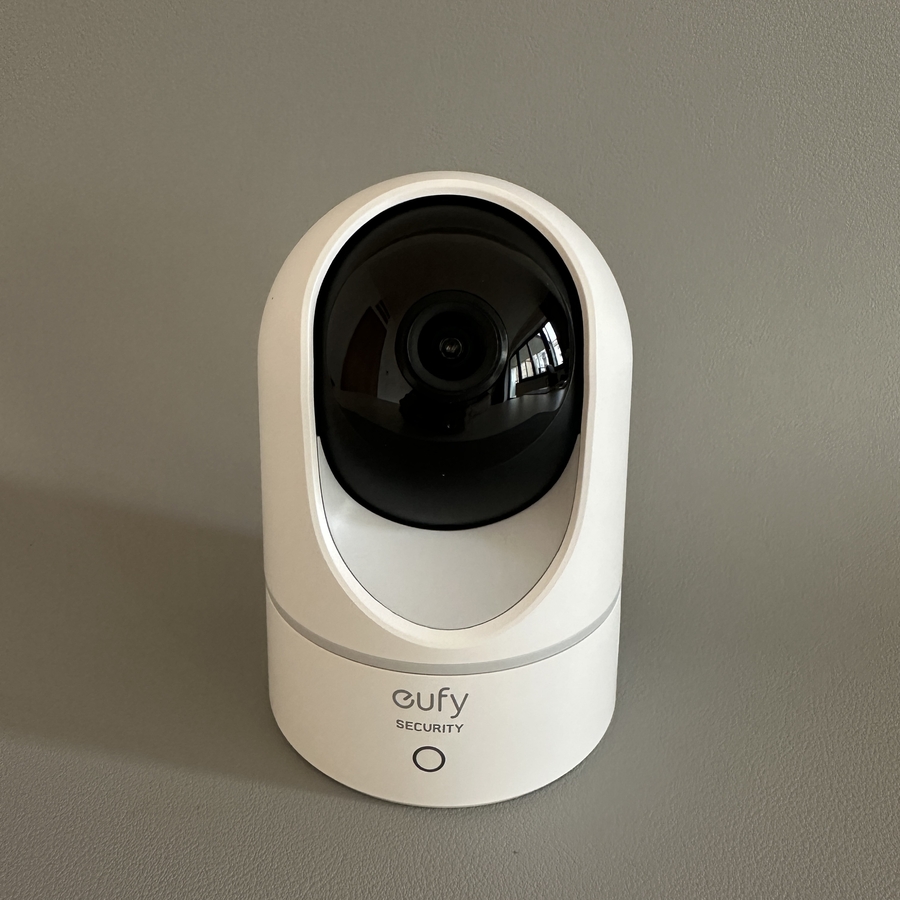
Welcome to our comprehensive guide on how to set up activity zones for your Eufy Indoor Cam E220 2K. This feature is particularly helpful to ensure that your camera only responds to movements in specific areas of interest, such as in front of a gate or near your front door. Let's walk through the steps to customise these settings for optimal use.
Step 1: Open the Eufy Security App
To begin with, unlock your smartphone or tablet and locate the Eufy Security app. Its icon resembles a blue and white shield and can often be found on your home screen or within your app drawer. Tap on the app icon to open it.

Step 2: Access the Settings Menu
Once the app is open, you will see the live feed from your Eufy Indoor Cam E220 2K. Select your camera and tap on the gear icon to access the device settings.

Step 3: Select Motion Detection
Once in the settings menu, you find the option labelled "Motion Detection" (motion detection). Tap on this option to proceed to the motion detection settings.

Step 4: Choose Activity Zone
In the motion settings, you'll see a tab named "Activity Zone" (activity zone). Go ahead and tap on it to enter the activity zone management interface.

Step 5: Adding an Activity Zone
To create a new activity zone, tap on the + icon. A flexible rectangle will appear on your screen. You can drag this shape to position it over the desired area you want your camera to focus on. To resize the zone, simply use a pinching motion with two fingers until you achieve the size you need.

Step 6: Confirming Your Zone
After positioning and resizing your activity zone, look for the check mark icon on the screen. Tap it to confirm and save your changes. If you wish to add another zone, repeat the process, or you can delete the current zone immediately if no longer needed.

Step 7: Save and Exit
To finalise the setup, simply tap the back arrow usually located at the top left corner of the screen. Your Eufy Indoor Cam will now only react to movements within the zones you have defined.

That's all it takes to set up activity zones on your Eufy Indoor Cam E220 2K.