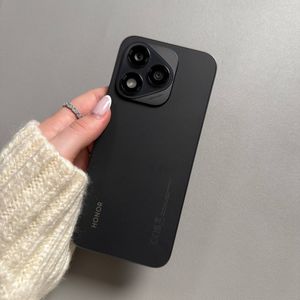
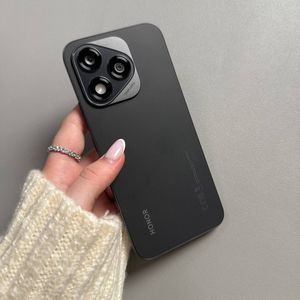
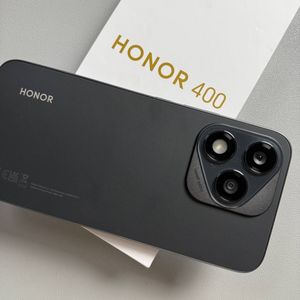
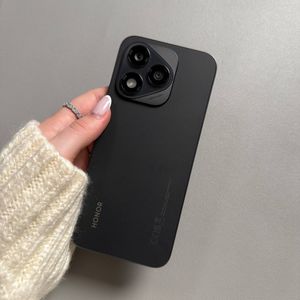
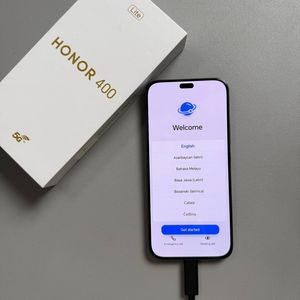
HONOR 400 Lite - How to Turn Off Ads and Stop Pop-Ups
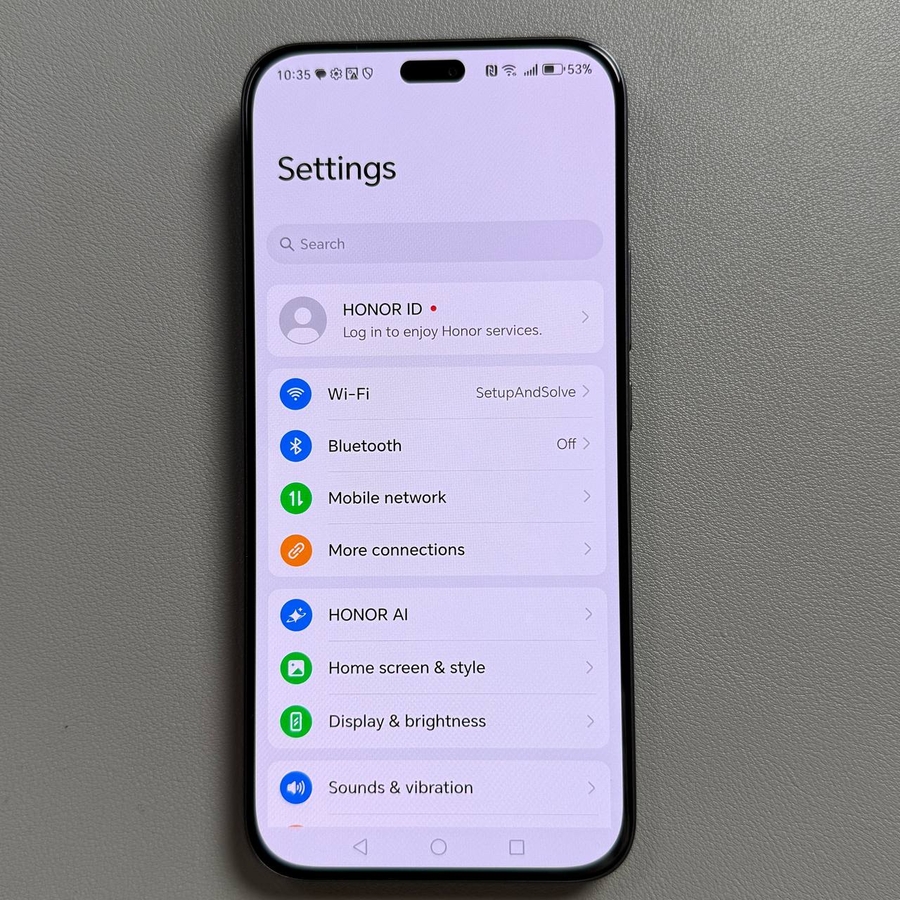
Welcome to our comprehensive guide on how to disable those pesky ads on your HONOR 400 Lite. Here, we'll walk you through several methods to manage and limit advertisements for a more enjoyable and free-flowing mobile experience.
Step 1: Disable Personalized Ads
First, we need to stop personalized ads from popping up. To do this, start by unlocking your HONOR 400 Lite and locating the Settings app — usually marked by a gear icon. Once opened, scroll down to the bottom and select the 'Google' option. Here, choose 'All Services.' You don't need to be signed in to your Google account to make these changes. Next, scroll down to find 'Privacy and Security,' and tap on 'Ads.' At this point, you can reset your advertising ID. Simply tap the option and confirm the action to remove ad personalization. Additionally, within this menu, you'll find options allowing you to manage your ad privacy settings. Ensure all toggles are switched off to prevent personalized ad content.


Step 2: Manage App-specific Notifications
If specific apps like your browser are generating ads, let's address that next. Locate the app — for instance, Google Chrome — on your home screen or in the app drawer. Press and hold the app icon until a menu appears, then choose 'App Info.' Within 'App Info,' select 'Notifications.' Browse through the notification types and look for any that relate to ads. If you find one, turn off the switch to disable those particular notifications.


Step 3: Configure a Private DNS
Another effective method is configuring a private DNS to block ads. In the Settings menu, scroll and tap on 'More Connections.' Then, locate and select 'Private DNS.' You'll find it set automatically. Tap on 'Configure Private DNS' and enter 'dns.adguard.com'. You don't need to press any confirmation buttons; simply scroll back to save these settings. Your HONOR 400 Lite will now use AdGuard's DNS server, potentially blocking many ads from appearing.


Step 4: Consider Alternative Apps
Lastly, if an app persistently displays ads, you might want to consider replacing it. Head over to the Google Play Store, and search for alternative applications that might offer ad-free experiences. By switching to such apps, you could eliminate unwanted ads altogether.


Step 5: Use a Browser with Built-In Ad Blockers
An additional tip is to use a web browser that features a built-in ad blocker. Browsers like Brave or the ad-block extensions available for Firefox can considerably reduce the number of ads that appear while you're surfing the web. Simply download one of these browsers from the Google Play Store, configure the ad-blocking settings in their options, and use them as your primary browser for an improved web experience.


Step 6: Keep Your Device Updated
Finally, ensure your HONOR 400 Lite is kept up-to-date. Software updates frequently include improved security features and enhancements that could include better ways to manage and reduce ads. To check for updates, go to 'Settings,' scroll down to 'System,' and tap on 'System Update.' If there's an update available, follow the on-screen instructions to install it.


And there you have it! By following these steps, you can effectively control and minimize ads on your HONOR 400 Lite.