How to Sign In To Your Samsung Account on Samsung Galaxy A56
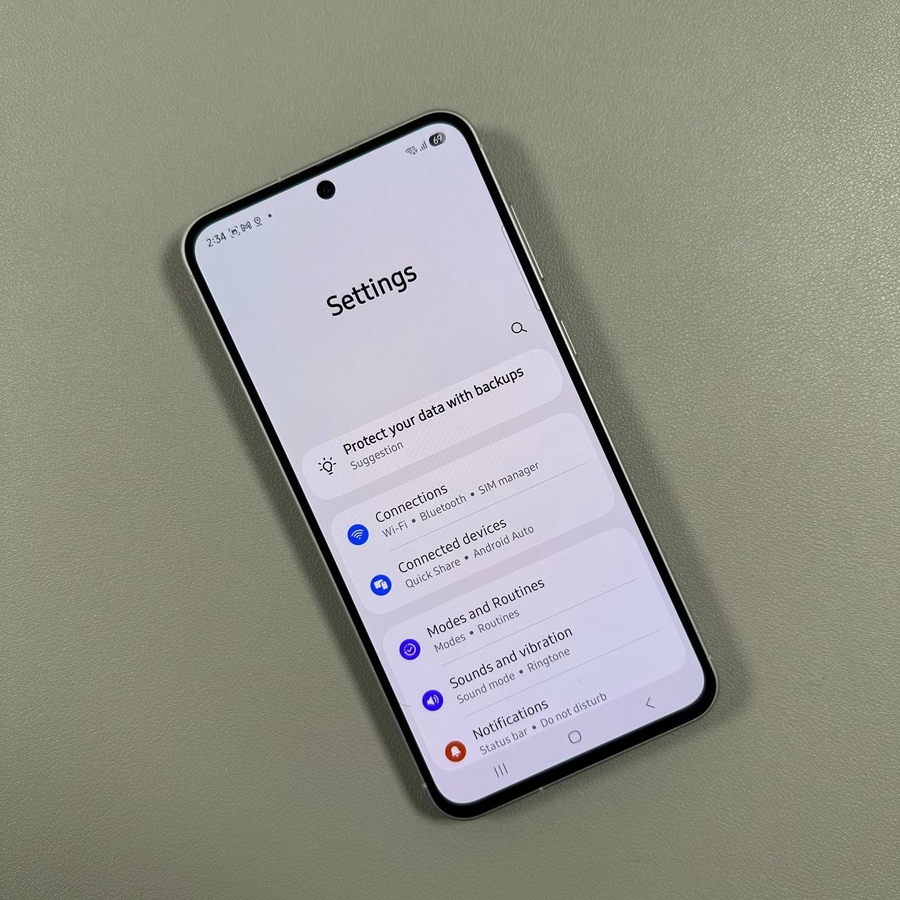
In this guide, you'll discover how to sign in to your Samsung Account directly on your Samsung Galaxy A56. Having a Samsung Account on your phone grants you access to exclusive features such as "Find My Phone", "Samsung Health", and various customization options that are exclusive to Samsung Account holders.
Step 1: Open the Settings App
To begin, unlock your Samsung Galaxy A56 and locate the Settings app. The icon typically resembles a gear and can be found on your home screen or by swiping up to access the app drawer. Tap it to open.

Step 2: Find the Sign In Option
Once you're in the Settings menu, look towards the top of the list, where you'll see an option labeled "Sign in to your Galaxy". Tap on this option to proceed.

Step 3: Choose Your Sign-In Method
You will be presented with several sign-in options. If you already have a Google account linked to your phone, you can opt to "Sign in with Google". Alternatively, you can input your email or phone number associated with your Samsung Account, or even scan a QR code if applicable.

Step 4: Forgot Password or Username?
If you have forgotten your Samsung Account password, username, or do not yet have an account, tap on "Forgot ID or password?" and follow the instructions to recover your account or set up a new one.

Step 5: Follow the On-Screen Instructions
After choosing your sign-in method, follow any additional on-screen instructions. This might include a two-step verification process for added security. Enter any verification codes as prompted and proceed by tapping "Verify".

Step 6: Agree to Terms and Conditions
Next, you'll be directed to a page asking for your agreement to the terms and conditions. Note that some agreements are mandatory, such as the terms and account privacy notice, while others are optional. Review these carefully, then tap "Agree" to finish the process.

Step 7: Start Using Your Samsung Account
Once successfully signed in, you can start leveraging your Samsung Account on your Samsung Galaxy A56 to access your favorite Samsung features and services.