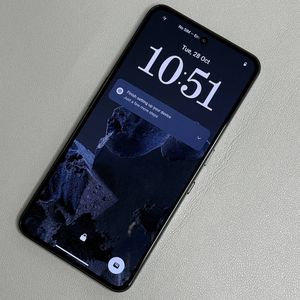
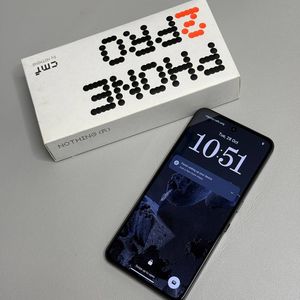
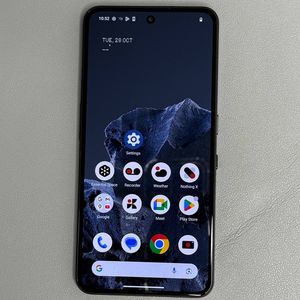
How to Enable or Disable Always-On Display on CMF Phone 2 Pro
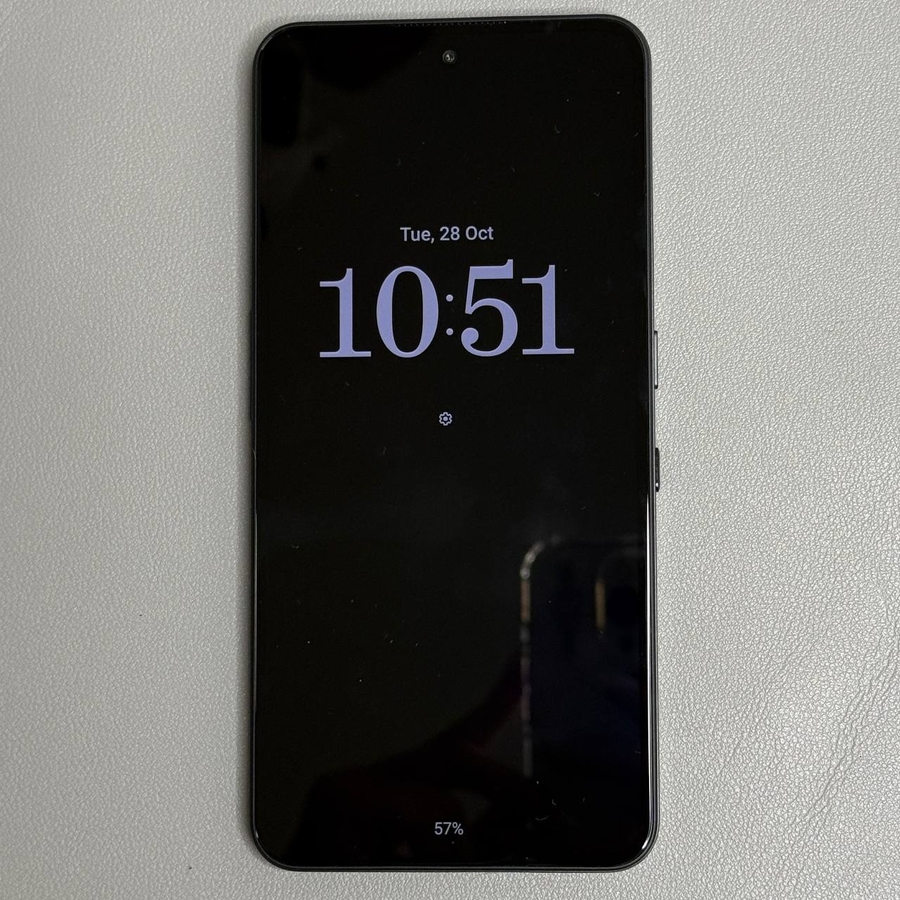
Welcome to our detailed guide designed to assist users of the CMF Phone 2 Pro in enabling or disabling the always-on display (AOD) feature. This functionality is particularly useful for those who want to glance at essential information like time and notifications without unlocking their phone. Follow our step-by-step instructions, and you'll be able to customize this feature in no time.
Step 1: Open the Settings App
To begin, ensure your CMF Phone 2 Pro is unlocked. Look for the Settings app, typically represented by a gear icon on your home screen or within the app drawer. Tap on it to access your phone's settings.

Step 2: Navigate to the Display Settings
Once inside the Settings menu, scroll down slightly until you see the "Display" option. Select it to explore the settings related to your phone's screen.

Step 3: Access Always-On Display
Within the Display settings, continue to scroll until you reach the section marked "Looking for other settings". Here you will find the option for "Always-On Display" (AOD). Tap on it to proceed to the configuration settings.

Step 4: Enable or Disable the Always-On Display
In the AOD settings, you'll encounter options to toggle the feature on or off. Additionally, you can set specific times during which the display remains active. Opt for the "Schedule" option if you wish to customize the start and end times according to your preferences. This way, you can ensure the feature is active only when you want it.


Step 5: Confirm the Changes
To verify that the Always-On Display feature is functioning as expected, you can lock your phone screen. If enabled, the AOD will display selected information even when the phone is locked. In contrast, if you've disabled it, the screen will remain dark.