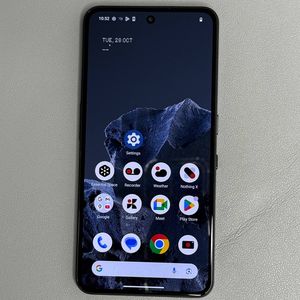
How to Perform a Virus Scan on the CMF Phone 2 Pro
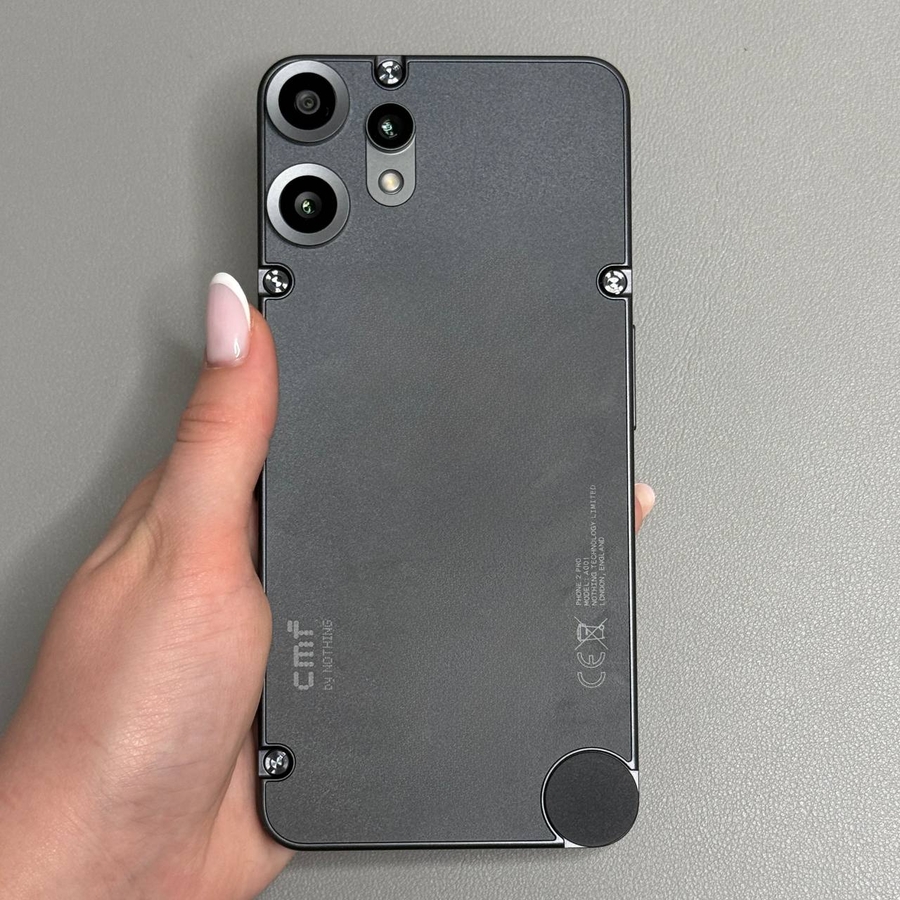
In the digital age, keeping your smartphone free from viruses and malware is essential. If you're using a CMF Phone 2 Pro, you can easily check for harmful software with the built-in Google Play Protect feature. Follow this guide to safely perform a virus scan on your device and ensure your data remains secure.
Step 1: Open Settings
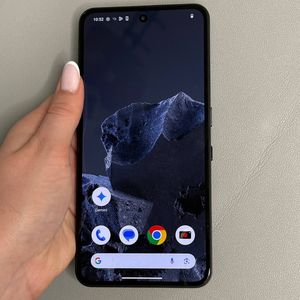
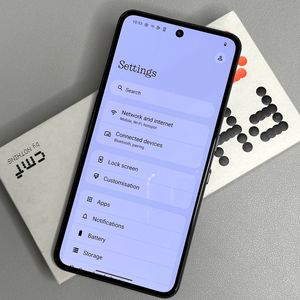
To begin, unlock your CMF Phone 2 Pro by entering your passcode, using biometrics, or by swiping up from the bottom of the screen. Once you have access to the home interface, look for the gear-shaped icon labeled "Settings". Tap on this icon to proceed.

Step 2: Navigate to Security and Privacy
Inside the Settings menu, scroll down gently until you find the option labeled "Security and Privacy". This section houses all security-related settings for your CMF Phone 2 Pro. Tap on it to continue.

Step 3: Access App Security
Within the Security and Privacy menu, you'll notice several options to choose from. Locate the "App Security" option and give it a tap to access the security controls related to apps installed on your device.

Step 4: Select Google Play Protect
Once you're in the App Security section, look for "Google Play Protect". This will allow you to scan your device for potentially harmful apps or software. Tap on Google Play Protect to continue.

Step 5: Perform the Virus Scan
Now that you're on the Google Play Protect page, you'll find a button labeled "Scan". Press this button to start scanning your CMF Phone 2 Pro for any malware or dangerous applications. This process may take a few minutes, depending on the number of apps installed on your device.

And there you have it! You've successfully used Google Play Protect to perform a virus scan on your CMF Phone 2 Pro.