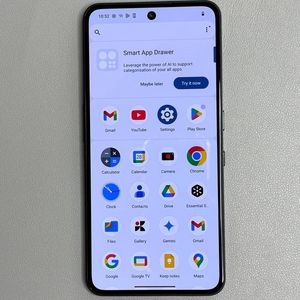
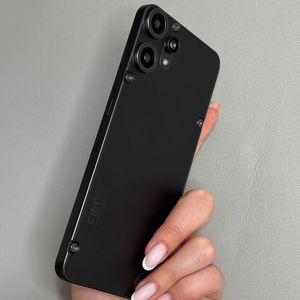
CMF Phone 2 Pro - How to Enable and Use One-Handed Mode
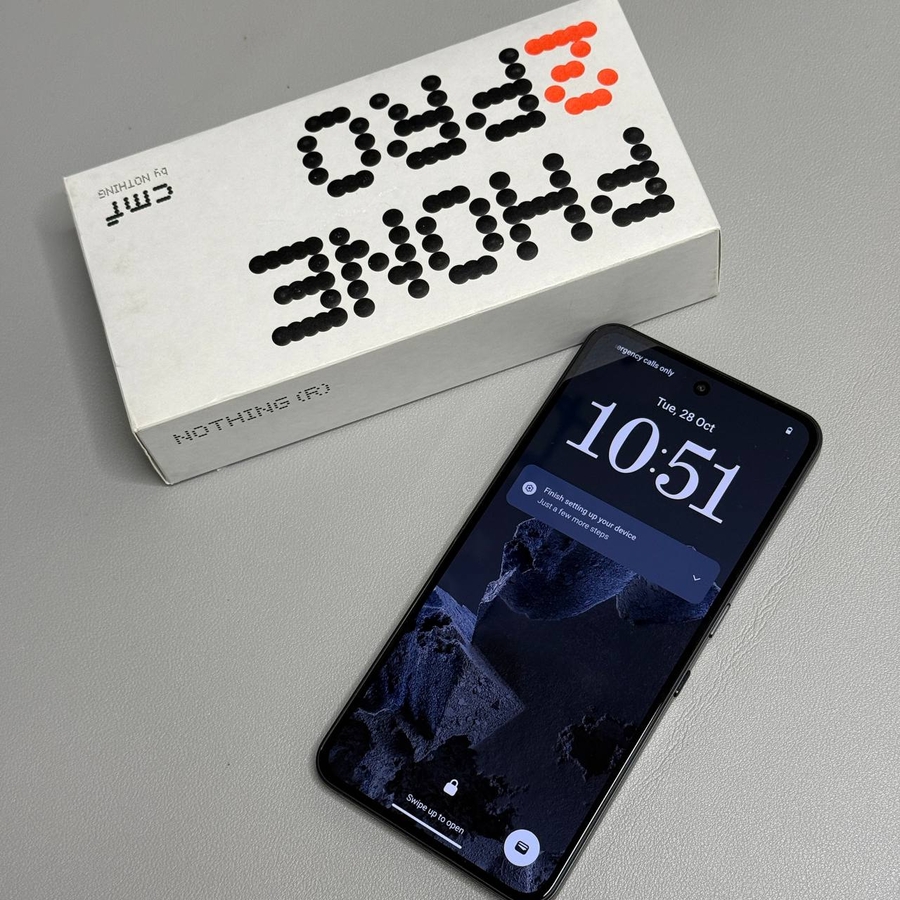
The CMF Phone 2 Pro, like many modern smartphones, offers a convenient One-Handed Mode, making it easier to use the device with just one hand. This feature is particularly helpful when you're multitasking or when one hand is otherwise occupied. Here's a detailed guide on how to enable and use One-Handed Mode on your CMF Phone 2 Pro.
Step 1: Accessing the Settings
To start, make sure your CMF Phone 2 Pro is unlocked. Once on the home screen, locate the Settings app. You can do this in two ways: either by swiping down from the notification bar and accessing the Settings icon or by scrolling through your app list to find and tap on the gear-shaped icon.

Step 2: Navigate to Special Features
Within the Settings menu, scroll down until you see the option labeled "Special Features." Tap on it to continue. This area contains various unique functionalities that enhance your phone usage experience.

Step 3: Enable One-Handed Mode
Next, tap on the "Gestures" option within Special Features. Here, you'll find the "One-Handed Mode" setting. Use the switch beside it to turn on this feature. If you are using gesture navigation, ensure that the option "Pull screen into reach" is activated.


Step 4: Using One-Handed Mode
Now that you have enabled One-Handed Mode, using it is effortless. Swipe down from the bottom of your screen to bring the top half down within reach. This makes it easy to access content at the top of your screen with just your thumb.

Step 5: Exiting One-Handed Mode
To exit One-Handed Mode and return your screen to its full size, simply swipe up from the bottom or tap the area outside the reduced screen. This will restore the display to its normal layout.

Additional Options
If you prefer not to use gesture navigation but still want to activate One-Handed Mode, there's a shortcut available. Scroll down to the One-Handed Mode shortcut in the settings, enable it, and you can quickly toggle the feature as needed.