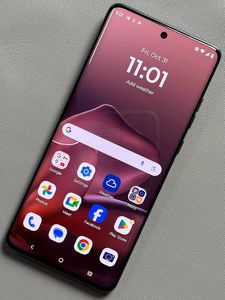
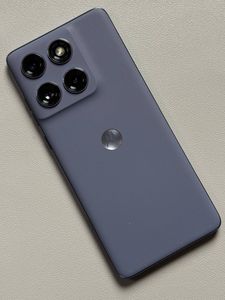
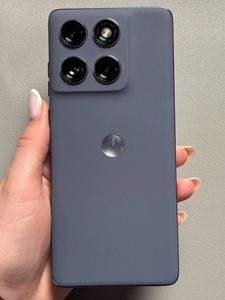
How to Enable Step Counter on Motorola EDGE 60 Fusion
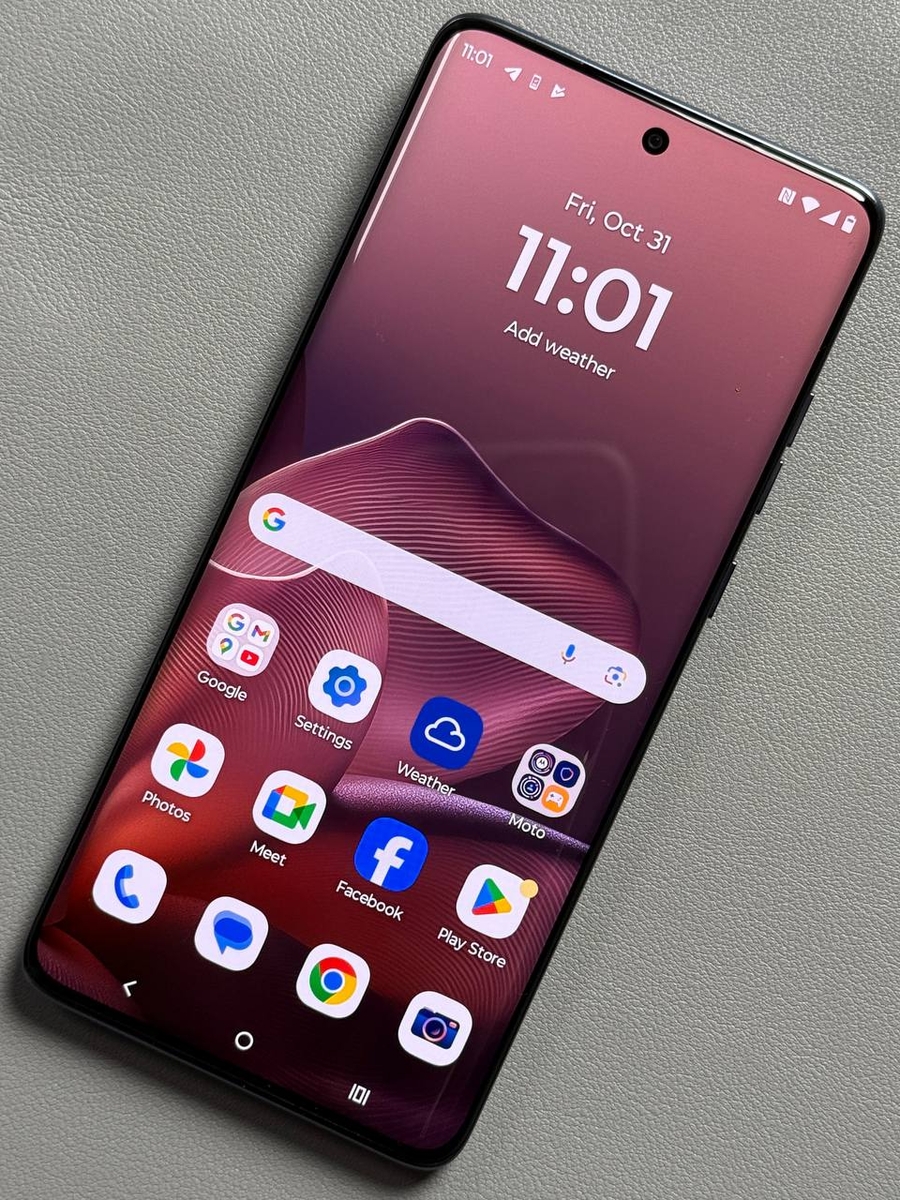
Tracking your daily steps can be very motivating and is a crucial component for many when it comes to maintaining a healthy lifestyle. Luckily, your Motorola EDGE 60 Fusion makes this easy with the Fitbit app. In this guide, we'll walk you through the steps required to enable and use the step counter, making sure you can check your progress at any time right from your home screen.
Step 1: Access the Google Folder in Your App Drawer
To begin, unlock your Motorola EDGE 60 Fusion and navigate to the app drawer from your home screen. Look for the Google folder, which contains essential apps integrated with Google services. Inside, you'll find the Fitbit app, which we'll use to access and track your step counter.

Step 2: Download the Fitbit App if Necessary
If the Fitbit app is not already installed on your device, you can download it for free from the Google Play Store. This app will enable you to track your steps and other fitness metrics seamlessly.

Step 3: Sign In and Set Permissions
Once you have the Fitbit app, open it and sign in with your Google account to start setting it up. During this process, be sure to grant the necessary permissions, such as allowing notifications, to make sure you're kept up-to-date with your activity progress.

Step 4: Access the Step Counter
After signing in, navigate through the Fitbit app interface to find the step counter feature. This tool will showcase your daily, weekly, and even monthly step counts, providing a comprehensive view of your physical activity.


Step 5: Add a Steps Widget to Your Home Screen
For easy access, you can add a Fitbit widget directly to your phone's home screen. Simply press and hold an empty space on your home screen until you see a Widgets option appear. Select this option and locate the Fitbit widgets in the list. You can then press and hold the Steps widget to drag it onto your home screen. This allows you to view your steps count anytime without opening the app.


And there you have it! By following these steps, you can easily keep track of your physical activity directly from your Motorola EDGE 60 Fusion.