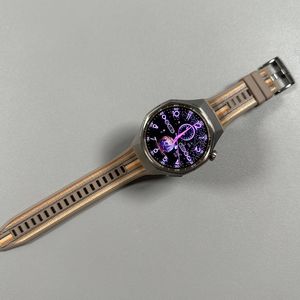
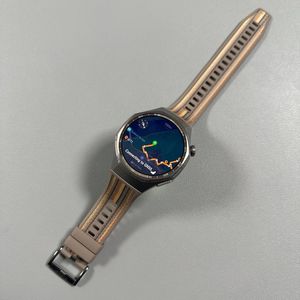
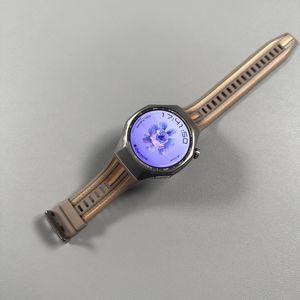
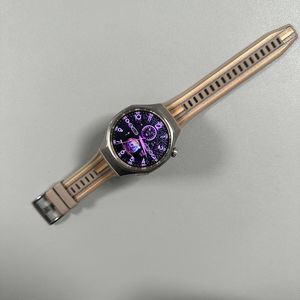
How to Customize Workout Displays on Huawei Watch GT 6 Pro
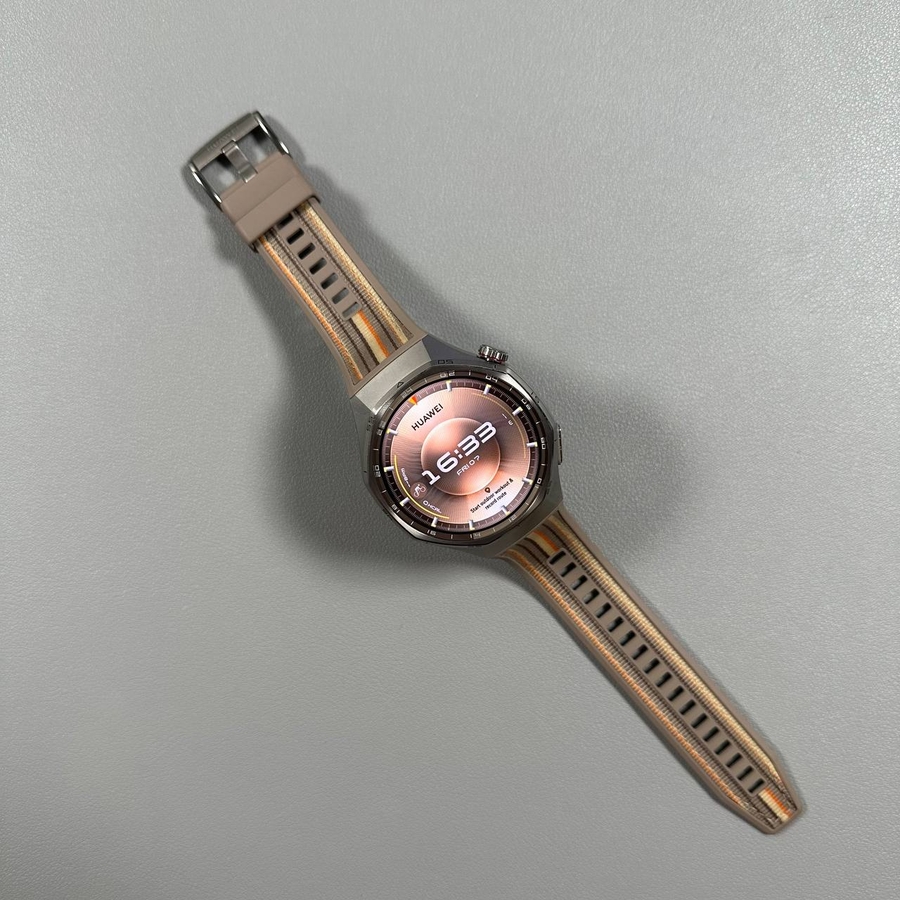
The Huawei Watch GT 6 Pro offers a wide array of features to customize your fitness tracking experience. In this guide, we will walk you through the steps needed to customize the workout displays on your smartwatch. Whether you want to track steps, monitor your heart rate, or keep an eye on your calories burned, these instructions will help you tailor your watch to meet your fitness goals.
Step 1: Access the Watch Menu
To start the customization process, activate your Huawei Watch GT 6 Pro by pressing the crown button on the side. Once the screen lights up, press the crown again to open the main menu.

Step 2: Navigate to the Workout Tab
In the main menu, you will find various options. Look for the 'Workout' tab among the icons and select it to view the different workout modes available.

Step 3: Choose Your Workout
From the workout options, choose the one that best suits your current activity. For example, select 'Outdoor Walk' if you are going for a casual walk.

Step 4: Customize the Display
Once your workout has started, you can now customize the display to better match your tracking needs. To do this, hold down on the workout screen, which will allow you to alter the data shown. Tap on the section you want to change, such as steps or cadence, and choose your preferred data, like steps counted.

Step 5: Explore Additional Options
Don't hesitate to explore other customization options. Swiping to the section labeled 'Other' will introduce you to more display options, such as sunrise, sunset, and calorie information. Feel free to experiment until your workout screen shows precisely what you want to track.


By following these steps, your Huawei Watch GT 6 Pro can offer a more personalized fitness tracking experience, helping you stay motivated and informed throughout your workout activities.