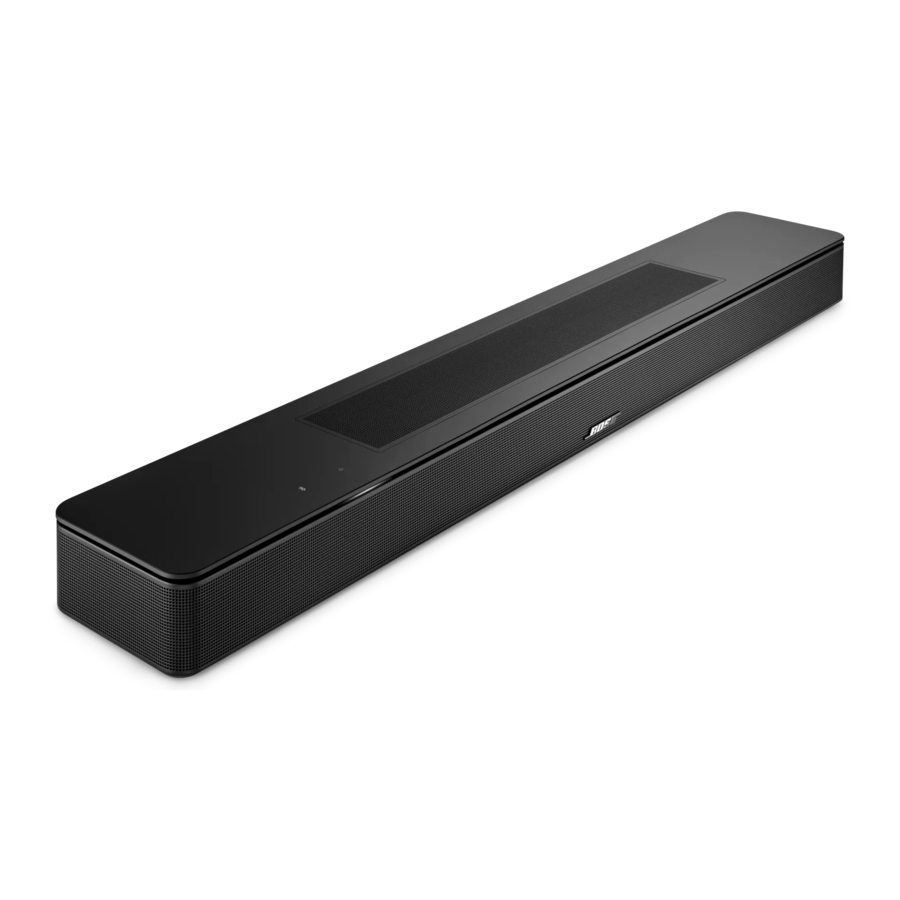
Bose Smart Soundbar 600 - Bluetooth Wireless Sound Bar for TV Manual
- 1 WHAT'S IN THE BOX
- 2 DOLBY ATMOS TECHNOLOGY
- 3 SOUNDBAR PLACEMENT
- 4 SET UP THE SOUNDBAR
- 5 BOSE MUSIC APP SETUP
- 6 EXISTING BOSE MUSIC APP USERS
- 7 SOUNDBAR CONTROLS
- 8 AMAZON ALEXA
- 9 WORKS WITH GOOGLE ASSISTANT
- 10 STREAM AUDIO WITH AIRPLAY
- 11 BLUETOOTH CONNECTIONS
- 12 SOUNDBAR STATUS
- 13 ADVANCED FEATURES
- 14 CONNECT BOSE PRODUCTS
- 15 CONNECT BOSE PRODUCTS
- 16 CARE AND MAINTENANCE
- 17 REPLACE THE REMOTE BATTERY
- 18 TROUBLESHOOTING
- 19 SETUP REFERENCE
- 20 References
- 21 Download manual
- 22 In Other Languages
WHAT'S IN THE BOX
CONTENTS
Confirm that the following parts are included:
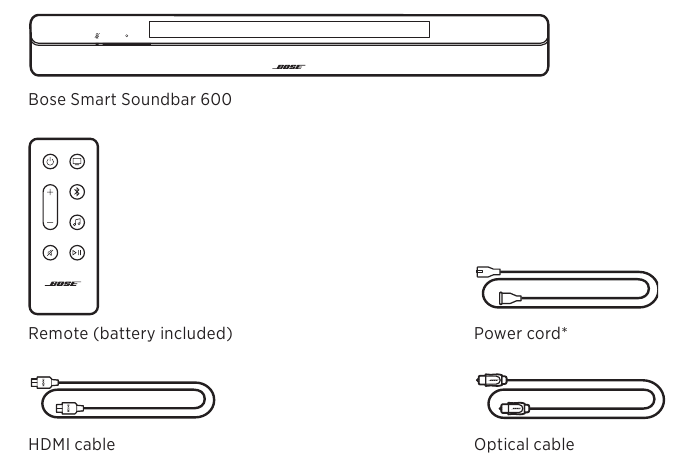
* May ship with multiple power cords. Use the power cord for your region.
NOTE: If any part of the product is damaged, don't use it. Contact your authorised Bose dealer or Bose customer service.
Visit: support. Bose.com/SB600
DOLBY ATMOS® TECHNOLOGY
The Bose Smart Soundbar 600 supports Dolby Atmos® technology. The soundbar uses up-firing and side-firing speakers to deliver high-quality sound from all directions, achieving a superb, immersive, and fully-encompassing surround-sound experience.
NOTE: To deliver the Dolby Atmos surround-sound experience, connect the soundbar to the HDMI eARC or ARC port on your TV. If your TV doesn't have an eARC or ARC port, you can connect the optical cable to the optical port to receive spacious and life-like sound.
SOUNDBAR PLACEMENT
RECOMMENDATIONS
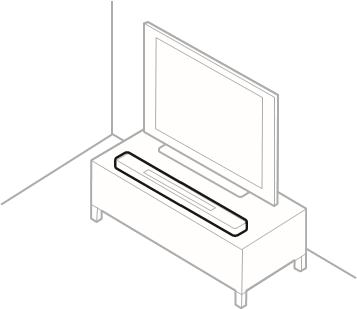
- Place the soundbar below and in front of the TV (preferred) or above your TV with the front of the soundbar facing into the room.
- For best sound quality, make sure the up-firing speakers on the top of the soundbar and the side-firing speakers on the side of the soundbar aren't blocked.
- When the soundbar is mounted to the wall, make sure the top of the soundbar is at least 4 in (10 cm) away from the TV.
- If placing the soundbar on a shelf or TV stand, position the front of the soundbar as close as possible to the front edge of the shelf or stand for best sound quality.
- Place the soundbar outside of and away from metal cabinets, other audio/video components, and direct heat sources.
- Place the soundbar on its rubber feet on a stable and level surface. For proper support, both feet must be resting on the surface. Vibration can cause the soundbar to move, particularly on smooth surfaces like marble, glass, or highly polished wood.
- Keep the back side of the soundbar at least 0.4 in (1 cm) from any other surface. Blocking the port(s) affects sound quality.
- Make sure there is an AC (mains) outlet nearby.
- To avoid wireless interference, keep other wireless equipment at least 1 – 3 ft (0.3 – 0.9 m) away from the soundbar.
- To avoid wireless interference, some Wi-Fi access points may need to be placed up to 8 – 10 ft (2.4 – 3.0 m) away from the soundbar, optional bass module, and optional surround speakers.
- For best sound quality, don't place the soundbar in an enclosed cabinet or diagonally in a corner.
- Don't place any objects on top of the soundbar.

![]()
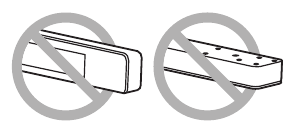
Do NOT place the soundbar on its front, back, or top when in use.
![]()
WALL MOUNT THE SOUNDBAR
You can mount the soundbar on a wall. To purchase the Bose Soundbar Wall Bracket, contact your authorised Bose dealer.
Visit: support. Bose.com/SB600
NOTE: Make sure the top of the soundbar is at least 4 in (10 cm) away from the TV.


Do NOT use any other hardware to mount the soundbar.
Adjust audio for wall mounting
After you mount the soundbar, you must adjust audio for best sound quality.
On the remote, press and hold the Mute button  for 5 seconds until you hear a tone and the light bar pulses white twice.
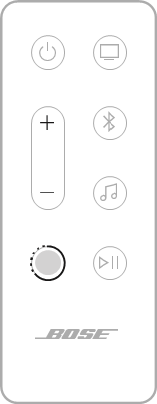
NOTE: If you remove the soundbar from the wall, repeat to return the soundbar to default audio settings.
TIP: You can also adjust audio for wall mounting using the Bose Music app.
SET UP THE SOUNDBAR
CONNECT THE SOUNDBAR TO POWER
- Connect the power cord to the
![]() port on the back of the soundbar.
port on the back of the soundbar. - Plug the other end of the power cord into an AC (mains) power outlet.

The soundbar powers on, and the light bar glows solid amber.
 port on the back of the soundbar.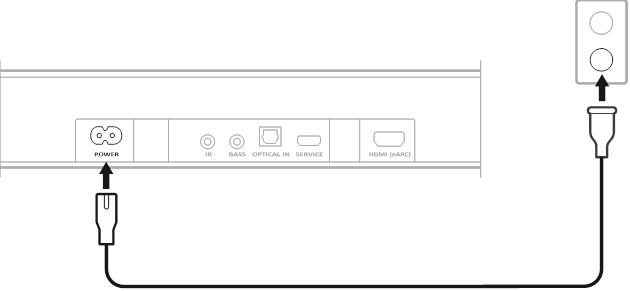
NETWORK STANDBY
The soundbar transitions to network standby when audio has stopped and you have not pressed any buttons or talked to Amazon Alexa or your Google Assistant-enabled device for 20 minutes.
To wake the soundbar from network standby:
- On the remote, press the Power button
![]() , a source button, or the Play/Pause button
, a source button, or the Play/Pause button ![]() .
. - Play or resume audio using your mobile device or using the Bose Music app.
- Talk to Amazon Alexa or your Google Assistant-enabled device.
 .
.NOTES:
- To access Amazon Alexa in network standby, make sure the soundbar has been set up using the Bose Music app and the microphone is on.
- You can disable the standby timer using the Bose Music app. You can access this option from the Settings menu.
BOSE MUSIC APP SETUP
The Bose Music app lets you set up and control the soundbar from any mobile device, such as a smartphone or tablet.
Using the app, you can stream music, add music services, explore internet radio stations, configure Amazon Alexa, enable Chromecast built-in, choose your voice prompt language, manage soundbar settings, and get new features.
NOTE: If you have already created a Bose Music account for another Bose product, add the soundbar to your existing account.
DOWNLOAD THE BOSE MUSIC APP
- On your mobile device, download the Bose Music app.
![]()
![www.apple.com]()
![play.google.com]()
- Follow the app instructions.



EXISTING BOSE MUSIC APP USERS
ADD THE SOUNDBAR TO AN EXISTING ACCOUNT
To add your Bose Smart Soundbar 600, open the Bose Music app and add your soundbar.
CONNECT TO A DIFFERENT WI-FI NETWORK
Connect to a different network if your network name or password has changed, or if you want to change or add another network.
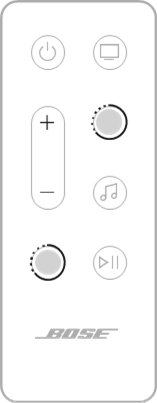
- On the remote, press and hold the Mute button
![]() and Bose Music app button
and Bose Music app button ![]() until the light bar glows amber.
until the light bar glows amber.
![]()
- On your mobile device, open your Wi-Fi settings.
- Select Bose Smart Soundbar 600.
- Open the Bose Music app and follow the app instructions.
NOTE: If the app doesn't prompt you for setup, go to the main screen and add the soundbar.
 and Bose Music app button
  until the light bar glows amber.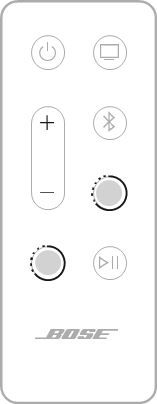
SOUNDBAR CONTROLS
The soundbar controls are located on the top of the soundbar and on the remote.
TIP: You can also control your soundbar using the Bose Music app.
REMOTE FUNCTIONS
Use the remote to control the soundbar, select the source, and manage Bluetooth connections.
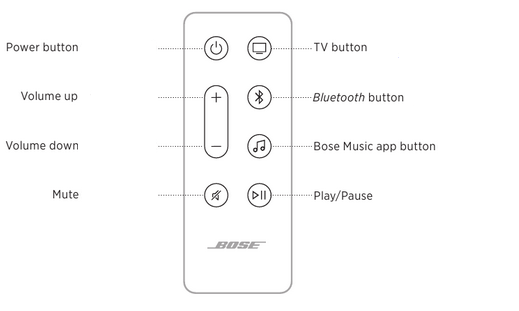
Power on/off
On the remote, press the Power button  to power the soundbar on/off.
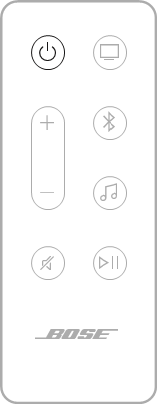
When powered on, the soundbar defaults to the last active source.
NOTES:
- When you plug the soundbar into an AC (mains) outlet, the soundbar automatically powers on.
- You can still access Amazon Alexa and control the soundbar with your voice using your Google Assistant-enabled device when the soundbar is powered off.
TIP: You can also use Bose Voice4Video™ along with Amazon Alexa to power the soundbar on/off.
Auto-wake (optical connection only)
You can set the soundbar to power on whenever a sound signal is received.
To toggle between auto-wake and default power settings, press and hold for 5 seconds until you hear a tone and the light bar pulses white twice.
TIP: You can also control auto-wake using the Bose Music app. You can access this option from the Settings menu.
Sources
On the remote, press the appropriate button (TV , Bluetooth
 , or Bose Music app
 ) to select the source.
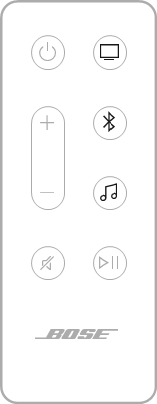
TIPS:
- You can also use Bose Voice4Video™ along with Amazon Alexa to select your Bluetooth source.
- You can also use the Bose Music app to select a source.
Media playback and volume
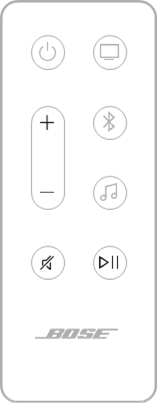
| FUNCTION | WHAT TO DO |
| Play/Pause | Press NOTES:
|
| Skip forward | Double-press  . . |
| Skip backward | Triple-press . |
| Volume up | Press +. NOTE: To quickly increase the volume, press and hold +. |
| Volume down | Press -. NOTE: To quickly decrease the volume, press and hold -. |
| Mute/Unmute | Press When audio is muted, the left end of the light bar glows solid white until audio resumes. TIP: You can also press + to unmute audio. |
 .
.TIP: You can also use Bose Voice4Video™ along with Amazon Alexa to control media playback and volume for certain sources.
VOICE ASSISTANT CONTROLS
You can use the Action button  to control Amazon Alexa. You use the Microphone off button
 to turn the microphone off.
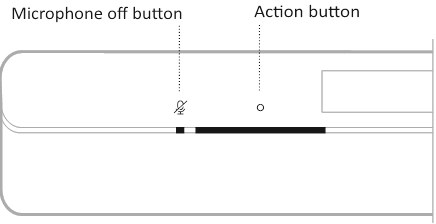
TIP: You can also use your voice to control Amazon Alexa.
ADJUST THE AUDIO
To adjust the bass, treble, center channel, height channel, and surround channels, use the Bose Music app. You can access these options from the Settings menu.
AMAZON ALEXA
ACCESS AMAZON ALEXA
With Alexa on your soundbar, you can simplify your life and use your voice to control your music and much more. Using Alexa is as easy as asking a question. Just ask and Alexa can play your favourite song, skip to the next track, change the volume, read you the news and more. Alexa on your soundbar makes it easier than ever to control your smart home, just by using your voice.
For more information about what Alexa can do, visit: https://www.amazon.com/usealexa
To set up Amazon Alexa on the soundbar, use the Bose Music app. You can access this option from the Settings menu.
NOTES:
- Alexa isn't available in all languages and countries. Alexa features and functionality may vary by location.
- When setting up Alexa, make sure you use the same audio service account that you used in the Bose Music app.
- If you have multiple Bose Music products in your household, for a seamless voice assistant experience, Bose recommends one person use their Bose Music account and Amazon Alexa account to set up Alexa for all Bose Music products.
Use your voice
Start with "Alexa," then say:
| THINGS TO TRY | EXAMPLES OF WHAT TO SAY |
| Talk to Alexa | Help me get started. |
| Play audio | Play rock music. NOTE: Amazon Music is set as the default music service. To change the default music service, use the Alexa app. |
| Pause audio | Pause. |
| Control volume | Turn the volume up. |
| Skip to the next song | Skip. |
| Play from a specific audio service | Play NPR on TuneIn. NOTE: Amazon Alexa doesn't support all audio services. |
| Play on a specific speaker | Play jazz in the "Kitchen." NOTE: Make sure you say the speaker name you assigned in the Bose Music app. If multiple speakers have the same name, use the name assigned in the Alexa app or change the name in the Bose Music app. |
| Set a timer | Set a timer for 15 minutes. |
| Discover more skills | Help me get started with skills. |
| Stop Alexa | Stop. |
Use the soundbar controls
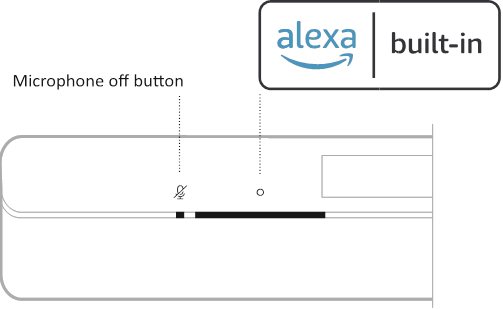
You can use the Action button to control Amazon Alexa. You use the Microphone off button to turn the microphone off. They are located on the top of the soundbar.
| THINGS TO TRY | WHAT TO DO |
| Talk to Alexa | Tap For a list of things to try, visit: |
| Stop alarms and timers | Tap  . . |
| Stop Alexa | Tap . |
| Turn the microphone on/off | Tap NOTE: When the microphone is off, the Microphone off light glows solid red, and you can't access Alexa. |
 .
.CALLING AND MESSAGING WITH AMAZON ALEXA
Help your household and family stay better connected. Let Alexa turn your device into an intercom to open up instant two-way conversations between rooms or homes, or send one-way announcements from any room. Use Alexa to call or message almost anyone for free on your supported Alexa device or the Alexa app on your supported mobile phone or tablet.
NOTES:
- Both parties must have an Alexa-enabled device, the Alexa Calling and Messaging feature available and enabled, and given permission to the other party in the Alexa app.
- The microphone must be on to use Alexa calling and messaging.
Set up Alexa Calling and Messaging
To set up Alexa Calling and Messaging, use the Alexa app.
Use your voice
Start with "Alexa," then say:
| THINGS TO TRY | EXAMPLES OF WHAT TO SAY |
| Drop in on a device in your home | Drop in on "Kitchen." NOTE: If the device is a Bose product, make sure you say the speaker name you assigned in the Bose Music app. If multiple speakers have the same name, use the name assigned in the Alexa app or change the name in the Bose Music app. |
| Drop in on a family member or friend outside your home | Drop in on "Mom's Kitchen." NOTE: Make sure you say the speaker name assigned in the owner's Bose Music app and/or Alexa app. |
| Make a call | Call Mom. |
| Answer a call | Answer. |
| Decline a call or message | Decline. |
| End a call | End call. |
| Play a message | Play message. |
| Call an emergency contact | Call my emergency contact. |
| Make an announcement | Announce that dinner is ready. |
SET UP DO NOT DISTURB
You can temporarily disable all incoming notifications, announcements, and calls to the soundbar.
Use your voice
Start with "Alexa," then say:
| THINGS TO TRY | EXAMPLES OF WHAT TO SAY |
| Enable Do Not Disturb | Turn on Do Not Disturb. |
| Disable Do Not Disturb | Turn off Do Not Disturb. |
TIP: You can also set up Do Not Disturb using the Alexa app.
CONTROL AUDIO WITH BOSE VOICE4VIDEO™
Bose Voice4Video™ technology expands your Amazon Alexa voice capabilities like no other soundbar can. In addition to controlling your smart soundbar, you can control your TV and cable or satellite box with just your voice. With one simple ask of Alexa, you can turn on your TV and smart soundbar, switch to your video source, tune to a station by network name or channel number, and start watching your favourite shows instantly.
NOTE: Voice4Video™ is only available for TV, cable, and satellite boxes.
Set up Voice4Video™
To set up Voice4Video™, use the Bose Music app.
NOTE: Before setting up Voice4Video™, you must set up Alexa in the Bose Music app.
Use your voice
Start with "Alexa," then say:
| THINGS TO TRY | EXAMPLES OF WHAT TO SAY |
| Power on TV | Turn on TV. |
| Power off TV | Turn off TV. |
| Play video | Play. |
| Pause video | Pause. |
| Resume video | Resume. |
| Skip video forward | Next. |
| Skip video backward | Previous. |
| Switch input to Bluetooth audio | Switch to Bluetooth. |
| Switch input to HDMI TV input | Switch to HDMI2. |
| Watch a specific network | Watch NFL Network. |
| Watch a specific channel number | Watch channel 802. |
| Skip to the next channel | Next channel. |
| Skip backward to the previous channel | Previous channel. |
WORKS WITH GOOGLE ASSISTANT
ACCESS GOOGLE ASSISTANT
The soundbar is compatible with a Google Assistant-enabled device connected to your Wi-Fi network using Chromecast built-in. With Chromecast built-in, you can stream audio from supported apps using just your voice or by simply tapping the Cast button on your phone. Choose from millions of songs from popular music services like Pandora, Spotify, and TuneIn.
To control the soundbar using your voice, use a Google Assistant-enabled device and enable Chromecast built-in in the Bose Music app. You can access this option from the Settings menu.
NOTES:
- To use Chromecast built-in, you must have a Google Assistant-enabled device and Wi-Fi connection.
- Support for new apps is added periodically.
- Google Assistant isn't available in all languages and countries.
- For more information on what Google Assistant can do, visit: https://support.google.com/assistant
Use your voice
Just say "Hey Google" on a Google Assistant-enabled device to get started. Then say your request on <soundbar name>.
For example, try playing your favourite music. Just say "Hey Google, play My Workout playlist on Family Room".
NOTES:
- Make sure you say the soundbar name you assigned in the Bose Music app. If multiple soundbars have the same name, use the name assigned in the Google Assistant app or change the name in the Bose Music app.
- Google Assistant-enabled device required.
Use your phone
Your phone is your remote.
- Simply tap the Cast button from apps you already know and love. No new logins or downloads required.
- Use your phone to search, play, pause, and turn up the volume from anywhere in the home.
- While you're streaming, you can keep using your phone for other things – scroll through social media, send a text, and even accept calls.
- Enjoy music throughout your house when you use multi-room casting with Chromecast-enabled soundbars.
STREAM AUDIO WITH AIRPLAY
The soundbar is capable of playing AirPlay 2 audio, which allows you to quickly stream audio from your Apple device to the soundbar or multiple speakers.
NOTES:
- To use AirPlay 2, you need an Apple device running iOS 11.4 or later.
- Your Apple device and soundbar must be connected to the same Wi-Fi network.
- For more information about AirPlay, visit: https://www.apple.com/airplay
STREAM AUDIO FROM THE CONTROL CENTER
- On your Apple device, open the Control Center.
- Tap and hold the audio card in the top-right corner of the screen, then tap the AirPlay icon
![]() .
. - Select your soundbar.
 .
.STREAM AUDIO FROM AN APP
- Open a music app (like Apple Music), and select a track to play.
- Tap
![]() .
. - Select your soundbar.
BLUETOOTH CONNECTIONS
CONNECT A MOBILE DEVICE
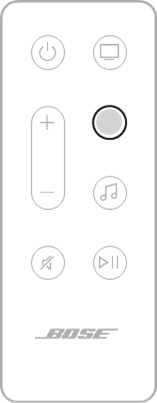
- On the remote, press the Bluetooth button
![]() .
.
![]()
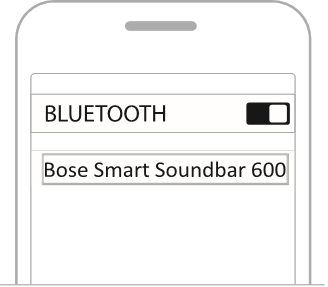
The light bar pulses blue. - On your mobile device, turn on the Bluetooth feature.
NOTE: The Bluetooth menu is usually found in the Settings menu. - Select your soundbar from the device list.
NOTE: Look for the name you entered for your soundbar in the Bose Music app. If you didn't name your soundbar, the default name appears.

Once connected, you hear a tone, and the light bar glows solid white then fades to black. The soundbar's name appears in the mobile device list.
DISCONNECT A MOBILE DEVICE
Use the Bose Music app to disconnect your mobile device.
TIP: You can also use Bluetooth settings on your mobile device. Disabling the Bluetooth feature disconnects all other devices.
RECONNECT A MOBILE DEVICE
On the remote, press the Bluetooth button  .
.
The soundbar tries to connect with the most recently-connected devices.
NOTES:
- Make sure the Bluetooth feature is enabled on your mobile device.
- The device must be within 30 ft (9 m) and powered on.
CONNECT AN ADDITIONAL MOBILE DEVICE
You can store up to eight devices in the soundbar device list.
NOTE: You can play audio from only one device at a time.
- On the remote, press and hold
![]() until the light bar pulses blue.
until the light bar pulses blue. - On your mobile device, select your soundbar from the device list.
NOTE: Make sure the Bluetooth feature is enabled on your mobile device.
CLEAR THE SOUNDBAR DEVICE LIST
- On the remote, press and hold
![]() for 10 seconds until the light bar pulses white twice then fades to black. The light bar pulses blue.
for 10 seconds until the light bar pulses white twice then fades to black. The light bar pulses blue. - Delete the soundbar from the Bluetooth list on your device.
All devices are cleared, and the soundbar is ready to connect.
SOUNDBAR STATUS
The LED light bar located on the front of the soundbar shows the soundbar status.
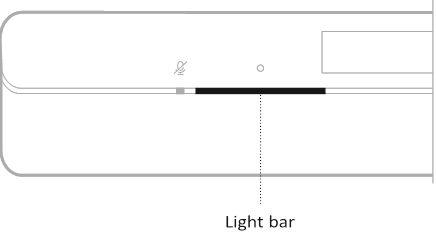
NOTE: The light bar displays one status at a time of the selected source.
WI-FI STATUS
Shows the Wi-Fi connection status of the soundbar.
| LIGHT BAR ACTIVITY | SYSTEM STATE | |
| Pulsing white |  | Connecting to Wi-Fi |
| Solid white then fades to black |  | Connected to Wi-Fi |
BLUETOOTH STATUS
Shows the Bluetooth connection status of mobile devices.
| LIGHT BAR ACTIVITY | SYSTEM STATE | |
| Pulsing blue |  | Ready to connect to mobile device |
| Pulsing white | | Connecting to mobile device |
| Solid white then fades to black | | Connected to mobile device |
| White light pulses twice then fades to black |  | Clearing device list |
AMAZON ALEXA STATUS
Shows the status of Amazon Alexa.
| LIGHT BAR ACTIVITY | SYSTEM STATE | |
| Off |  | Amazon Alexa is idle |
| White light slides to the center then glows solid |  | Amazon Alexa is listening |
| White light slides to the sides |  | Amazon Alexa is thinking |
| Pulsing white (full) |  | Amazon Alexa is speaking |
| Pulsing yellow |  | Notification from Amazon Alexa |
| Solid white then white light slides to the sides |  | Alert from Amazon Alexa |
| Pulsing green |  | Receiving or making call |
| Solid green |  | Connected to call NOTE: When the call is disconnected, the light bar fades to black. |
| Solid purple then fades to black |  | Do Not Disturb is enabled NOTE: When Do Not Disturb is enabled, the light bar pulses purple each time you try to interact with Alexa. |
Microphone off light
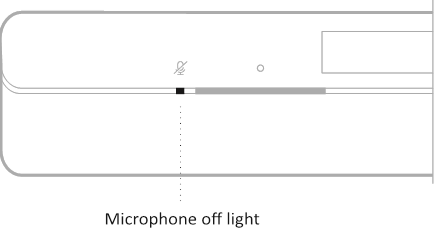
| LIGHT ACTIVITY | SYSTEM STATE |
| Solid red | The microphone is off |
MEDIA PLAYBACK AND VOLUME STATUS
Shows the soundbar status when controlling media playback and volume.
| LIGHT BAR ACTIVITY | SYSTEM STATE | |
| Two center lights glow solid white |  | Pause |
| Right end of the light bar pulses white |  | Volume up |
| Left end of the light bar pulses white |  | Volume down |
| Left end of the light bar glows solid white | | Mute |
UPDATE AND ERROR STATUS
Shows the status of software updates and error alerts.
| LIGHT BAR ACTIVITY | SYSTEM STATE | |
| Two center lights glow solid white | | Pause |
| Solid amber |  | Wi-Fi setup in progress |
| White light slides from right to left |  | Downloading update |
| White light slides from left to right |  | Updating soundbar |
| Pulses amber 4 times |  | Source error - refer to the Bose Music app |
| Pulses red 4 times |  | Request is temporarily unavailable - try again later |
| Solid red |  | Error - contact Bose customer service |
ADVANCED FEATURES
DISABLE/ENABLE WI-FI CAPABILITY
On the remote, press and hold the Mute button  and Bluetooth button
  until the light bar pulses white twice then fades to black.
CONNECT BOSE PRODUCTS
CONNECT ACCESSORIES (OPTIONAL)
You can connect any of these accessories to your soundbar. For more information, refer to your accessory owner's guide.
- Bose Bass Module 700: Bose.com/BM700
- Bose Bass Module 500: Bose.com/BM500
- Bose Surround Speakers 700: Bose.com/SS700
- Bose Surround Speakers: Bose.com/SS
CONNECT A BOSE SOUNDLINK BLUETOOTH SPEAKER OR BOSE HEADPHONES USING SIMPLESYNC™ TECHNOLOGY
With Bose SimpleSync™ technology, you can connect certain Bose SoundLink Bluetooth speakers or Bose headphones to the soundbar for a new way to hear your music and movies.
Benefits
- A personal TV listening experience: Listen to TV without disturbing others by connecting your Bose headphones to the soundbar. Use independent volume controls on each product to lower or mute the soundbar while keeping your headphones as loud as you like.
- Another room of audio: Listen to the same song in two different rooms at the same time by connecting your Bose SoundLink Bluetooth speaker to the soundbar.
NOTE: SimpleSync™ technology has a Bluetooth range of up to 30 ft (9 m).
Walls and construction materials can affect reception.
Compatible products
You can connect most Bose SoundLink Bluetooth speakers to the soundbar, as well as Bose headphones.
Popular compatible products include:
- Bose SoundLink Revolve+ Bluetooth speaker
- Bose SoundLink Mini Bluetooth speaker
- Bose SoundLink Micro Bluetooth speaker
- Bose SoundLink Flex Bluetooth Speaker
- Bose Noise Cancelling Headphones 700
- Bose QuietComfort 35 wireless headphones
- Bose QuietComfort 45 headphones
New products are added periodically. For a complete list and more information, visit: support.Bose.com/Groups
CONNECT BOSE PRODUCTS
Connect using the Bose Music app
To connect your Bose SoundLink Bluetooth speaker or Bose headphones to the soundbar, use the Bose Music app. For more information, visit: support.Bose.com/Groups
NOTES:
- Make sure that the product you're connecting is powered on, within 30 ft (9 m) of the soundbar, and ready to connect to another device. For more information, refer to your product owner's guide.
- You can connect only one product at a time to the soundbar.
RECONNECT A BOSE SOUNDLINK BLUETOOTH SPEAKER OR BOSE HEADPHONES
Power on your Bose SoundLink Bluetooth speaker or Bose headphones.
Your speaker or headphones try to connect to the most recently-connected Bluetooth device, including the soundbar.
NOTES:
- The soundbar must be within range (30 ft or 9 m) and powered on.
- If your speaker doesn't connect.
- If your headphones don't connect.
CARE AND MAINTENANCE
UPDATE THE SOUNDBAR
The soundbar updates automatically when connected to the Bose Music app and your Wi-Fi network.
REPLACE THE REMOTE BATTERY

Do not ingest battery, chemical burn hazard. The remote control supplied with this product contains a coin/button cell battery. If the coin/button cell battery is swallowed, it can cause severe internal burns in just 2 hours and can lead to death. Keep new and used batteries away from children. If the battery compartment does not close securely, stop using the remote control and keep it away from children. If you think batteries might have been swallowed or placed inside any part of the body, seek immediate medical attention. To avoid risk of explosion, fire or chemical burn, use caution in replacing the battery and replace only with an agency approved (e.g., UL) CR2032 or DL2032 3-volt lithium battery. Properly and promptly dispose of used batteries. Do not recharge, disassemble, heat above 212°F (100°C) or incinerate.
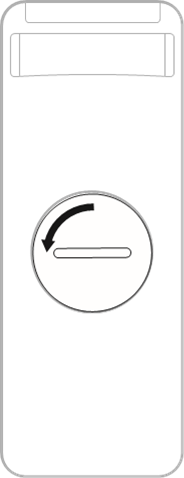
- Using a coin, turn the battery compartment cover left (counter-clockwise) and remove the cover.
![]()
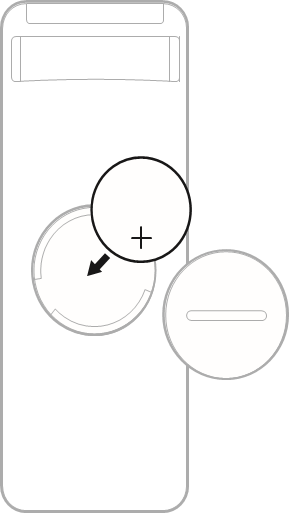
- Insert the new battery flat side up, with the + symbol facing up.
![]()
NOTE: Use only an agency approved (e.g., UL) CR2032 or DL2032 3-volt lithium battery. - Reset the cover and turn it right (clockwise) to lock in place.
CLEAN THE SOUNDBAR
Wipe the outside surfaces of the soundbar with a soft, dry cloth.
- Do NOT allow liquids to spill onto the soundbar or into any openings.
- Do NOT blow air into the up-firing speakers or soundbar.
- Do NOT use a vacuum to clean the up-firing speakers or soundbar.
- Do NOT use any sprays near the up-firing speakers or soundbar.
- Do NOT use any solvents, chemicals, or cleaning solutions containing alcohol, ammonia, or abrasives.
- Do NOT allow objects to drop into any openings.
REPLACEMENT PARTS AND ACCESSORIES
Replacement parts and accessories can be ordered through Bose customer service.
Visit: support. Bose.com/SB600
LIMITED WARRANTY
The soundbar is covered by a limited warranty. Visit our website at worldwide.Bose.com/Warranty for details of the limited warranty.
To register your product, visit worldwide.Bose.com/ProductRegistration for instructions. Failure to register will not affect your limited warranty rights.
TROUBLESHOOTING
TRY THESE SOLUTIONS FIRST
If you experience problems with the soundbar:
- Make sure the soundbar is connected to a live AC (mains) outlet.
- Secure all cables.
- Check the state of the soundbar.
- Download the Bose Music app and run available software updates.
- Place the soundbar according to the placement guidelines.
- Move the soundbar within the recommended range of your mobile device for proper operation.
- Make sure the soundbar is at least 1 – 3 ft (0.3 – 0.9 m) away from wireless equipment.
- Check that any Wi-Fi access points are placed up to 8 – 10 ft (2.4 – 3.0 m) away from the soundbar, optional bass module, and optional surround speakers.
OTHER SOLUTIONS
If you could not resolve your issue, see the table below to identify symptoms and solutions to common problems. If you are unable to resolve your issue, contact Bose customer service.
Visit: worldwide.Bose.com/contact
| SYMPTOM | SOLUTION |
| No HDMI eARC port on your TV | Use your TV's HDMI ARC port. If your TV doesn't have an HDMI ARC port, use the optical cable to connect the soundbar to your TV. |
| No HDMI eARC, HDMI ARC, or optical port on your TV | If your TV is connected to a cable or satellite box, connect the HMDI cable from the soundbar to the cable or satellite box. Connect to your TV using an audio converter and separate audio cable, such as a coaxial, 3.5 mm or analogue audio cable (not provided). The type of converter and cable you need depends on the audio output ports available on your TV. |
| Soundbar doesn't power on | Plug the power cord into a different AC (mains) outlet. Use the remote control to power on the soundbar. Unplug the power cords for the soundbar and optional bass module or surround speakers, wait 30 seconds, and plug them firmly into a live AC (mains) outlet. |
| Soundbar doesn't power off | The soundbar may be in network standby mode. On the remote, press the Power button  to wake the soundbar. Press again to power off the soundbar. to wake the soundbar. Press again to power off the soundbar. |
| Audio isn't playing in Dolby Atmos | Make sure the soundbar is connected to your TV's HDMI eARC or ARC port. Check the Bose Music app Now Playing screen to make sure the audio is streaming in Dolby Atmos. If it's not streaming in Dolby Atmos, make sure the advanced audio settings of your TV is allowing Dolby Atmos to pass through to the soundbar. Refer to your TV owner's guide. |
| Remote is inconsistent or doesn't work | Replace the battery. Make sure the remote is within operating range (20 ft or 6 m) of the soundbar. Make sure there are no obstructions between the remote and the soundbar. |
| Bose Music app doesn't work on mobile device | Make sure your mobile device is compatible with the Bose Music app and meets minimum system requirements. For more information, refer to the app store on your mobile device. Uninstall the Bose Music app on your mobile device then reinstall the app. |
| Soundbar isn't visible to add to another Bose account | Make sure sharing is enabled on your soundbar using the Bose Music app. Make sure the soundbar and your mobile device are connected to the same Wi-Fi network. |
| Soundbar and source don't power on/off simultaneously | Press the Power button I to power on/off the source. |
| Intermittent or no audio from soundbar | Increase the volume on the soundbar or your mobile device. If the left end of the light bar is glowing solid white, the soundbar is muted. Press the Mute button Make sure your mobile device isn't muted. Make sure you're using a compatible Bluetooth mobile device. Restart your mobile device. Restart your audio source. Switch to a different source. Play audio from a different application or music service. If the audio is from a Wi-Fi source, reset the router. Restart your TV. Check the TV audio settings. Refer to your TV owner's guide. Update the TV software. Refer to your TV owner's guide. Disconnect the HDMI cable from your TV's HDMI eARC (or ARC) port and reconnect it. Make sure that the soundbar's HDMI cable is inserted into a port on your TV labelled HDMI eARC (Enhanced Audio Return Channel), not a standard HDMI port. If your TV doesn't have an HDMI eARC port, connect to the HDMI ARC port. If your TV doesn't have an ARC port, connect to the soundbar using the optical cable. If the soundbar is connected to your TV's HDMI eARC (or ARC) port, make sure that Consumer Electronics Control (CEC) is enabled in your TV system menu. Your TV may refer to CEC by a different name. Refer to your TV owner's guide. If the soundbar is connected to your TV's optical port, make sure the optical cable is inserted into a port on your TV labelled Output or OUT, not Input or IN. Unplug the power cords for the soundbar and optional bass module or surround speakers, wait 30 seconds, and plug them firmly into a live AC (mains) outlet. Check the Advanced CEC setting in the Bose Music app. You can access this option from the Settings menu. For more information, visit: support. Bose.com/SB600_CEC |
| Soundbar doesn't connect to bass module or surround speakers | Refer to your bass module or surround speakers owner's guide for troubleshooting. Make sure your bass module or surround speakers are compatible with the soundbar. Unplug the power cords for the soundbar and optional bass module or surround speakers, wait 30 seconds, and firmly plug them into the AC (mains) outlet. |
| No audio from bass module or surround speakers | Make sure your bass module or surround speakers are compatible with the soundbar. Make sure the software is current in the Bose Music app. Adjust the bass level using the Bose Music app. Switch to a different source. |
| Sound is coming from TV s peaker | Make sure that the soundbar's HDMI cable is inserted into a port on your TV labelled HDMI eARC (Enhanced Audio Return Channel), not a standard HDMI port. If your TV doesn't have an HDMI eARC port, connect to the HDMI ARC port. If your TV doesn't have an ARC port, connect to the soundbar using the optical cable. Disconnect the HDMI cable from your TV's HDMI eARC (or ARC) port and reconnect it. Unplug the power cords for the soundbar and optional bass module or surround speakers, wait 30 seconds, and firmly plug them into the AC (mains) outlet. Turn off your TV speakers. Refer to your TV owner's guide. Decrease your TV volume to its lowest setting. If the soundbar is connected to your TV's HDMI eARC (or ARC) port, make sure that Consumer Electronics Control (CEC) is enabled in your TV system menu. Your TV may refer to CEC by a different name. Refer to your TV owner's guide. Check the Advanced CEC setting in the Bose Music app. You can access this option from the Settings menu. For more information, visit: support. Bose.com/SB600_CEC |
| Poor or distorted audio | Test different sources if available. Make sure that your TV can output surround sound audio. Refer to your TV owner's guide. If the audio is being played from another device, reduce the volume of that device. Adjust the bass level using the Bose Music app. Power off your TV speakers. Refer to your TV owner's guide. Check for sound. |
| Soundbar doesn't play audio from the correct source or selects the incorrect source after a delay | Check the Advanced CEC setting in the Bose Music app. You can access this option from the Settings menu. For more information, visit: support. Bose.com/SB600_CEC Disable CEC on your source. Refer to the source owner's guide. |
| Soundbar doesn't connect to Wi-Fi network | In the Bose Music app, select the correct network name, and enter the network password (case-sensitive). Make sure the soundbar and your mobile device are connected to the same Wi-Fi network. If your network information has changed. Enable Wi-Fi on the mobile device you are using for setup. Close other open applications on your mobile device. Restart your mobile device and router. If your router supports both 2.4 GHz and 5G Hz bands, make sure both the device (mobile or computer) and soundbar are connecting to the same band. NOTE: Give each band a unique name to make sure you're connecting to the correct band. Reset the router. Unplug the power cords for the soundbar and optional bass module or surround speakers, wait 30 seconds, and firmly plug them into the AC (mains) outlet. Uninstall the Bose Music app on your mobile device, reinstall the app, and restart setup. If connecting to a different network and the app doesn't prompt you for setup, go to the main screen and add the soundbar. |
| Soundbar doesn't connect with Bluetooth device | On your mobile device, turn the Bluetooth feature off and then on. Delete the soundbar from the Bluetooth list. Connect again). Connect a different mobile device. Make sure you're using a compatible Bluetooth mobile device. Visit: support. Bose.com/SB600_BT Delete the soundbar from your mobile device Bluetooth list. Connect again. Clear the soundbar device list. Connect again. |
| Google Assistant can't control the soundbar | Make sure you have a Google Assistant-enabled device connected to your network. Make sure Chromecast built-in is enabled in the Bose Music app). Connect your mobile device to Wi-Fi. Make sure you're in a country where Google Assistant is available. Make sure you are using the most up-to-date version of the Google Assistant app. Make sure your mobile device is compatible. For additional support, visit: https://support.google.com/assistant |
| Soundbar doesn't connect to a Bose SoundLink Bluetooth speaker or Bose headphones | Make sure that your speaker or headphones are powered on, within 30 ft (9 m) of the soundbar, and ready to connect to another device. For more information, refer to your product owner's guide. |
| Soundbar doesn't reconnect to a previously- connected Bose SoundLink Bluetooth speaker | Make sure voice prompts are enabled on the speaker in the Bose Music app. You can access this option from the Settings menu. On your speaker, use the product controls to cycle through the product device list until you hear the name for your soundbar. For product-specific instructions, refer to your speaker owner's guide. |
| Soundbar doesn't reconnect to previously- connected Bose headphones | Connect using the Bose Music app. |
| Poor audio quality from a connected Bose SoundLink Bluetooth speaker or Bose headphones | If your router supports both 2.4 GHz and 5 GHz bands, and the soundbar is connected to a 2.4 GHz frequency, connect to the 5 GHz frequency. Not all Bose SoundLink Bluetooth speakers can play audio in perfect sync when connected to the soundbar. To check if your product is compatible, visit: support.Bose.com/Groups Make sure Sync with Group is enabled in the Bose Music app. You can access this option from the Settings menu. Install any available software updates for your speaker or headphones. To check for updates, open the appropriate Bose app for your product on your mobile device or visit btu.Bose.com on your computer. |
| Soundbar doesn't stream audio using AirPlay | Make sure your soundbar is powered on and in range. Make sure your Apple device and your soundbar are connected to the same Wi-Fi network. Update your Apple device. Make sure the soundbar is up-to-date. If you can't find the AirPlay icon |
| Alexa doesn't respond | Make sure the Microphone off light isn't glowing red. To turn on the microphone. Make sure Alexa has been set up using the Bose Music app. NOTE: The soundbar must be set up and connected to your Wi-Fi network using the Bose Music app. Connect your mobile device to Wi-Fi. Make sure you're in a country where Amazon Alexa is available. Make sure you are using the most up-to-date version of the Alexa app. Make sure your mobile device is compatible. Make sure the wake word is enabled. Remove Alexa from the soundbar using the Bose Music app. Add Alexa again. Make sure you say the name you assigned in the Bose Music app. If multiple soundbars have the same name, use the name assigned in the Alexa app or change the name in the Bose Music app. If using Bose Voice4Video™:
Alexa may not support your request. New features are added periodically. For additional support, visit: https://www.amazon.com/usealexa |
 in the music app you are streaming from, stream audio from the Control Center. For additional support, visit:
 RESTORE THE SOUNDBAR
Restoring the factory settings clears all source, volume, and network settings from the soundbar and returns the soundbar to its default settings.
- On the remote, press and hold the Volume down button - and Play/Pause button
![]() for 5 seconds until the light bar pulses white twice then fades to black.
for 5 seconds until the light bar pulses white twice then fades to black.
![]()
The soundbar reboots. When the reset is complete, the light bar glows solid amber. - To restore the soundbar's network and audio settings, launch the Bose Music app on your mobile device and add the soundbar to your network.
 for 5 seconds until the light bar pulses white twice then fades to black.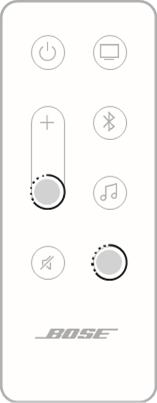
CONNECTION OPTIONS
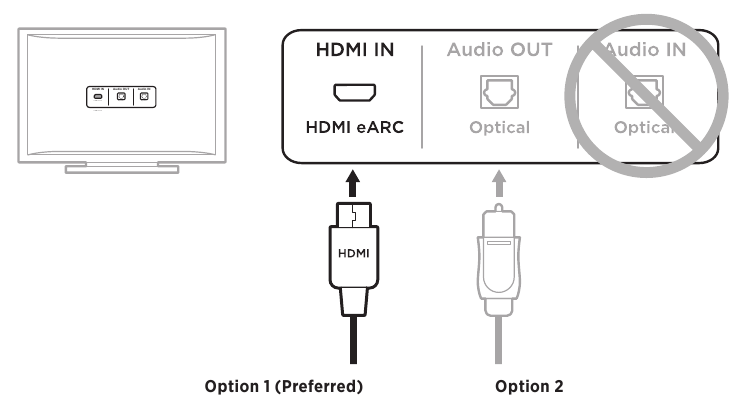
Connect the soundbar to your TV using one of the following connection options:
- Option 1 (preferred): HDMI eARC (Enhanced Audio Return Channel) or ARC
- Option 2: Optical
NOTES:
- To deliver the Dolby Atmos surround-sound experience, connect the soundbar to the HDMI eARC or ARC port on your TV. If your TV doesn't have an eARC or ARC port, you can connect the optical cable to the optical port to receive spacious and life-like sound.
- To use your TV remote to control the power, volume, and mute functions of the soundbar, the soundbar must be connected to the HDMI eARC or ARC port on your TV.
- On the back of your TV, locate the HDMI IN and Audio OUT (optical) ports.
NOTE: Your TV port panel may not appear as shown. Look for the shape of the port.

Option 1 (Preferred) HDMI eARC (or ARC): Use the HDMI cable for this connection.
Option 2 Optical: If your TV doesn't have an HDMI eARC (or ARC) port, use the optical cable for this connection. - Choose an audio cable.
SETUP REFERENCE
CONNECT THE SOUNDBAR TO YOUR TV
After choosing an audio cable, connect the soundbar to your TV.
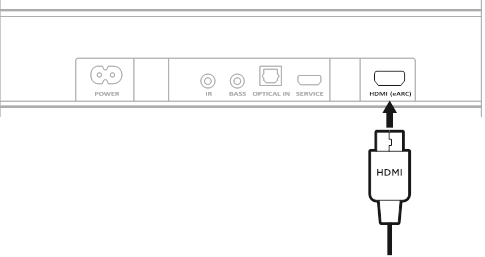
Option 1 (preferred) HDMI eARC or ARC
- Insert one end of the HDMI cable into your TV's HDMI eARC or ARC port.
- Insert the other end of the cable into the HDMI (eARC) port on the soundbar.
 HDMI eARC or ARC - Step 2")
Option 2 Optical
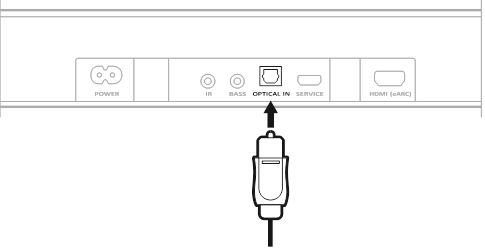
If your TV doesn't have an HDMI eARC (or ARC) port, use the optical cable to connect the soundbar to your TV.
- Remove the protective cap from both ends of the optical cable.
![]()
![]()
Inserting the plug with the cap attached can damage the plug and/or the port. - Insert one end of the optical cable into your TV's Optical OUT port.
![]()
Inserting the plug with the wrong orientation can damage the plug and/or the port. - Hold the plug at the other end of the optical cable.
- Align the plug with the soundbar's OPTICAL IN port, and insert the plug carefully.
![]()
NOTE: The port has a hinged door that swings inward when inserting the plug. - Firmly push the plug into the port until you hear or feel a click.
![]()

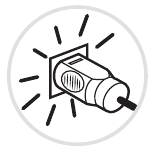
CHECK FOR SOUND
- Power on your TV using your TV remote.
- In the audio section of your TV's menu, turn off your TV speakers.
NOTE: Refer to your TV owner's guide for more information. - If you are using a cable/satellite box or other secondary source:
- Power on this source.
- Select the appropriate TV input.
- Power on the soundbar.
You hear sound coming from the soundbar. - On the soundbar remote, press the Mute button
![]() .
.
You don't hear sound coming from the TV speakers or soundbar.
NOTE: If you hear sound coming from your TV after your soundbar is muted.

References
https://www.amazon.com/usealexa
AirPlay - Apple
![www.apple.com]() App Store - Apple
App Store - Apple![play.google.com]() Google Play
Google PlayGoogle Assistant Help
![support.bose.com]() Products that support SimpleSync
Products that support SimpleSync![worldwide.bose.com]() Product warranty
Product warranty![worldwide.bose.com]() Product Registration
Product RegistrationCustomer Support
Bose Software Updater for: QuietComfort, QuietControl, SoundSport, SoundWear, SoundLink and BOSEbuild products


Download manual
Here you can download full pdf version of manual, it may contain additional safety instructions, warranty information, FCC rules, etc.
Download Bose Smart Soundbar 600 - Bluetooth Wireless Sound Bar for TV Manual


