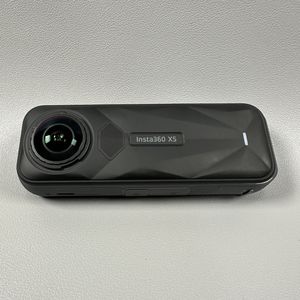
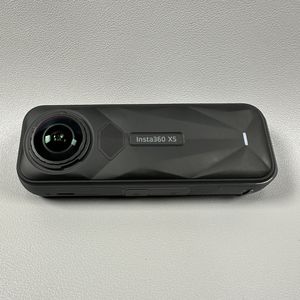
How to Record in Bullet Time with INSTA360 X5
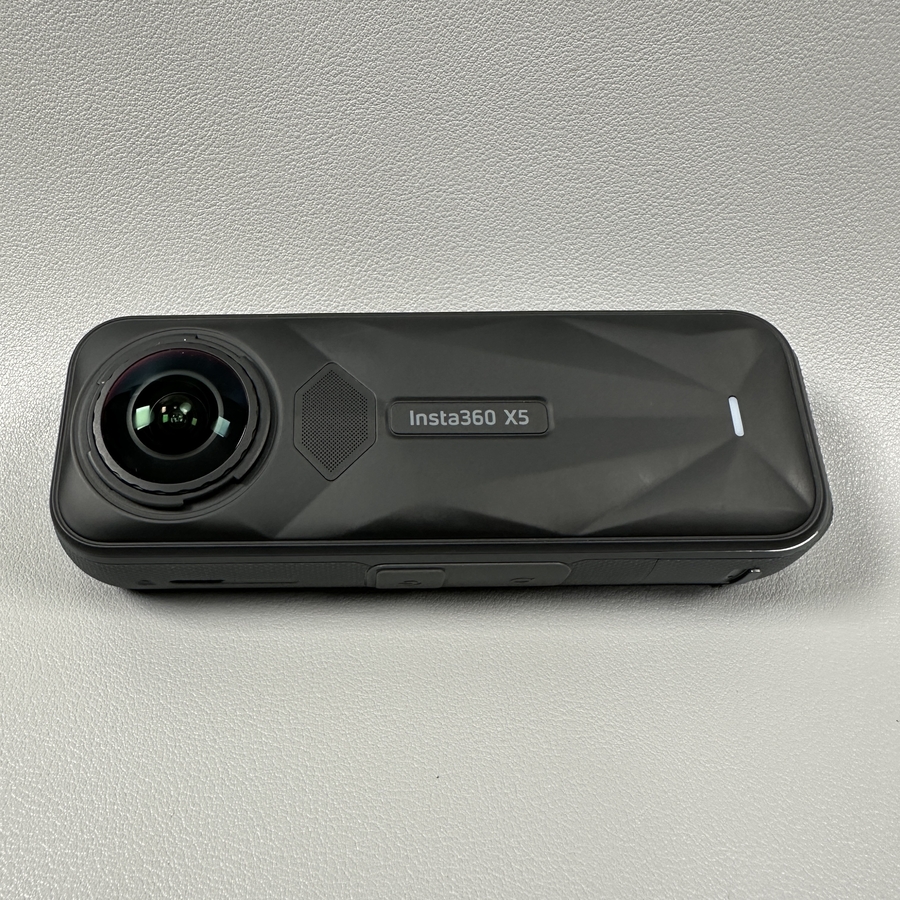
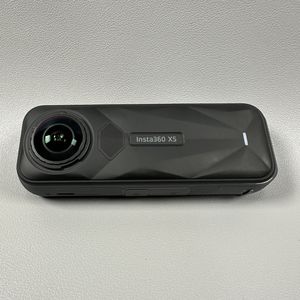
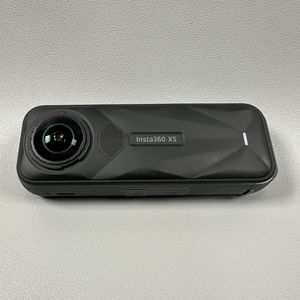
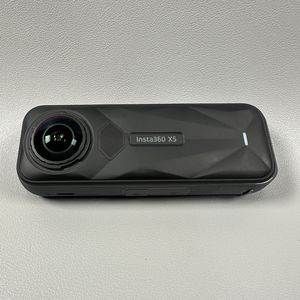
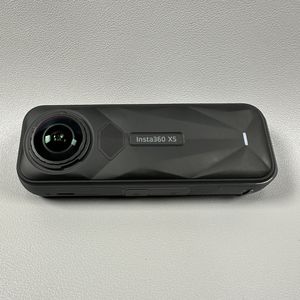
The INSTA360 X5 is a powerful tool for creating impressive 360-degree videos. One of its standout features is the ability to record in Bullet Time, allowing you to capture dynamic, flowing shots that will captivate viewers. In this guide, we'll walk you through the straightforward process of setting up and recording in Bullet Time mode on your INSTA360 X5.
Step 1: Access Camera Options
To initiate the Bullet Time mode, begin by turning on your INSTA360 X5 camera. Once powered up, locate the camera's main menu. This is typically accessible on the camera's touchscreen display.

Step 2: Select 360 Mode
Next, navigate to the shooting modes available on your camera. Look for the option labelled 360, as this will allow you to record in a full spherical view. Selecting this mode is essential for capturing the entire scene around you, ensuring your Bullet Time footage is as immersive as possible. Once you have selected the 360 Mode, you are ready to engage the Bullet Time feature. Navigate to the Bullet Time option within the menu.

Step 3: Activate Bullet Time Mode
Selecting this will activate the unique recording mode, prepared to capture breathtaking slow-motion shots. Ensure your camera is mounted on the Bullet Time accessory, which is essential for achieving the desired effect.

Now you're set to start recording amazing Bullet Time footage with your INSTA360 X5. Feel free to experiment with different environments and movements to achieve the most striking visuals.