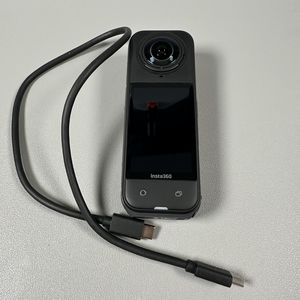
Switch Your INSTA360 X5 to 4K 60FPS Single Lens Mode
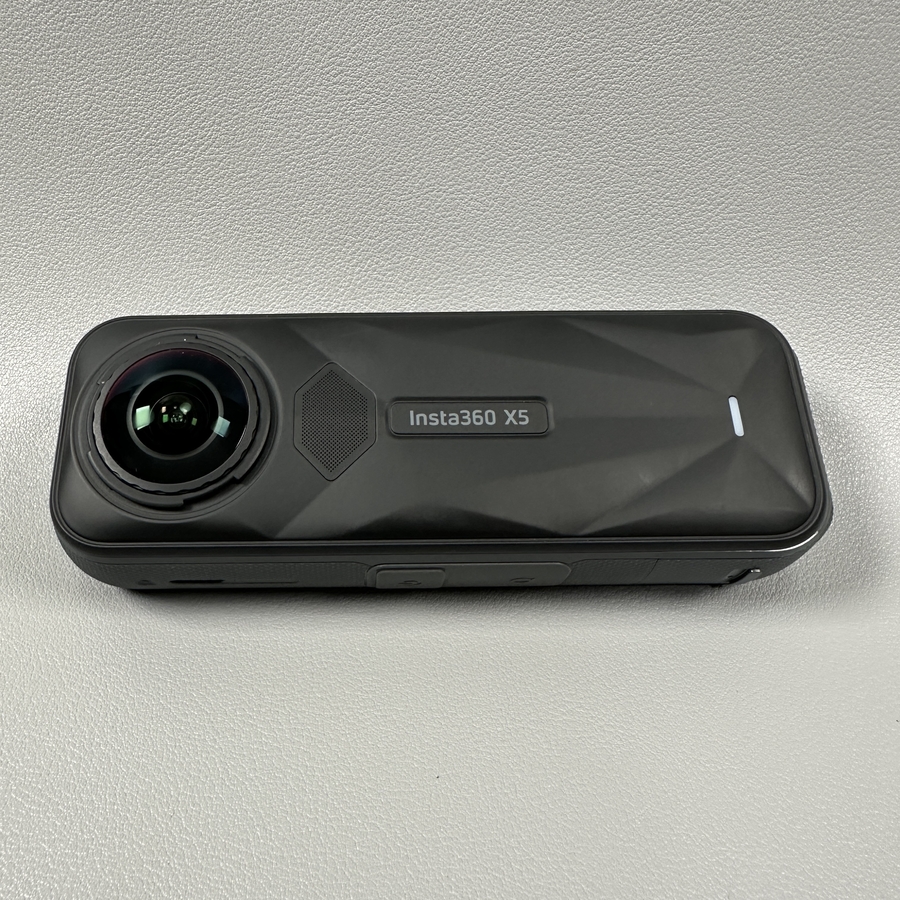
Are you ready to capture stunning, high-quality videos with your INSTA360 X5? Switching to the 4K 60FPS single lens mode is a great way to make your videos pop with vibrant clarity and lifelike motion. In this guide, we'll walk you through the simple steps to change your camera settings, ensuring you're always ready to shoot impressively smooth footage. Whether you're capturing the beauty of nature or the hustle and bustle of a busy street, this setting will help you get the best results possible.
Step 1: Access Camera Mode
To begin, ensure your INSTA360 X5 is powered on. Once your device is ready, look for the Camera Mode option on the touchscreen interface. It's your gateway to customising your shooting settings and preferences.


Step 2: Select Single Lens Mode
Once in camera mode, navigate to the Single Lens option. This setting allows you to focus on using one lens to capture your video, optimising for quality over the immersive 360-degree view.

Step 3: Switch to Video Mode
After selecting the single lens option, move on to Video Mode. This is crucial as it sets your camera for motion pictures rather than still photos, preparing it for high-definition video capture.

Step 4: Set to 4K Resolution
Then locate the camera's menu. Next, you'll want to set the resolution to 4K. This will offer a significantly higher definition, bringing out the most intricate details and making sure your videos are future-proofed for larger displays.


Step 5: Choose 60FPS Frame Rate
Finally, adjust the frame rate to 60 FPS. This higher frame rate is perfect for capturing fluid and dynamic motion, ensuring your videos remain crisp and smooth even during fast action sequences.