How to Automatically Record Videos at Set Intervals with Insta360 GO 3S
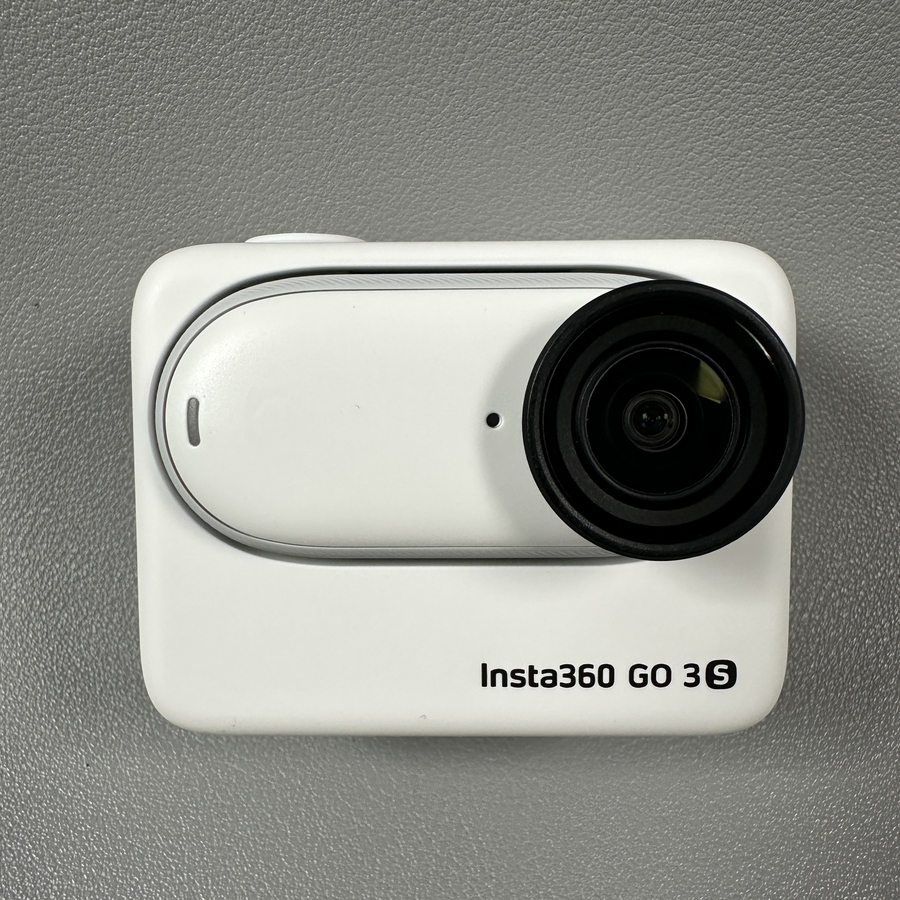
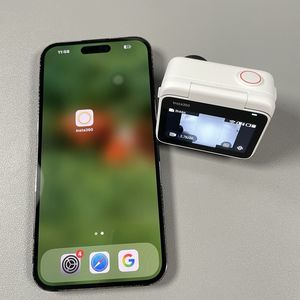
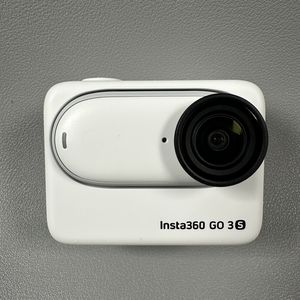
Welcome to this easy-to-follow guide where we will be exploring how you can set up your Insta360 GO 3S to automatically record videos at specific intervals. This feature is perfect for capturing scenes over a period without manually starting and stopping your camera. Whether you're capturing a thrilling sports event or your pet's antics, this step-by-step process ensures you make the best use of your device.
Step 1: Access the Control Panel
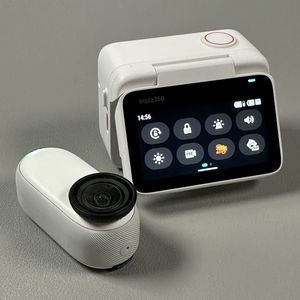
To begin, grab your Insta360 GO 3S and swipe downwards from the top edge of the screen to open the control panel. This action will reveal various settings and options available on your camera.

Step 2: Select Recording Mode
Once the control panel is open, look for the specific icon that resembles a video mode selection and tap on it. Here, you'll find a variety of modes tailored for different activities, such as Ball Sports, Pets, Cooking, and more. Select the mode that best matches your upcoming recording scene. After selecting your desired mode, tap the next button.


Step 3: Choose an Existing Preset
You can then choose from existing presets, like Cooking, which automatically adjusts the duration, interval, and video recording parameters to fit your selected topic best.

Step 4: Customize Settings If Needed
If you want to customize the recording settings further, simply press the settings button to modify the duration, intervals, and other parameters as per your needs. Make sure to confirm your settings before proceeding.


Step 5: Start Recording Task
The final step is to decide whether the task will start when the camera is powered off or only when it remains in action mode. Once you've made your selection, hit the 'Start Task' button to begin recording. Confirm your choices, and you're set!