How to Change Icon Size on Samsung Galaxy A17 5G
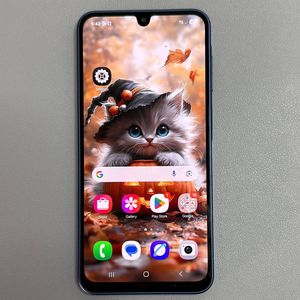
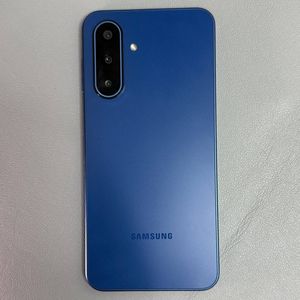
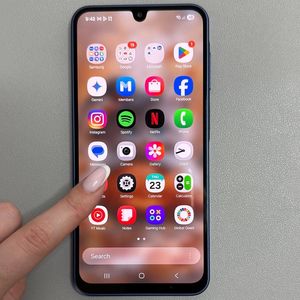
Your Samsung Galaxy A17 5G allows you to customize the home screen in various ways, one of which is adjusting icon sizes. This article will guide you on how to change the icon size on your device, making sure your home screen fits your personal preferences. Let's dive into the steps!
Step 1: Accessing the Settings Menu
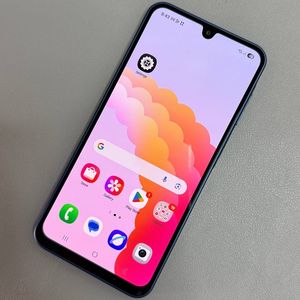
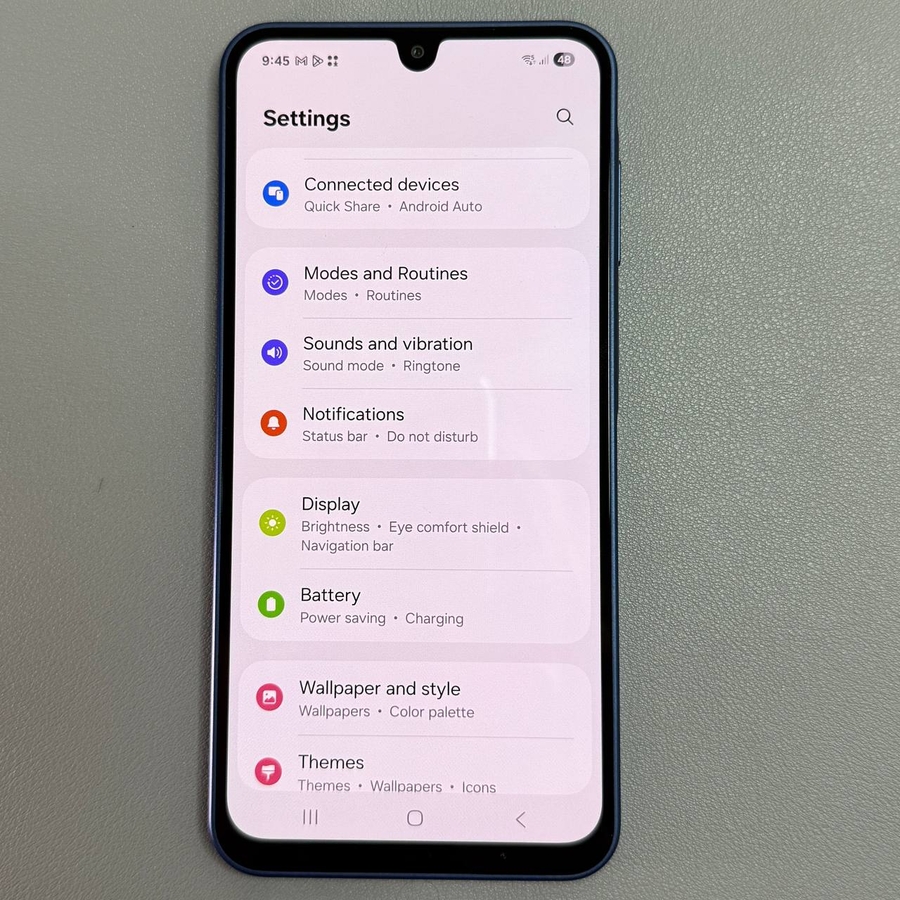
To start, unlock your Samsung Galaxy A17 5G and navigate to the Settings app. Look for the gear-shaped icon on your home screen or locate it within the app drawer.

Step 2: Locating Home Screen Settings
In the Settings app, scroll downward a bit until you find the option labeled "Home Screen." Tap on this to enter the home screen customization settings.

Step 3: Adjusting Icon Size
Once you're in the Home Screen menu, look for the "App Icon Size" setting. Here, you can choose the desired icon size by selecting from the available options. This change will instantly reflect on your home screen.

Step 4: Exploring Home Screen Grid Options
If you wish to fit more apps on your screen, you can modify the home screen grid setting. Switch from a 4x6 grid to a 5x6 grid, which will change how many icons appear on each row and column.

Step 5: Utilizing Screen Zoom
Another feature that affects icon size is screen zoom. Adjusting this setting will slightly impact the size of your app icons. You can find 'Screen Zoom' under the Display settings.

Step 6: Enabling Easy Mode
For a more significant change in icon size, you can enable Easy Mode from the settings. This mode simplifies the user interface, enlarging all elements, including app icons, for easier accessibility.