Samsung Galaxy A17 5G: How to Check and Extend RAM
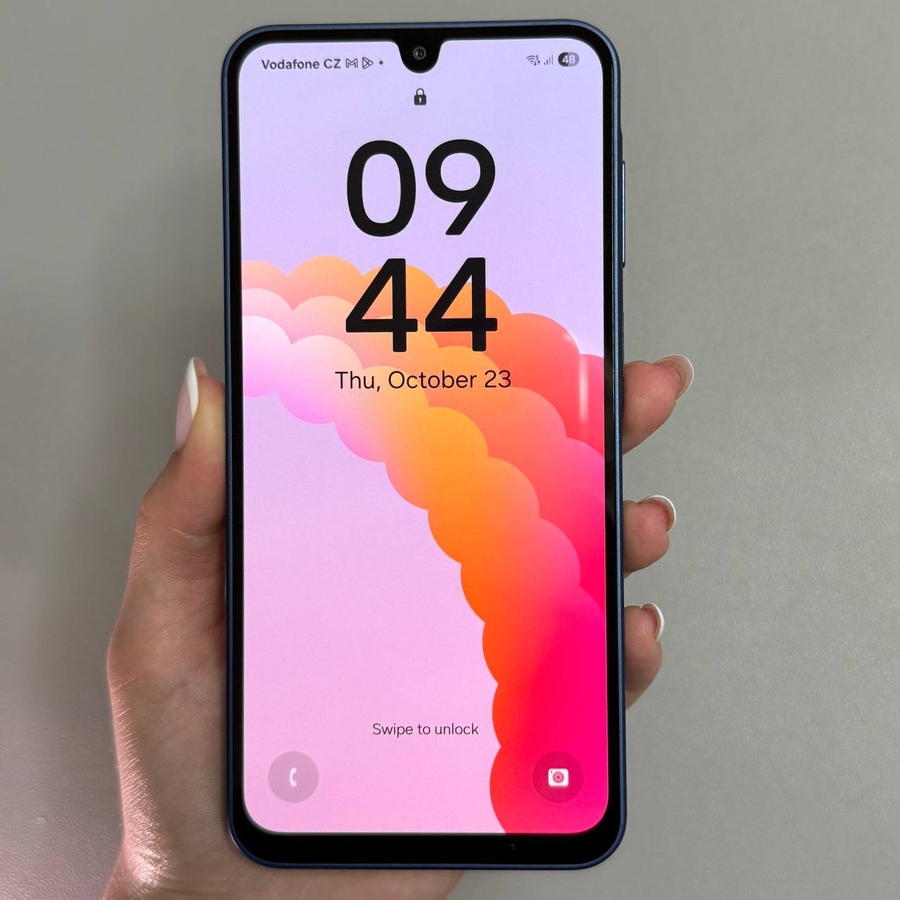
Welcome to our easy-to-follow guide on enhancing your Samsung Galaxy A17 5G's performance by managing its virtual RAM. If you feel your device could run faster or handle multitasking better, this tutorial is designed to help you increase your phone's effective RAM, improving speed and usability.
Step 1: Open the Settings App
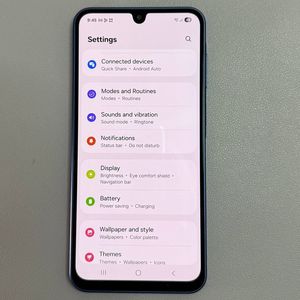
To start, unlock your Samsung Galaxy A17 5G and look for the Settings app. It's generally found on your home screen or within the app drawer. Tap the familiar gear icon to open it.

Step 2: Locate RAM Settings
Inside the Settings app, use the search bar at the top to find "RAM." Once you type it in, you should see an option for "RAM Plus." Click on this to enter the RAM management settings. Alternatively, if you prefer browsing, scroll down to find and select "Device care," then tap on "Memory."

Step 3: Access RAM Plus Features
In the Memory section, you'll see the RAM Plus feature. If it is currently turned off, switch it on by clicking the toggle. Please note, any changes you make to RAM Plus settings will require a device restart. Once you alter the settings, restart your phone for the changes to take effect.

Step 4: Select and Adjust Virtual RAM
Once your device restarts, go back to the RAM Plus settings. Here, you can select how much additional virtual RAM you want to add, ranging from 2GB to 8GB. This RAM is allocated from your internal storage, so be sure to manage your storage accordingly. For example, if you add 4GB of virtual RAM, it will reduce your available storage by the same amount.

Step 5: Storage Management
Remember, using virtual RAM means that portion of the storage is temporarily used as RAM, reducing available space for files. Once you no longer need the extra performance boost, turning off RAM Plus will release the storage back to normal use.