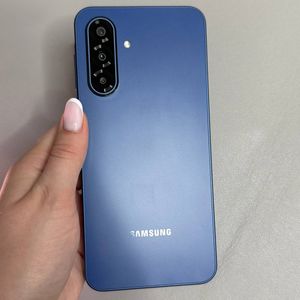
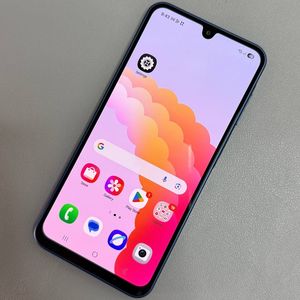
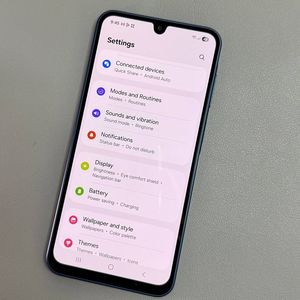
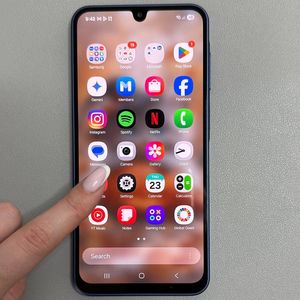
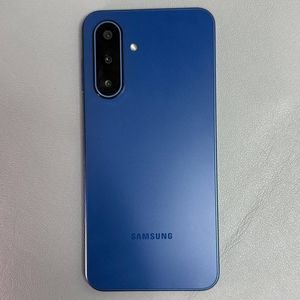
Samsung Galaxy A17 5G - How to Enable or Disable Always-On Display
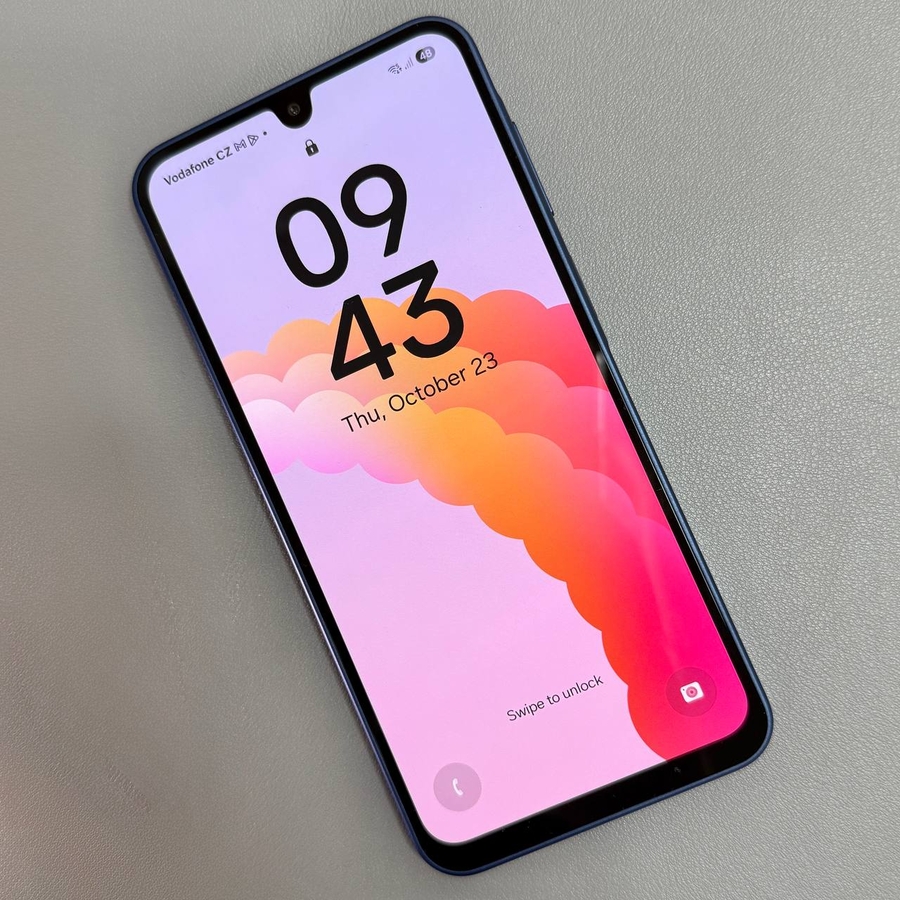
The Always-On Display (AOD) feature can be a great addition to your Samsung Galaxy A17 5G, allowing you to view important information at a glance without having to unlock your phone. This guide will walk you through the steps to enable or disable this feature, using a third-party app for customization to suit your preferences.
Step 1: Install a Third-Party App from the Play Store
To begin customizing your Always-On Display on the Samsung Galaxy A17 5G, you will need to install a third-party application from the Google Play Store. Unlock your phone and open the Play Store app, easily identifiable by its multicolored triangle icon. In the search bar, you can type "Always on Display" or "AOD" to find suitable apps. For this guide, we will use an app called "Muviz Edge," known for its AOD capabilities. Click on the app to install it.


Step 2: Set Up the App
After the installation is complete, open the Muviz Edge app. You will need to grant certain permissions for the app to function correctly. Tap on "Draw over apps" to allow the necessary permissions. Wait for the screen to load, then find "Movie set" in the list and enable it by toggling the switch.


Step 3: Customize Your Always-On Display
Once you have set up the basic permissions, navigate to the bottom of the app and switch to the AOD section. Here, you will encounter a plethora of Always-On Display designs, with both free and premium options. Select a design that catches your eye. While some customization features might require payment, many free designs are available to get you started. After you've made your choice, hit "Apply" to activate the AOD.


Step 4: Adjust Additional Settings
For further personalization, go to the "Settings" within the app. Ensure that the Always-On Display is enabled, and you can select conditions for when it should appear, such as "always," "while charging," or "on music playing." You can also tweak the brightness levels and set the AOD timeout duration. For instance, set it to turn off after 10 seconds. Lastly, decide how you'd like to exit the Always-On Display; the default is double-tap, but you can switch to a single tap if preferred.

Step 5: Activate Your Always-On Display
With your desired settings ready, exit the app, and turn off your Samsung Galaxy A17 5G. Your customized Always-On Display should now appear. You can tap once to quickly transition to the lock screen. And there you have it – your personalized Always-On Display is now up and running, enhancing your device's display without draining your battery excessively.