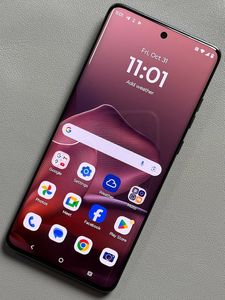
How to Enable or Disable Hey Google on Motorola EDGE 60 Fusion
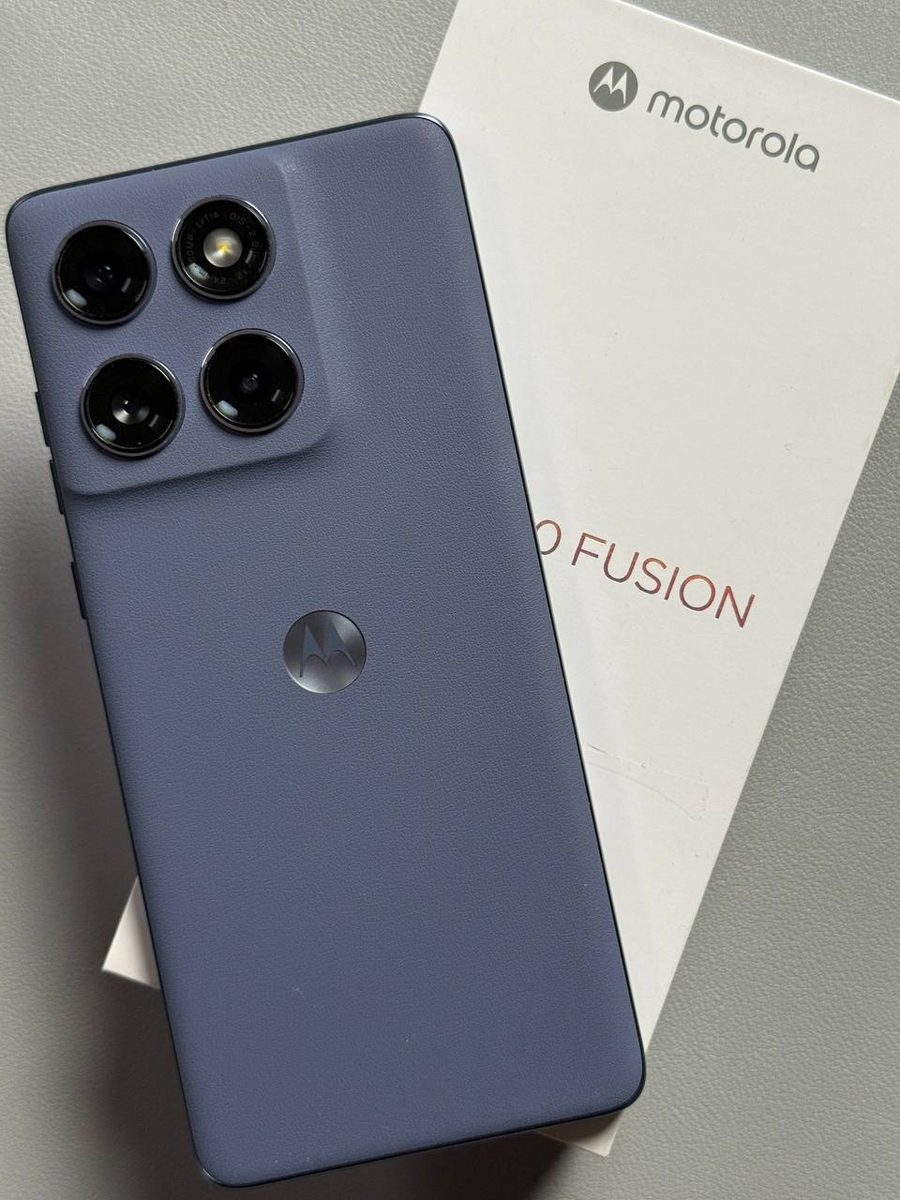
Do you want to customize the voice assistant settings on your Motorola Edge 60 Fusion? This guide will walk you through the straightforward process of enabling or disabling the 'Hey Google' voice command on your device. With these easy-to-follow steps, you'll be able to manage this feature effortlessly, adapting it to suit your preferences.
Step 1: Access Your Device Settings
To begin the process, unlock your Motorola EDGE 60 Fusion and locate the Settings app. You can easily find it by looking for the gear-shaped icon on your home screen or within the app drawer.

Step 2: Navigate to Google Settings
Once you have opened the Settings app, scroll down through the list of options until you find Google. Tap on it to enter the Google settings section.

Step 3: Go to Search, Assistant & Voice
Within the Google section, look for an option labeled 'Search, Assistant & Voice.' Tap on it to access more detailed settings related to Google's voice services.

Step 4: Access Google Assistant Settings
In the next window, locate the Google Assistant option. Tap on it to enter the configuration settings for the voice assistant.

Step 5: Configure Voice Match
Finally, within the Google Assistant settings, find and select 'Voice Match.' Here you can toggle the 'Hey Google' feature on or off. If enabling it for the first time, you'll need to set up voice recognition by speaking a few sentences aloud. This helps ensure that the assistant responds accurately to your voice.


And there you have it! Now you know how to enable or disable the 'Hey Google' feature on your Motorola EDGE 60 Fusion.