How to Enable Phone Notifications for Amazfit Bip 6 on Android
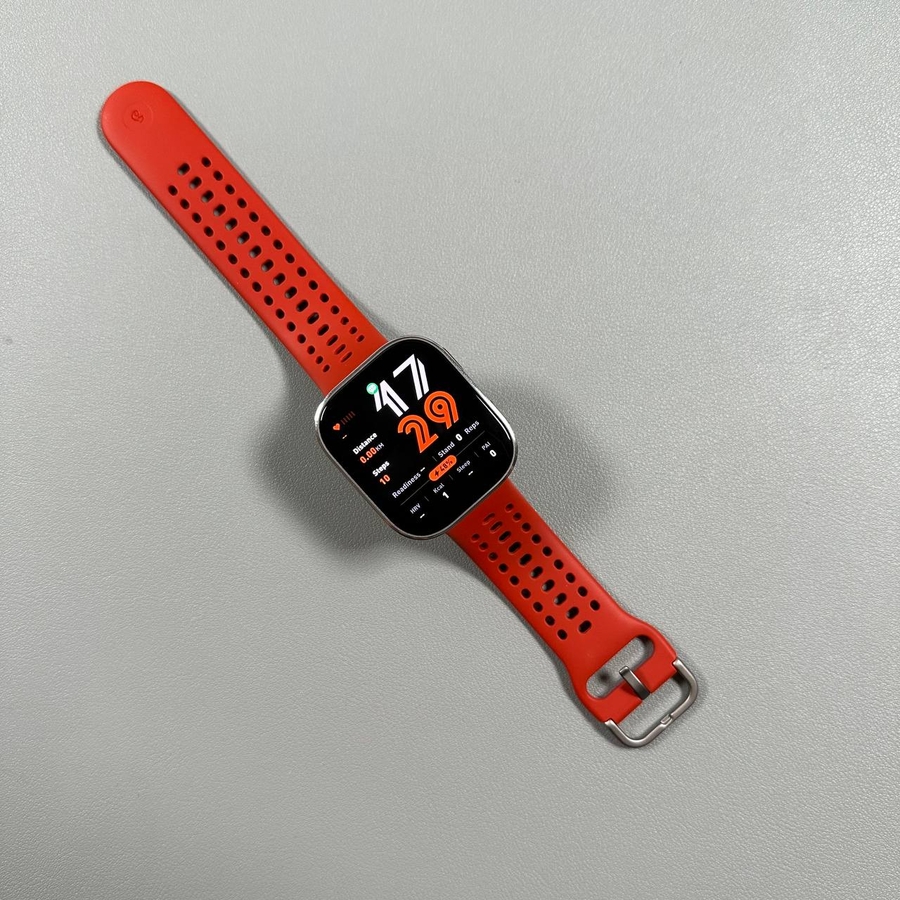
Welcome to this comprehensive guide on how to enable phone notifications for your Amazfit Bip 6 smartwatch when connected with an Android device. In this article, we'll walk you through the steps to ensure that your smartwatch receives notifications from your phone seamlessly. Before we begin, make sure that your Amazfit Bip 6 is paired with your Android phone via the Zepp application. If you haven't done this yet, please refer to your smartwatch's user manual for pairing instructions, and then return here to proceed with enabling notifications.
Step 1: Launch the Zepp Application
To start, unlock your Android phone and locate the Zepp app, which manages your Amazfit Bip 6 smartwatch settings. Tap its icon to open the app and ensure you are on the homepage. This app is essential for syncing your watch with your phone's functionalities.

Step 2: Navigate to Your Device
Once inside the Zepp app, look for the device icon and select it. This action will directly display your Amazfit Bip 6 device information. If your watch is not visible, verify it is correctly paired with your phone.

Step 3: Access Notification Settings
Scroll down the device settings page until you find the option labeled "Notifications and Reminders." Tap on it to enter the notifications section, where you'll configure notification preferences and permissions for your smartwatch.

Step 4: Customize Notification Options
Here, you can now tailor your notification settings. For instance, the "Silence notifications during phone DND mode" option will mute notifications on your watch if your phone's "Do Not Disturb" is activated. You can also choose to receive notifications only when your phone is locked.

Step 5: Set Up Quick Responses
You also have the flexibility to manage quick responses. These are pre-set messages that you can send directly from your watch. To modify them, tap on an existing response to edit or add a new one and save your changes. Additionally, you can reorder these responses according to your preference by using the edit mode.

Step 6: Manage App Notifications
Finally, you can manage notifications for individual apps on your phone. When you enable notifications for a specific app, for instance, Discord, any notifications from that app will be forwarded to your Amazfit Bip 6. Disable notifications for apps that you don't want to receive on your watch to keep them only on your phone.

Once you have completed these steps, test the setup by sending a message or notification to your phone. Check your Amazfit Bip 6 to ensure the notifications appear correctly.