Plantronics Poly Sync 10 Series - Corded Speakerphone Manual
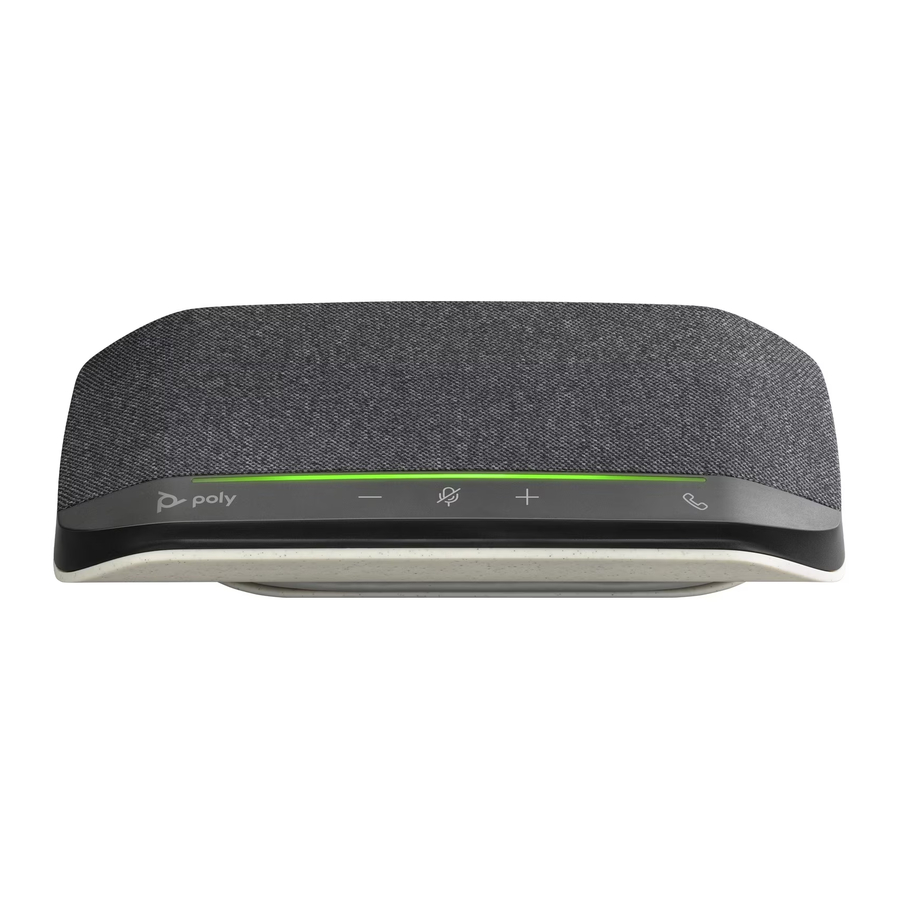
Controls and status lights

A portable speakerphone with corded connectivity.
 | Press to interact with Microsoft Teams (Teams model only, desktop application required) |
 | Volume down |
 | Mute / Hold |
 | Volume up |
 | Call |
 | LED bar |
LEDs
| LED bar | What lights mean |
| Flashing green | Incoming call |
| Solid green | In a call |
| Solid red | Mute active |
| Flashing red | Call on hold |
NOTE LEDs do not illuminate in standby mode.
Be safe
Please read the safety guide for important safety, charging, battery and regulatory information before using your new device.
Setup
Corded setup
Connect the USB cable from the speakerphone to the USB port on your computer.
NOTE Your speakerphone has a USB-A to USB-C adapter for easy connection to either type of port.

Load software
Download Poly Lens App to get the most out of your device. Some softphones require the installation of Poly software to enable device call control (answer/end and mute) functionality. Download: poly.com/software.
- Enable features
- Change settings
- Configure call control for softphones
- Update device firmware
- Manage notifications and alerts
- Schedule health and wellness reminders
Update your Poly device
Keep your firmware and software up-to-date to improve performance and add new features to your Poly device.
Update your device using Poly Lens App. Download at poly.com/software.
Basics

Power
Plug the USB cable into your computer. The LED bar illuminates when powered on.
NOTE Your speakerphone has a USB-A to USB-C adapter for easy connection to either type of port.
Answer or end a call
Press the Call  button to answer or end a call.
Make a call
Dial using your softphone application.
Hold call
- Press and hold the Mute
![]() button for 2 seconds to hold the call. The LED bar flashes red.
button for 2 seconds to hold the call. The LED bar flashes red. - To resume call, hold the Mute
![]() button for 2 seconds. The LED bar returns to solid green.
button for 2 seconds. The LED bar returns to solid green.
NOTE The Call button is also equipped to hold calls. Press the Call button for 2 seconds to hold/resume call.
Volume
Press the Volume up (+) or down (-) buttons to increase or decrease volume.
Adjust speakerphone microphone volume
Place a test softphone call and adjust softphone volume and PC sound volume accordingly.
Mute/Unmute
During an active call, press the Mute  button to mute or unmute the microphones. Manage mute settings in Poly Lens App.
Launch Microsoft Teams
Teams model only
Your device has a Teams  button to quickly view and use the Microsoft Teams desktop app. The Teams button pulses when you have a meeting or notification.
- When not on a call, tap the Teams
![]() button to view Microsoft Teams app on your computer.
button to view Microsoft Teams app on your computer. - When the Teams button LED pulses purple, tap to view your Teams notifications or meeting.
NOTE Teams model and open Teams desktop application required. Teams mobile application is not supported.
NOTE If your Teams button is not responsive, ensure your Poly device is the default audio device in Microsoft Teams settings.
Troubleshoot
(Teams model only) How do I interact with Microsoft Teams |
|
(Teams model only) When I tap the Teams button nothing happens |
|
How do I manage my device using Poly software |
|
What's in the box
Contents may vary by product.

Support
NEED MORE HELP?
poly.com/support
Manufacturer:
Plantronics, Inc.
345 Encinal Street
Santa Cruz, CA 95060
United States
Plantronics B.V.
Scorpius 171
2132 LR Hoofddorp
Netherlands
Plantronics Ltd.
Building 4, Foundation Park
Cannon Lane, Part 1st Floor
Maidenhead, SL6 3UD
United Kingdom
© 2022 Poly. All trademarks are the property of their respective owners. Manufactured by Plantronics, Inc.
Model ID: SY10/SY10-M USB-A/C. System: Poly Sync 10 has a SY10/SY10-M speakerphone.

References
Downloads & Apps | Poly, formerly Plantronics & Polycom
Support | Poly, formerly Plantronics & Polycom

Download manual
Here you can download full pdf version of manual, it may contain additional safety instructions, warranty information, FCC rules, etc.
Download Plantronics Poly Sync 10 Series - Corded Speakerphone Manual


