How to Change Your Google Pixel 10 Pro's Call Answer Gesture from Swipe to Tap
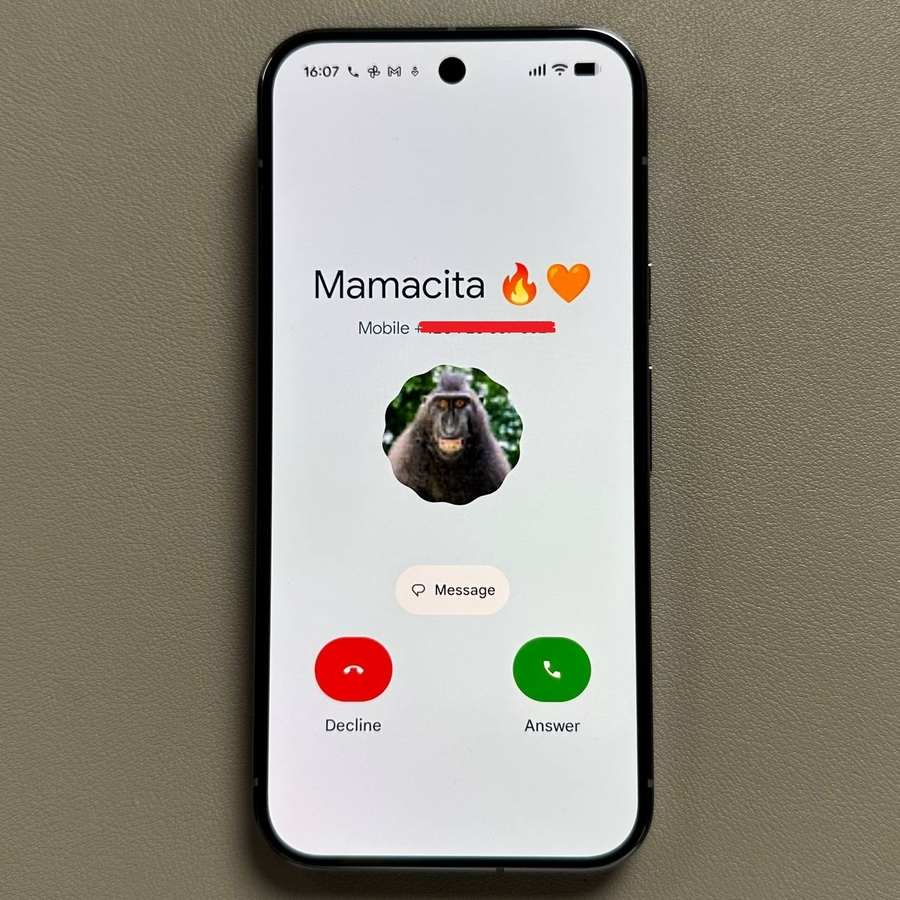
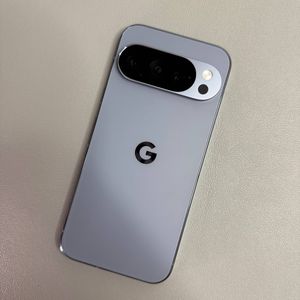
The Google Pixel 10 Pro is a fantastic device, but sometimes, the default settings aren't quite what you prefer. By default, you have to use a horizontal swipe to answer an incoming call. If you'd prefer a faster, one-handed approach, this guide will walk you through changing the incoming call gesture to a simple single tap. This small adjustment can make a big difference in how quickly you can pick up a call!
Step 1: Open the Phone App
To get started, unlock your Google Pixel 10 Pro device and open the main Phone app. This is the application you use to dial numbers and view your call history. You can usually find its icon (often a telephone handset) on your home screen or within the app drawer.

Step 2: Access the Settings Menu
Once the Phone app is open, you need to find the main menu. Look for the three horizontal lines (sometimes referred to as a "hamburger menu") located in the top-left corner of your screen and give them a tap. This action will open a side menu with several options.

Step 3: Navigate to Phone App Settings
From the menu that appeared, locate and select the option labeled "Settings." This will take you to the main configuration area for your Google Pixel's calling features.

Step 4: Locate the Incoming Call Gesture Option
Within the settings menu, scroll down until you find the specific configuration for handling calls. The option you are looking for is titled "Incoming call gesture" or something similar. Tap on this option to proceed to the gesture selection screen.

Step 5: Change from Swipe to Tap
You'll notice that the current setting, by default, is likely set to "Horizontal Swipe" or a similar phrase indicating a swiping action is required to answer. Tap on this selection. A new set of options will appear, allowing you to choose "Single Tap" or "Tap to Answer." Select the single tap option.

Conclusion
And that's all there is to it! You have successfully updated your Google Pixel 10 Pro's behavior. From now on, when you receive a call, you will only need to give the screen a simple tap to answer it, instead of performing a swiping motion. Enjoy the quicker call answering experience!