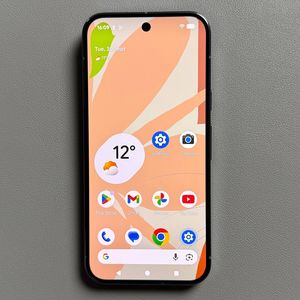
How to Take Motion Photos (Live Photos) on the Google Pixel 10 Pro
Do you ever wish your photos could capture the brief moment before and after you hit the shutter button? The Google Pixel 10 Pro's Motion Photo feature—similar to Live Photos on an iPhone—does exactly that. It captures a short video clip alongside your still picture, bringing your memories to life with a press and hold. This feature is perfect for capturing fleeting expressions, subtle movements, or dynamic scenes. Here's a step-by-step guide on how to activate and use Motion Photo on your device.
Activating the Motion Photo Feature
The Motion Photo setting is easily accessible right inside the camera interface.
- Open the Camera App
Launch the Camera app on your Google Pixel 10 Pro. - Access Camera Settings
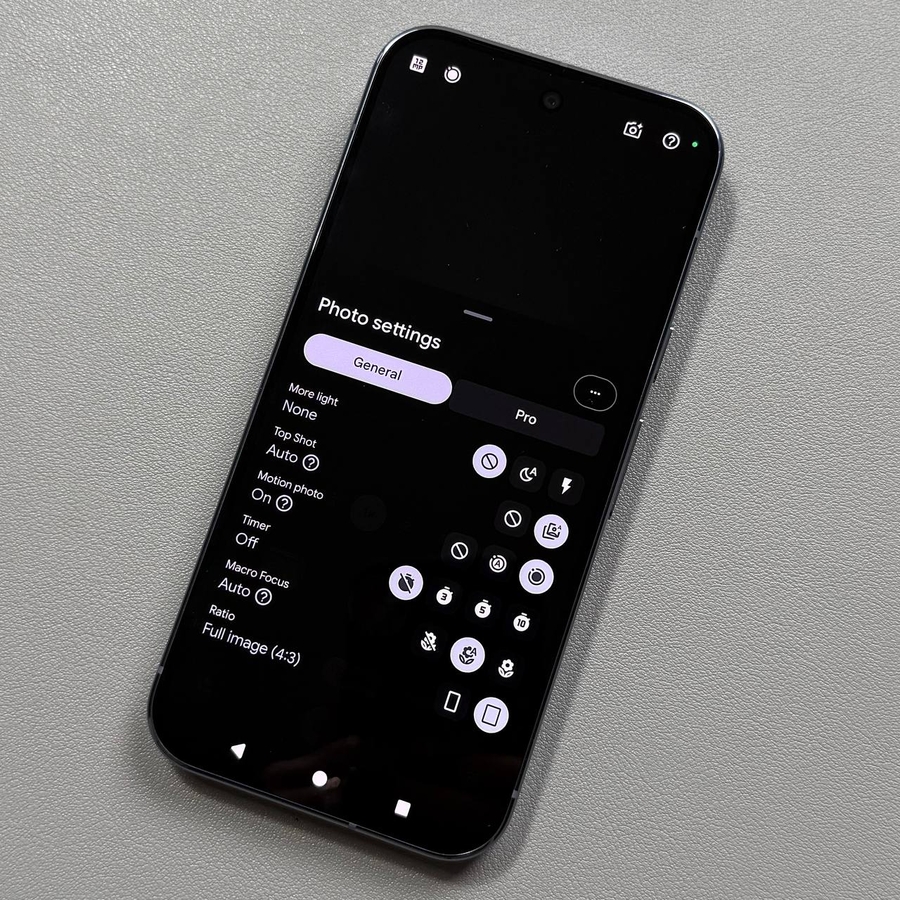
While you're in the default Photo mode, look for the settings icon (it usually looks like a gear or an arrow pointing down) in the top-middle or bottom-left corner of the screen and tap it to reveal the camera settings panel.![Screenshot of the Pixel 10 Pro Camera app in photo mode showing the settings icon to open the settings panel.]()
- Find and Select Motion Photo
In the settings panel, find the Motion Photo option. You'll have three choices:- Off: Motion photos are disabled.
- Auto: The camera decides when to use motion based on the scene (recommended for general use).
- On: Motion photos are always active.
![Screenshot of the camera settings panel showing the Motion Photo option.]()
![Screenshot of the Motion Photo options menu showing the On setting selected.]()
- Close Settings and Start Shooting
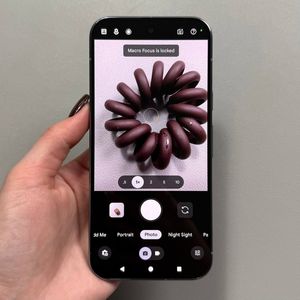
After you've selected your preference (e.g., On), swipe down or tap outside the settings panel to close it. The Motion Photo icon (a small circle with lines) should now appear clearly on your camera interface, indicating the feature is active.![Screenshot of the Pixel 10 Pro Camera interface showing the active Motion Photo icon.]()


Taking and Viewing Motion Photos
Using the feature is just like taking a regular photo, but viewing it requires a specific action.
- Capture Your Photo
Point your camera at your subject and press the camera shutter button. A slight, natural movement of the camera during the shot can help capture a more dynamic clip. - View the Photo in Gallery
Tap on the gallery icon (usually a small preview of the last photo taken) in the bottom-left corner to open your photo reel. - Identify the Motion Photo
When viewing the photo, you'll see the word Motion or a similar indicator at the top of the screen, confirming it's a motion photo.![Screenshot of the Pixel 10 Pro Camera interface showing the gallery preview icon to enter the photo reel.]()
![Screenshot of a captured Motion Photo in the gallery with the Motion indicator visible at the top.]()
- Play the Motion Clip
To view your motion photo as a short clip, simply press and hold the image on the screen. It'll start moving instantly.


Important Note on Mode Compatibility
Please keep in mind that the Motion Photo feature is only available in the standard Photo mode. You can't take motion photos while using the Night Sight mode or other specialized modes, as these modes require a different type of processing that is incompatible with capturing the short video clip.
That's it! Enjoy bringing your still images to life on your Google Pixel 10 Pro.