How to Change App Icon Colors on Your Google Pixel 10 Pro
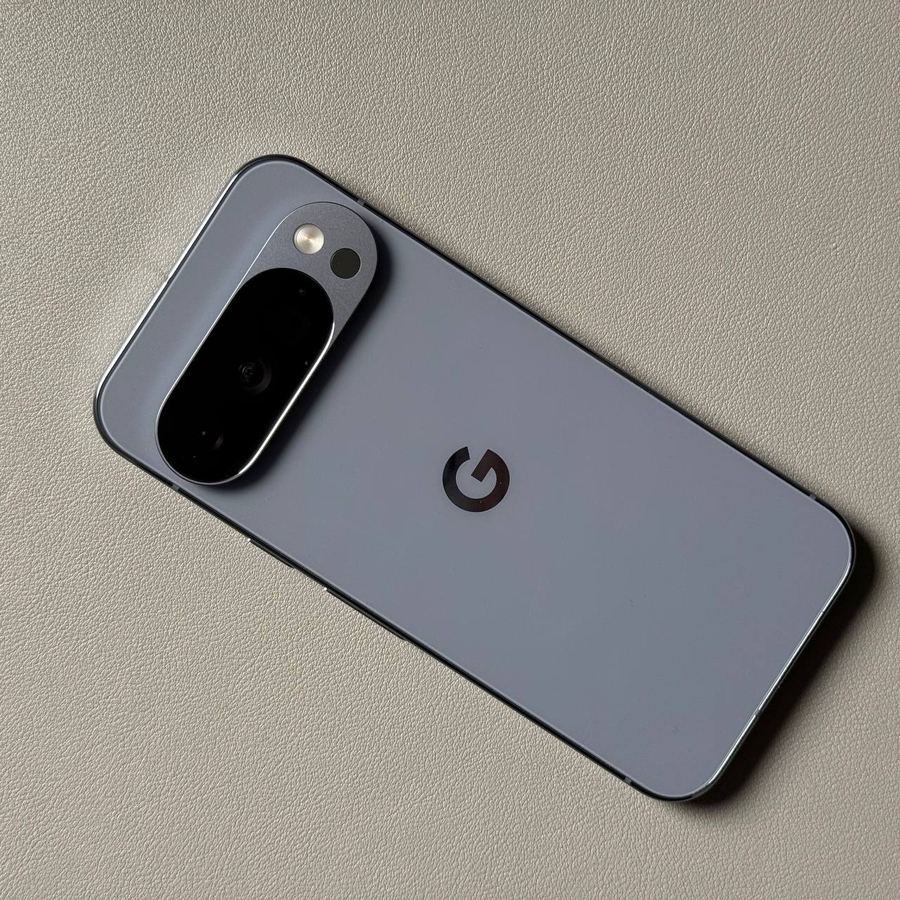
The Google Pixel 10 Pro, running on the latest Android OS, allows for deep personalization thanks to Google's Material You design language. One of the most visually striking ways to customize your device is by changing the color of your app icons to match your wallpaper or a specific theme. This feature, called Themed Icons, automatically adjusts the color of supported app icons to create a cohesive, personalized look across your home screen. Follow this detailed guide to enable and customize your app icon colors.
Enabling Themed Icons on Your Home Screen
First, you need to activate the feature that allows your app icons to be tinted by the system theme.
- Open Settings and Navigate to Wallpaper & Style
Open the Settings app on your device. Scroll down and tap on Wallpaper & style.![Screenshot of the Pixel Settings menu showing Wallpaper & style highlighted.]()
- Select Home Screen Customization
In the Wallpaper & style menu, look for and tap the customization option for the Home screen.![Screenshot of the Wallpaper & style menu with the Home screen option highlighted.]()
- Enable Themed Icons
Within the Home screen customization settings, tap on Icons. You will see the Themed icons toggle switch. Tap it to enable the option. Finally, tap Apply in the upper right corner to save your changes.![Screenshot of the Home screen customization menu showing the Icons option highlighted.]()
![Screenshot of the Icons menu with the Themed icons toggle enabled and the Apply button highlighted.]()


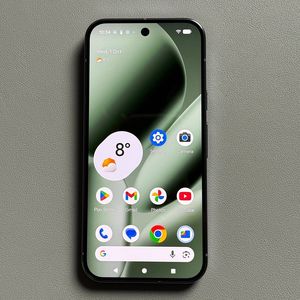
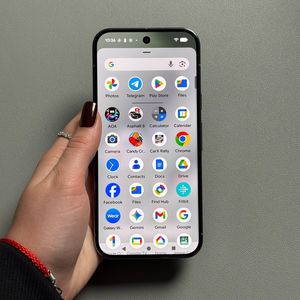
Note: This change only applies to the app icons on your home screen and supported apps within the App Drawer, not every app icon on your device. Go back to your home screen and observe as the color of supported icons changes to match your current system theme.
Changing the Icon Color Palette
If you don't like the automatically generated color, you can change the system's underlying theme color, which will, in turn, change your app icon colors.
- Return to Customization and Find Colors
Go back to the Home screen customization menu (Settings > Wallpaper & style > Home screen) and tap on the Colors option.![Screenshot of the Home screen customization menu showing the Colors option highlighted.]()
- Select a New Theme Color
Here you can switch to a different theme on your device. You can choose from color palettes based on your Wallpaper, pre-selected basic Colors, or other available palettes.![Screenshot of the Color options menu showing different palette choices Wallpaper colors and a selection of Other colors.]()
- Apply the New Color
Tap on your preferred color option and click Apply in the upper right corner. - Re-enable Themed Icons (If Necessary)
Go back, choose Icons again, and ensure Themed icons is still enabled (it usually is, but a quick check ensures the color change registers). Tap Apply in the upper right corner once more to finalize the color change.![Screenshot of the Themed icons option enabled with the Apply button highlighted, showing the new color applied to the preview icons.]()


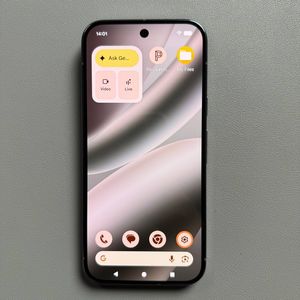
Now, your home screen app icon colors should have changed according to your newly selected theme. Enjoy your custom-colored Pixel interface!