How to Control the Tap to Wake Feature on Google Pixel 10 Devices
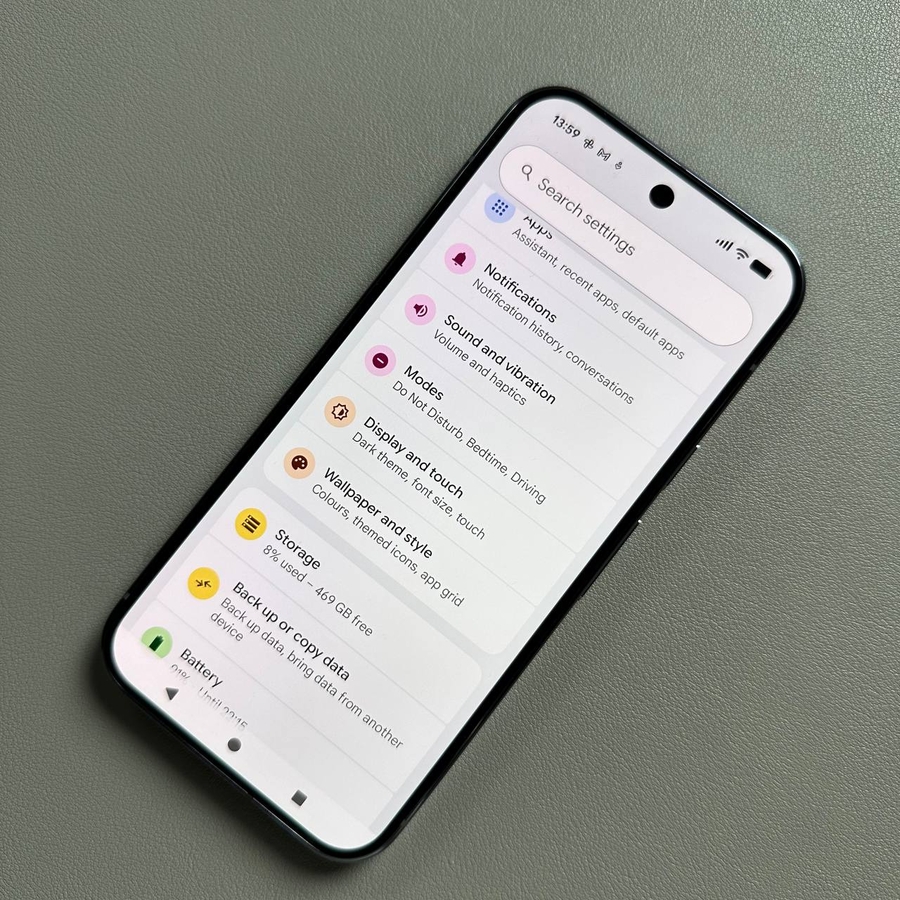
Welcome! We'll show you how to manage the convenient "Tap to wake" feature on your Google Pixel 10 or Pixel 10 Pro device. This feature lets you quickly glance at the time and notifications without pressing any buttons, but you might want to disable it to save battery life or prevent accidental screen activation. Follow these easy steps to take control of your device's display settings.
Step 1: Navigate to the Display Settings
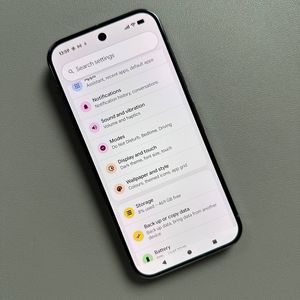
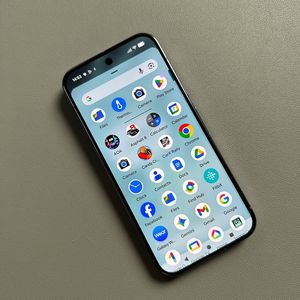
To get started, unlock your device and open the main Settings application. You can usually find the gear-shaped icon on your home screen or within the app drawer. Once in Settings, you will need to scroll down the list and tap on the "Display" option, and then select the "Lock screen" option from the subsequent menu to proceed.

Step 2: Locate the Tap to Check Phone Setting
Within the "Lock screen" menu, look for the setting titled "Tap to check phone." This is the official name for the feature that allows you to lightly tap your screen to see the time, notifications, and other glanceable information without pressing the power button.

Step 3: Enable or Disable the Feature
You can manage this feature by adjusting the adjacent switch (or toggle). To disable this feature, gently tap the switch to move it to the left, which will usually make the toggle appear grey or white. If the feature is currently disabled and you want to enable it, simply tap the toggle to move it to the right, which will typically make it appear in a colored or blue position.


Step 4: Confirm Your Changes
And that's all there is to it! With this feature successfully managed, tapping the screen of your Google Pixel 10 will now either wake the device (if enabled) or do nothing at all (if disabled). If you have disabled it, remember you will need to press the physical power button located on the side of your device to turn the screen on. This simple change can sometimes help conserve battery life or prevent unwanted screen activation.