How to Set Up Fingerprint on Samsung Galaxy A56
- 1 Step 1: Open the Settings App
- 2 Step 2: Navigate to Security and Privacy
- 3 Step 3: Select Biometrics and Screen Lock
- 4 Step 4: Enter Your Current Security Credentials
- 5 Step 5: Access the Fingerprints Option
- 6 Step 6: Register Your Fingerprint
- 7 Step 7: Complete or Add More Fingerprints
- 8 In Other Languages
Setting up a fingerprint on your Samsung Galaxy A56 can enhance your phone's security and make accessing your device more convenient. In this guide, we'll walk you through the process of configuring fingerprint recognition step by step.
Step 1: Open the Settings App
To begin, unlock your Samsung Galaxy A56 and locate the Settings app. The Settings app icon resembles a gear and is usually found on your home screen or in the app drawer. Tap on it to open.

Step 2: Navigate to Security and Privacy
Once you're in Settings, scroll down the menu and find the option labeled 'Security and Privacy'. Tap on this to proceed to the next steps in securing your device with fingerprint recognition.

Step 3: Select Biometrics and Screen Lock
Under the 'Security and Privacy' section, look for and select 'Biometrics and Screen Lock'. This menu is where you'll find all your device's biometric security options.

Step 4: Enter Your Current Security Credentials
At this point, the device will ask you to enter your current PIN, password, or pattern. If you have not set this up yet, you'll be prompted to create one now. This step is crucial as it serves as a backup method for accessing your device should fingerprint recognition fail.

Step 5: Access the Fingerprints Option
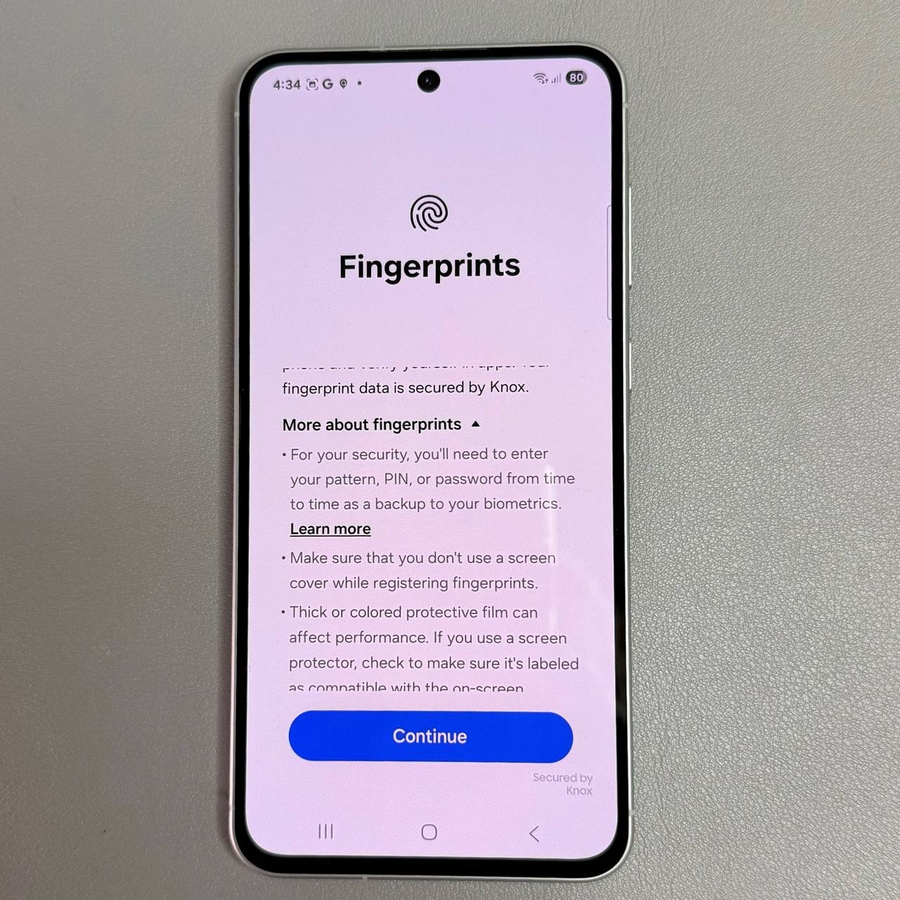
After entering your credentials, tap on 'Fingerprints'. You will see an introduction screen explaining the importance of having an alternative unlocking method. Tap 'Continue'.

Step 6: Register Your Fingerprint
Now, it's time to register your fingerprint. Choose which finger you want to use—for example, your thumb—and follow the on-screen instructions. Place your finger on the display sensor repeatedly, lifting and repositioning at different angles each time until the registration is complete.

Step 7: Complete or Add More Fingerprints
Once your fingerprint is fully registered, you will have an option to add another fingerprint or complete the process by tapping 'Done'. You can register multiple fingerprints for different fingers or other users.