How to Hide Files (Photos and Videos) on Google Pixel 10 Pro
This guide will walk you through the simple steps to utilize the Safe Folder feature, ensuring your personal content remains hidden from prying eyes. Let's dive right in!
Step 1: Access the Files App
To begin, unlock your Google Pixel 10 Pro and go to the app drawer. Launch the Files app, which is typically represented by a folder icon. This app allows you to manage and organize all your documents, images, and media efficiently.

Step 2: Locate and Set Up the Safe Folder
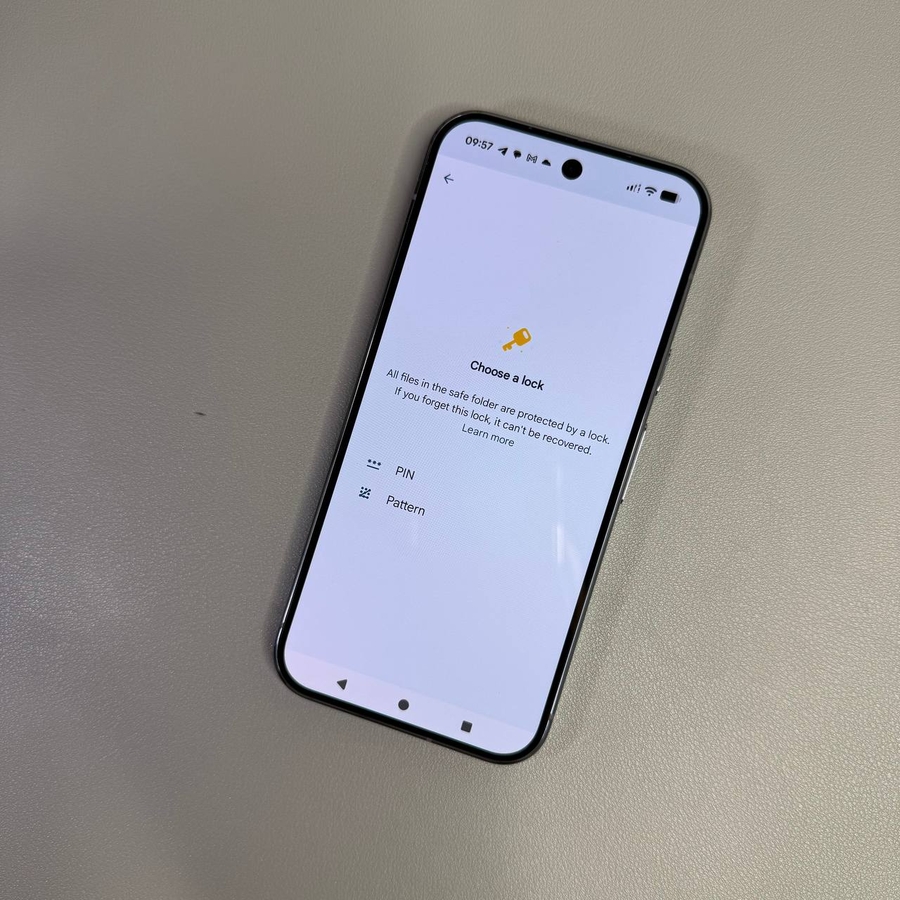
Within the Files app, find the Safe Folder option under the Collections section. Tap on it to start the setup process. You will need to choose a security method such as a pattern or PIN code. Make sure it's something only you can remember, yet hard for others to guess.


Step 3: Move Files to the Safe Folder
Navigate to the files you wish to hide, whether it's photos, videos, or other documents. Select the items you want to move by long-pressing them. Once selected, tap the three-dot menu in the top right corner and select 'Move to Safe folder'. You will need to confirm this action by entering your chosen security method.


Step 4: Access Files in the Safe Folder
To view your hidden files, simply go back to the Safe Folder in the Files app. Input your security code to unlock and access your content. Here, you can manage your files, including options to move them back to their original location or delete them if needed.

Step 5: Manage or Delete the Safe Folder
Whenever you want to change your security method or delete the Safe Folder entirely, go to the settings within the Safe Folder menu. Here, you have the option to alter your security preferences or completely remove the folder, including its contents. It's important to remember that once deleted, the data within cannot be retrieved.