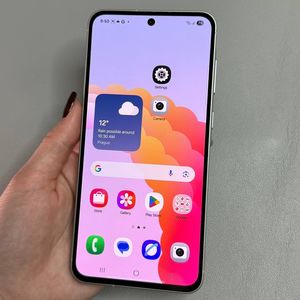
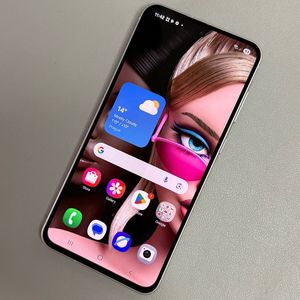
How to Enable or Disable Double Tap to Turn Screen Off on Samsung Galaxy A56
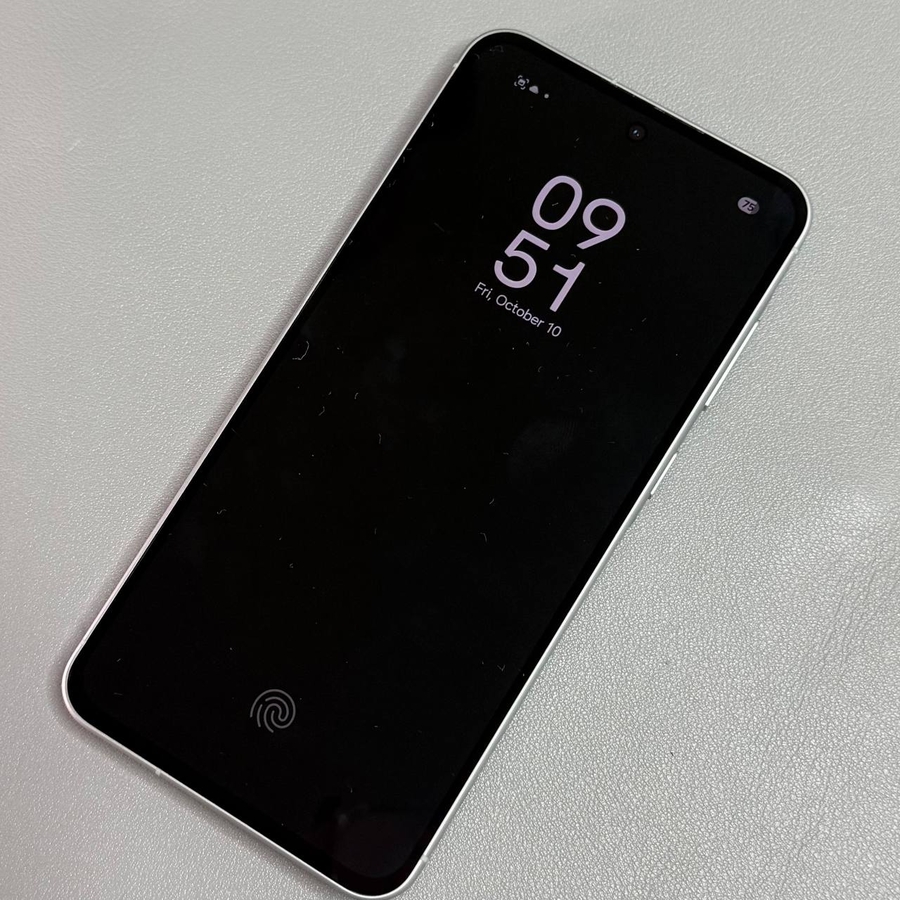
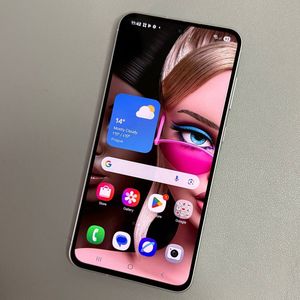
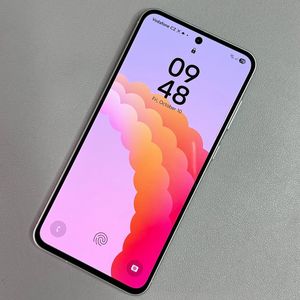
This guide will show you how to enable or disable the double tap feature to turn off the screen on your Samsung Galaxy A56. It's a handy shortcut for managing your display without using the physical power button.
Step 1: Open the Settings App
Unlock your Samsung Galaxy A56 and open the Settings app. You can find the gear icon on your home screen or app drawer. Tap to access settings.

Step 2: Navigate to Advanced Features
In Settings, scroll down to 'Advanced features' and tap on it to proceed.

Step 3: Access Motions and Gestures
Tap on 'Motions and gestures' within 'Advanced features' to manage your device's response to actions.

Step 4: Modify the Double Tap to Turn Off Feature
Find 'Double tap to turn off screen.' Toggle it on or off as you prefer. This controls whether your screen turns off with a double tap on the home screen.

Now, you can easily manage the double tap feature on your Samsung Galaxy A56 according to your preference. Enjoy exploring your device!