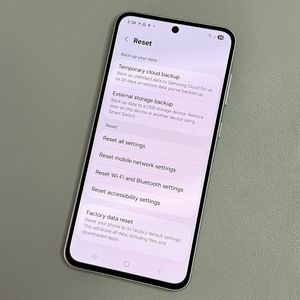
How to Change Home Screen Layout on Samsung Galaxy A56
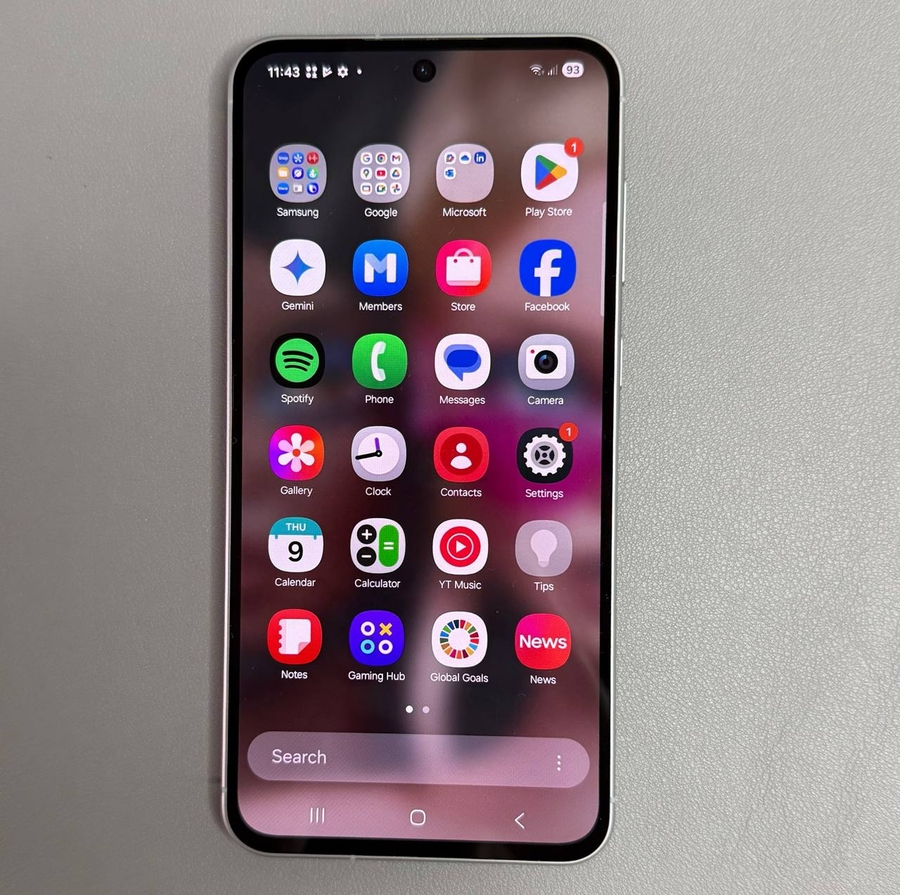
Welcome to our easy-to-follow guide on customizing the home screen layout of your Samsung Galaxy A56. Whether you want to use only the home screen or include an app drawer, our comprehensive instructions will help you personalize your device experience effortlessly. Let's dive in!
Step 1: Open the Settings App
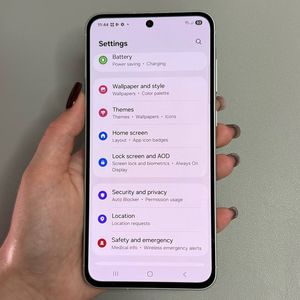
To begin, unlock your Samsung Galaxy A56 device, and locate the Settings app. You can find it by searching for the gear-shaped icon on your home screen, or within the app drawer if it's enabled.

Step 2: Navigate to the Home Screen Settings
Once the Settings app is open, gently scroll down until you see the option labeled 'Home Screen'. Tap on it to access further customization options tailored for your Samsung Galaxy A56.

Step 3: Choose Home Screen Layout
Within the home screen settings, look for 'Home Screen Layout'. Here, you can choose between two different layout options: 'Home Screen Only' and 'Home and Apps Screens'. Tap on this option to view your choices.


Step 4: Apply Your Preferred Layout
Let's say your current setup is 'Home Screen Only', preventing you from accessing the app drawer by swiping up. To change this, tap 'Home and Apps Screens', then press 'Apply' to save your preferences. Your home screen setup will now provide an app drawer for easier app access.

Step 5: Reverse Your Changes if Needed
If you ever decide to switch back to 'Home Screen Only', simply revisit the home screen layout settings, select 'Home Screen Only', and tap on 'Apply' again. Your home screen will go back to displaying only the home screen without the app drawer.

Now, enjoy the flexibility and control over your home screen's appearance on your Samsung Galaxy A56! If you have any questions, feel free to reach out in the comments section below.