How to Change Font Style on Samsung Galaxy A56
- 1 Step 1: Open the Settings App
- 2 Step 2: Navigate to Display Settings
- 3 Step 3: Choose Font Size and Style
- 4 Step 4: Select Your Preferred Font Style
- 5 Step 5: Download Additional Fonts
- 6 Step 6: Apply Your Downloaded Fonts
- 7 Step 7: Customize Bold Font Option
- 8 Final Step: Enjoy Your Customized Font Style
- 9 In Other Languages
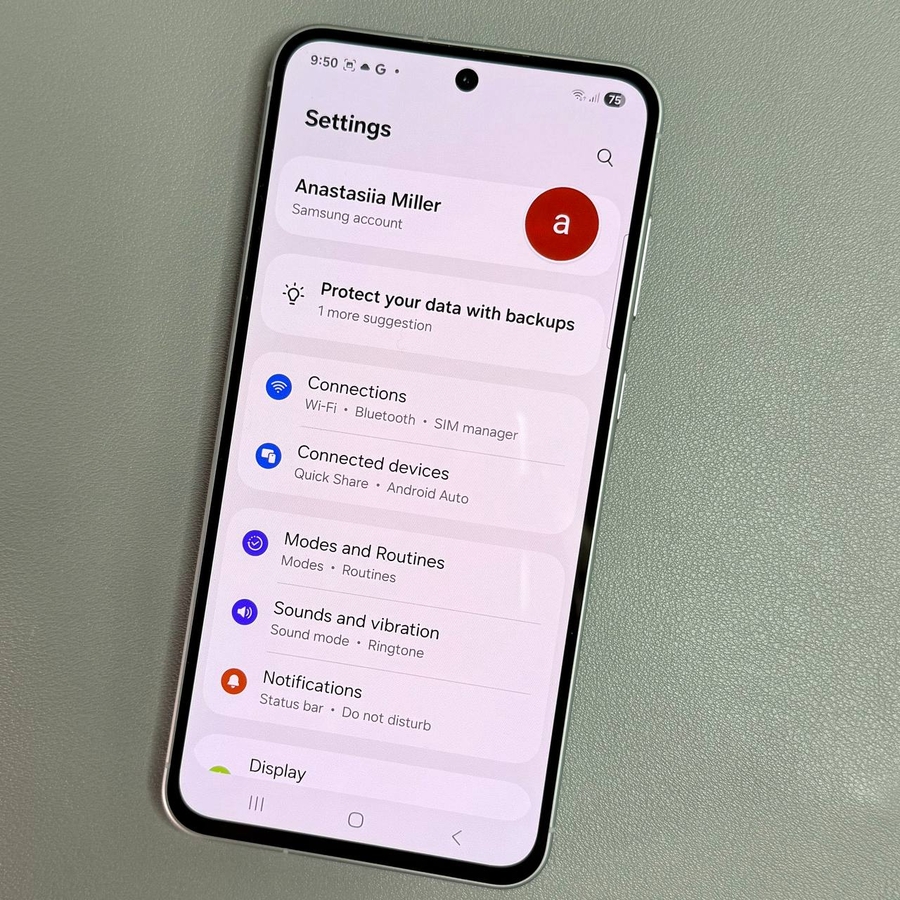
Unlock the potential of your Samsung Galaxy A56 by customizing the font style to match your personal preference. In this guide, we will walk you through the step-by-step process to change the font on your device. Whether you prefer classic fonts or want to download unique styles, this tutorial has you covered.
Step 1: Open the Settings App
To begin customizing your font style, access the main Settings app on your Samsung Galaxy A56. You can find the gear-shaped icon either on your home screen or within the app drawer. Simply tap on the icon to open the app.

Step 2: Navigate to Display Settings
Once inside the Settings app, scroll through the options and select "Display". This section allows you to adjust various visual settings on your smartphone.

Step 3: Choose Font Size and Style
Under the Display settings, look for the option labeled "Font size and style". Tap on it to open a new menu where you can modify your device's font characteristics.

Step 4: Select Your Preferred Font Style
Inside the Font size and style menu, you will see several pre-installed font options like Samsung One, Gothic Bold, and Roboto. Tap on any of these fonts to apply them to your device. If you're not satisfied with the default choices, proceed to the next step to explore more options.

Step 5: Download Additional Fonts
For a more personalized look, you can download and install other fonts. Simply tap on "Download fonts" to access the font store where you can choose additional styles. Select the fonts you like and tap the download icon to add them to your phone.

Step 6: Apply Your Downloaded Fonts
Once your desired fonts are downloaded, go back to the Font style menu. Here, you will see all the fonts you've acquired. Tap on any of the newly downloaded fonts to set it as your device's font style.

Step 7: Customize Bold Font Option
If you prefer a bolder text appearance, you also have the option to enhance the current font by selecting the "Bold font" toggle. This feature allows you to switch between regular and bold styles quickly.

Final Step: Enjoy Your Customized Font Style
After you've made your font selection, simply close the Settings app. Your Samsung Galaxy A56 will now reflect your chosen font style throughout its interface. Explore and enjoy the new look of your device!