Samsung Galaxy A56: How to Enable or Disable One-Handed Mode
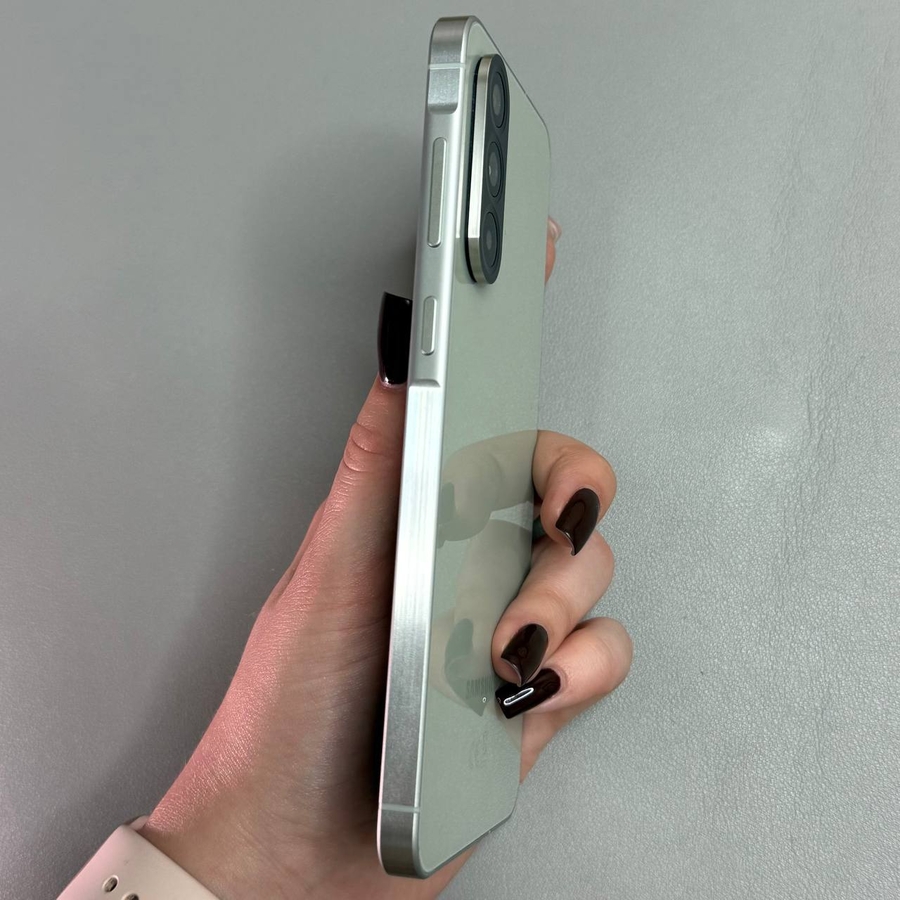
Are you finding it difficult to use your Samsung Galaxy A56 with one hand? Worry not, as the device offers a convenient one-handed mode that makes it easier to navigate your phone using just one hand. In this guide, we'll walk you through enabling and disabling this feature effortlessly.
Step 1: Accessing the Settings
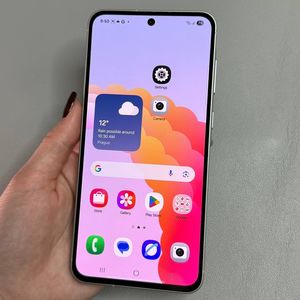
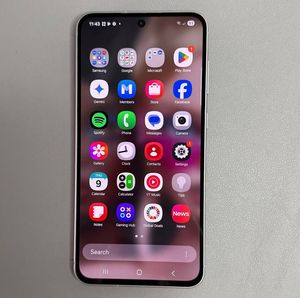
To get started, unlock your Samsung Galaxy A56 and locate the Settings app. You can find it by looking for the gear-shaped icon on your home screen or within the app drawer. Tap on it to open your phone's settings.

Step 2: Navigate to Advanced Features
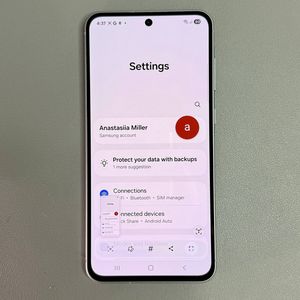
Once you are in the settings menu, scroll down until you see the option labeled 'Advanced Features.' Tap on it to explore more personalized settings for your device.

Step 3: Enable One-Handed Mode
In the Advanced Features section, look for 'One-Handed Mode.' Tap on this option. You'll see a switch that allows you to activate the mode. Turn the switch on, and choose how you want to reduce your screen size: either by a gesture or by a button. For example, you can double-tap the home button to activate one-handed mode.


Step 4: Adjust the Screen Size
While in one-handed mode, you can adjust the size of the smaller screen by holding one of its corners and dragging it. Alternatively, you can move the screen by clicking on the icons located on either side or by dragging it from the top line.

Step 5: Disable One-Handed Mode
If you wish to turn off the one-handed mode, follow the same steps to navigate to the 'One-Handed Mode' settings. Simply tap the switch once more to deactivate the feature, and your phone will return to normal operation.