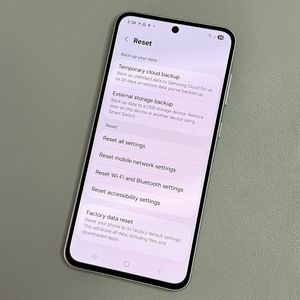
Samsung Galaxy A56: How to Take a Screenshot Easily
Taking screenshots is a necessary feature for many smartphone users. In this article, we'll walk you through several easy methods to capture a screenshot on your Samsung Galaxy A56.
Step 1: Capture with Physical Buttons
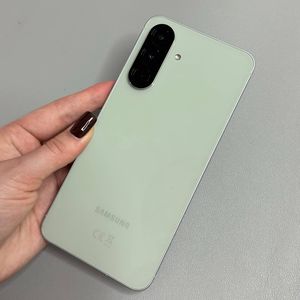
To take a screenshot using the physical buttons on your Samsung Galaxy A56, first locate the Volume Down and Power buttons on the side of your device. Quickly press and release both buttons simultaneously. You should see a brief flash on your screen as the screenshot is captured.

Step 2: Using the Quick Settings Panel
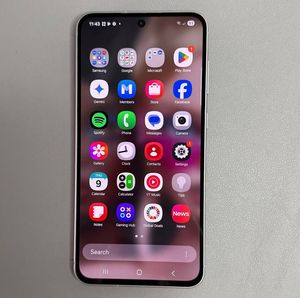
Another handy method is through the Quick Settings panel. Swipe down from the top of your screen to open it. Look for the 'Screenshot' button. If it's missing, tap the 'Edit' button (often a pencil icon), find the 'Screenshot' option, and add it to your active buttons. Once in place, simply tap it to snap a screenshot.


Step 3: Palm Swipe Gesture
If you prefer a touch-free approach, enable the palm swipe gesture. Open the main Settings app, go to 'Advanced Features', then 'Motions and Gestures'. Ensure 'Palm Swipe to Capture' is toggled on. Now, gently swipe the edge of your hand across the screen to take a screenshot.

Step 4: Take a Scrolling Screenshot
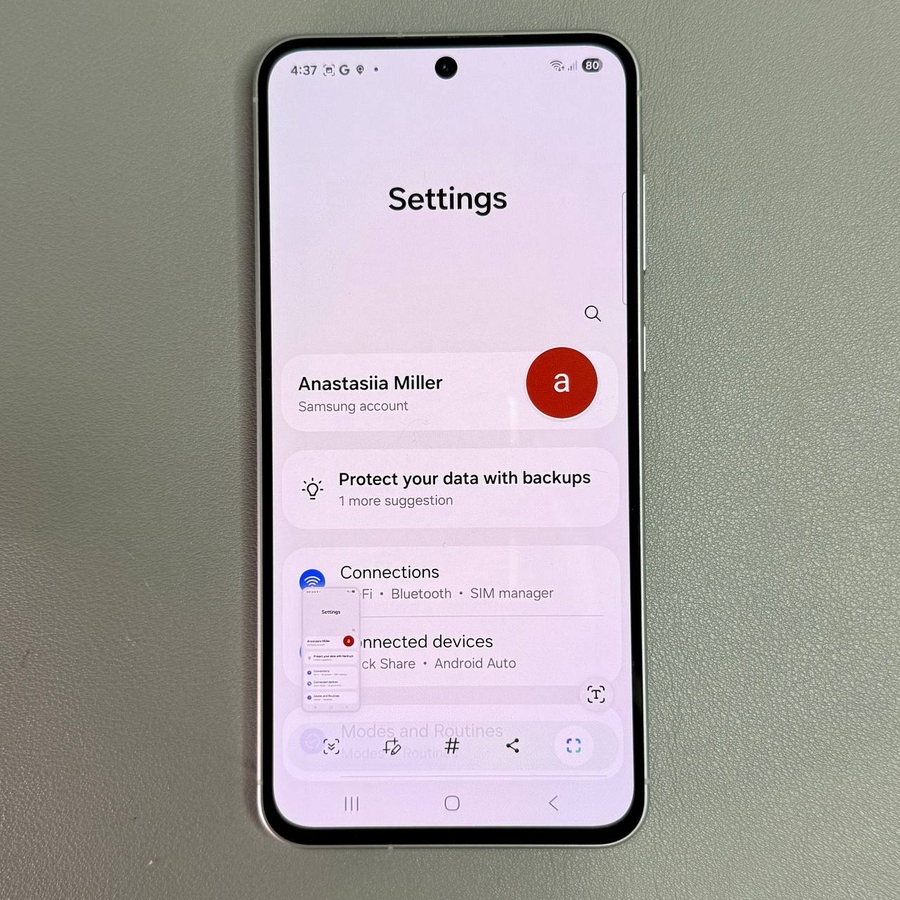
Catching everything on a long webpage or document? First, open the desired content. Start with a normal screenshot using any method discussed. A toolbar will appear; select the 'Scrolling Screenshot' icon, usually represented by a downward arrow. Tap it repeatedly as needed to capture more content until done.

Locating Your Screenshots
Once you've taken your screenshots, you can find them in your Gallery app. Open the app, go to the 'Albums' section, and select the folder labeled 'Screenshots'. Here, all your captures are neatly organized and ready for you to view or share.

With these methods, capturing what's on your screen has never been easier.