TP-Link AXE5400 - Tri-Band Wi-Fi 6E Router Manual
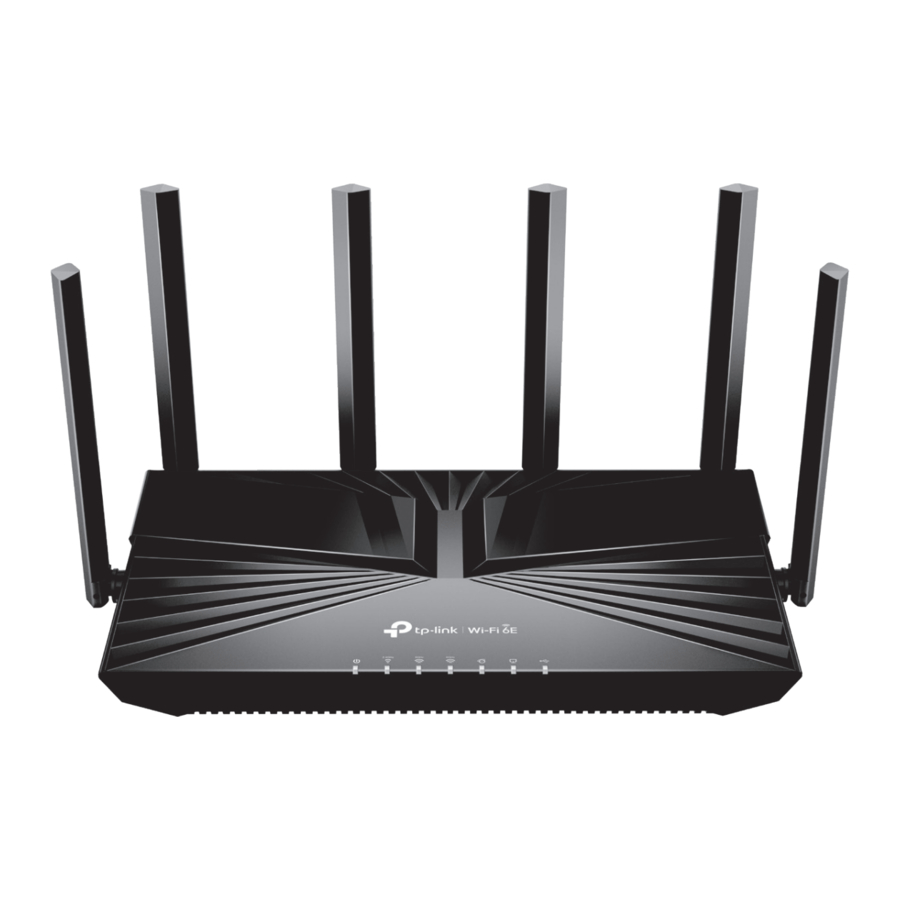
Connect the Hardware
![warning]()
Unplug the power (unplug the power) to turn off your modem, if any, and remove the backup battery if it has one.
![]()
- Refer to Q5 of Need Help? to place the router for optimal Wi-Fi performance.


If your internet comes from an Ethernet outlet instead of a DSL / Cable / Satellite modem, connect the router's WAN port to it, then follow steps 3 and 4 to complete the hardware connection.

- Connect the powered-off modem to the router's WAN port with an Ethernet cable.
- Power on the modem, and then wait about 2 minutes for it to restart.
- Connect the power adapter to the router and turn it on.
- Verify that the hardware connection is correct by checking the following LEDs.
![]()
Note: If the 2.4 GHz, 5 GHz, and 6 GHz LEDs are off, press and hold the Wi-Fi button on the back for more than 2 seconds. These LEDs should turn solid on.

Set Up the Network
Method ONE: Via TP-Link Tether App
- Download the Tether app.
![]()
Scan for Tether
![www.apple.com]()
![play.google.com]()
- Open the Tether app and log in with your TP-Link ID.
Note: If you don't have an account, create one first. - Tap the
![]() button in the Tether app and select Wireless Router > Standard Routers. Follow the steps to complete the setup and connect to the internet.
button in the Tether app and select Wireless Router > Standard Routers. Follow the steps to complete the setup and connect to the internet.


 button in the Tether app and select Wireless Router > Standard Routers. Follow the steps to complete the setup and connect to the internet.
 Enjoy the internet! (Enjoy the internet!) To enjoy a more complete service from TP-Link, bind your TP-Link ID to the router.
Method TWO: Via a Web Browser
- Connect your device to the router wirelessly or with an Ethernet cable.
The default wireless network names (SSIDs) and password are printed on the label at the bottom of the router.

- Launch a web browser, and enter http://tplinkwifi.net or http://192.168.0.1 in the address bar. Create a password to log in.
Note: If the login window does not appear, please refer to Q1 of Need Help? in this guide.

- Follow the step-by-step instructions to set up the internet connection and register for the TP-Link Cloud service.


Enjoy the internet! (Enjoy the internet!)
Button Explanation
LED Button
Press the button for 1 second to turn on or off the LEDs of your router.
WPS Button
Press the button for 1 second, and immediately press the WPS button on your client to start the WPS process.
Wi-Fi Button
Press and hold the button for more than 2 seconds, then release the button to turn on or off the wireless function of your router.
Reset Button
Press and hold the button for about 6 seconds until the Power LED blinks to reset the router to its factory default settings.
USB Applications
With the USB port, it's easy to share files and media with multiple devices. Visit https://www.tp-link.com/app/usb to learn more about the USB applications.
- Local Storage Sharing
Share files from the USB drive with devices on your home network - Media Server
Play media from the USB drive on your computer and smart devices - Remote Access
Access the USB drive when you are away from home

For technical support, replacement services, user guides, and other information, please visit https://www.tp-link.com/support.
- Keep the device away from water, fire, humidity or hot environments.
- Do not attempt to disassemble, repair, or modify the device. If you need service, please contact us.
- Do not use any other chargers than those recommended.
- Do not use damaged charger or USB cable to charge the device.
- Do not use the device where wireless devices are not allowed.
- Adapter shall be installed near the equipment and shall be easily accessible.
This device is restricted to indoor use only.
Need Help
Q1. What should I do if I can't access the web management page?
- Reboot your router and try again.
- If the computer is set to a static IP, change its settings to obtain an IP address automatically.
- Verify that http://tplinkwifi.net is correctly entered in the web browser. Alternatively, enter http://192.168.0.1 or http://192.168.1.1 in the web browser.
- Use another web browser and try again.
- Disable and enable the network adapter in use.
Q2. What should I do if I can't access the internet?
- Power off your modem for about 5 minutes, then power it on and check the internet. If your modem has more than one Ethernet port, keep other ports unconnected.
- Check if the internet is working normally by connecting a computer directly to the modem via an Ethernet cable. If it is not, contact your internet service provider.
- Log in to the web management page, and go to the Network Map page to check whether the internet IP address is valid or not. If it's valid, go to Advanced > Network > Internet, click Advanced Settings, select Use the Following DNS Addresses, set the primary DNS to 8.8.8.8, and set the secondary DNS to 8.8.4.4. If it is not, check the hardware connection or contact your internet service provider.
- For cable modem users, log in to the web management page of the router and go to Advanced > Network > Internet > MAC Clone. Select Clone Current Device MAC and click SAVE (save). Then reboot both the modem and the router.
Q3. What should I do if I forget my wireless password?
- If you have not changed the default wireless password, it can be found on the label at the bottom of the router.
- Connect a computer directly to the router using an Ethernet cable. Log in to the router's web management page at http://tplinkwifi.net, and go to the Wireless page to retrieve or reset your wireless password.
Q4. What should I do if I forget my web management page password?
- If you are using a TP-Link ID to log in, click Forgot password on the login page and then follow the instructions to reset it.
- Alternatively, press and hold the Reset button on the back for about 6 seconds until the Power LED blinks. Then visit http://tplinkwifi.net to create a new login password.
Q5. How should I position my router for optimal Wi-Fi performance?
- Don't place your router in a corner or in a closet (cupboard).
- Avoid obstacles and high-powered appliances.
- Keep your router in a central location at a certain height.
- Keep the antennas vertical when the router is placed on a desktop. Keep the antennas upright when the router is hanging on a wall.

References
![www.apple.com]() App Store - Apple
App Store - Apple![play.google.com]() Google Play
Google PlayTrying to configure the Router? | TP-Link
Flexible USB Sharing - Access and Share files anywhere you are!
TP-Link Product Support - Wireless Networking Equipment Support


Download manual
Here you can download full pdf version of manual, it may contain additional safety instructions, warranty information, FCC rules, etc.
Download TP-Link AXE5400 - Tri-Band Wi-Fi 6E Router Manual


