Jensen JC7DM - Touchscreen Monitor Manual
- 1 Important Notes
- 2 Preparation
- 3 Inputs/Outputs Wiring Diagram
- 4 Control Locations
- 5 General Operation
- 6 Audio Operation
- 7 FM Transmitter
- 8 USB Audio Operation
- 9 Media Compatibility
- 10 Bluetooth Operation
- 11 Driving Orientation Settings
- 12 Wired & Wireless Apple CarPlay Operation
- 13 Wired & Wireless Android Operation
- 14 Apple CarPlay Operation
- 15 Android Operation
- 16 Change to Register Your Product
- 17 Specifications
- 18 Limited Three Year Warranty
- 19 References
- 20 Download manual
- 21 In Other Languages
Important Notes
Please read the instructions carefully before attempting to operate.
- Ensure that the JC7DM is mounted in a place that will not block your view of the road.
- The JC7DM has a built-in speaker. However, to play music over your car radio please ensure that the FM Transmitter function has been set up and is connected properly with your car radio (see "FM Transmitter") or use the 3.5mm audio output located on the 12V power adapter and connect to your car radio AUX input (if available).
- Some Android operating versions may not be compatible with the Android app. As such, we strongly recommend updating your phone's operating system to the latest version.
- Ensure that you are using the power cable provided with the purchase of your phone (or compatible cable) to connect the JC7DM and your phone for charging or for wired Apple CarPlay or Android playback.
- Apps displayed on the JC7DM (when pairing with either the Apple Carplay or Android app) will vary depending on the apps available on the connected phone.
- The JC7DM does not have an internal GPS. All Navigation apps are functionally dependent on the connected phone.
Preparation
Before You Start
- Avoid installing the unit where it would be subject to high temperatures from direct sunlight, dust, dirt or excessive vibration.
- There are two adjustable plastic legs on the back of the unit that can help balance the display on the dash. These legs can be pulled out and positioned independently, depending on the contour of the dash location. They will help to stabilise the unit and prevent unwanted vibration of the display.


Inputs/Outputs Wiring Diagram

Control Locations

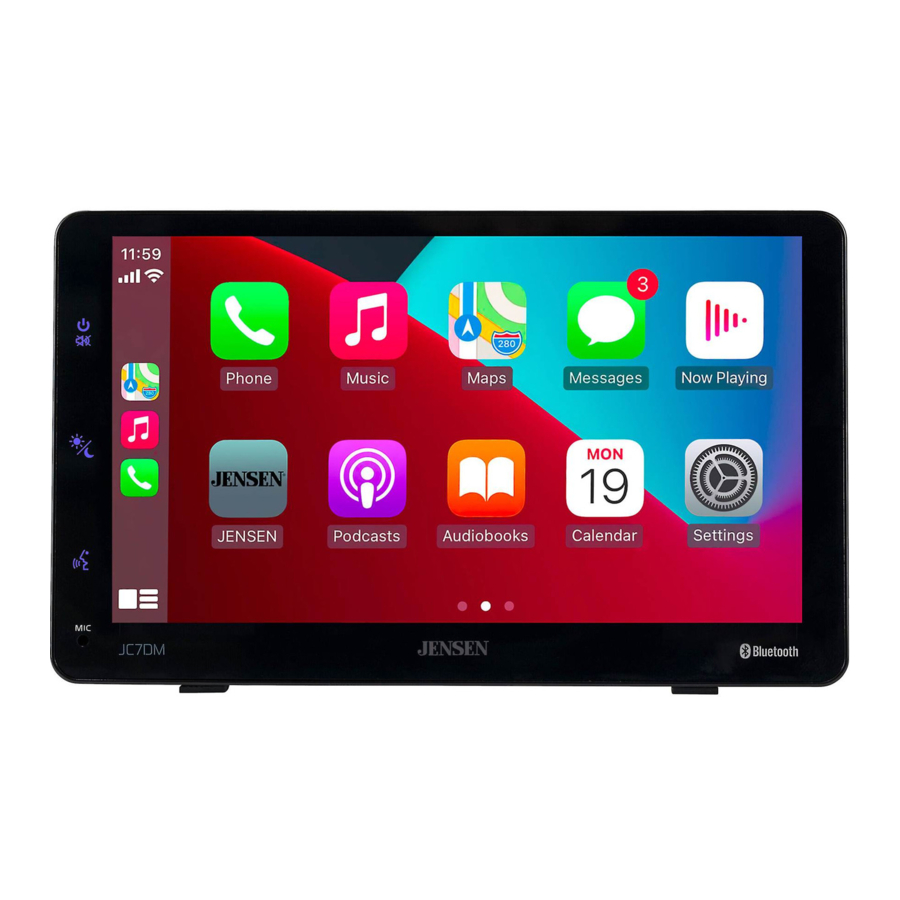
The radio display features the following functions and displays:
- POWER/MUTE
- DIMMER
- VOICE ACTIVATION BUTTON
- INTERNAL MICROPHONE
General Operation
| Power On/Off | Long press icon to turn the unit on. Press and hold to turn the unit off. |
| Volume | Press  icon at the top left corner of the screen to display the volume. Press icon at the top left corner of the screen to display the volume. Press  or or  to increase or decrease the volume level. to increase or decrease the volume level. |
| Mute | Momentarily press to silence the audio. Momentarily press MUTE again to return to the previously selected volume. |
| Mode | Press  icon at the top left corner of the screen to display the main menu. icon at the top left corner of the screen to display the main menu.FM Transmitter/Apple CarPlay/Android/BT Phone/BT Audio/USB/ Settings. Note: Modes of operation can also be accessed by selecting the corresponding icon from the main menu. |
| Main Menu |  Operation Mode Selection: Press the icon at the top left corner of the screen to display the OSD main menu. Press the FM Transmitter/Apple CarPlay/Android/BT Phone/BT Audio/USB/Settings in the Main menu page to select the desired source. |
| Dimmer Mode | Press the  icon to adjust to change the mode (Auto/Day/Night). icon to adjust to change the mode (Auto/Day/Night). |
| Dimmer | Press the  icon to adjust the brightness. icon to adjust the brightness. |
| USB | Insert a USB flash drive to play MP3/FLAC files. |
| Setup Menu |
General:
|

Audio Operation

Equalizer Menu
From the Main Menu screen, Press the Equalizer icon on the main menu screen to adjust Fader and Balance controls, Equalizer (16-Band Tone Control and 8 Presets EQ Settings).
FM Transmitter

| FM Transmitter Operation | From the main menu, touch FM Transmitter icon on the screen to select FM Transmitter mode. |
| Press  icon to return to Main Menu screen. icon to return to Main Menu screen. |
| Display status of various tuning functions including Auto. |
| Direct search keypad for setting the FM station for audio transmitting. |
| FM transmitter can be turned on or off. (Default: OFF) |
USB Audio Operation

| USB | From the main menu, touch the USB icon on the main screen. |
| Press  icon to return to Main Menu screen. icon to return to Main Menu screen. |
| Displays source currently playing. |
| Press  icon to access a list of all files and folders on the device. icon to access a list of all files and folders on the device.
|
| Press  icon to repeat current track and adjust to repeat all tracks in the current folder. Touch RPT again to exit repeat mode. icon to repeat current track and adjust to repeat all tracks in the current folder. Touch RPT again to exit repeat mode. |
| Press  icon to shuffle all tacks in the current folder. and again to shuffle all tracks. Touch icon again to exit Repeat mode. icon to shuffle all tacks in the current folder. and again to shuffle all tracks. Touch icon again to exit Repeat mode. |
| Press  icon to search a music file. icon to search a music file. |
| Press the  icon to adjust Equalizer setting. icon to adjust Equalizer setting. |
| Press  icon to skip ahead to the next song icon to skip ahead to the next song |
| Press  icon to pause or resume playback. icon to pause or resume playback. |
| Press  icon to return to the beginning of the current track. icon to return to the beginning of the current track. |
 to access the root directory
  " arrow to return to the previous screen.
 Media Compatibility
| File Type | MP3 | ||
| File System | FAT | FAT 12 | X |
| FAT 16/FAT 32 |  | ||
| File Extension | .mp3/.MP3/.Mp3/.mP3/.flac | | |
| .rmp/.m4a | X | ||
| MPEG Format | MPEG 1 | | |
| MPEG 2 | | ||
| MPEG 2.5 | | ||
| Sampling Frequency | MPEG 1 | 32/44.1/48kHz | |
| MPEG 2 | 12/16/22.05/24kHz | ||
| MPEG 2.5 | 8/11.025/12kHz | ||
| Bitrate | MPEG 1 | 32 ~ 320kbps | |
| MPEG 2 | 8 ~ 160kbps | ||
| MPEG 2.5 | 8 ~ 160kbps | ||
| Other Information | Directory Depth | Unlimited | |
| File Name Length | 32 bytes | ||
| Total File Number | 2000 files | ||
| Total Folder Number | 200 folders | ||
| File Number via Folder | 2000 files | ||
| MP3 ID3 TAG | ver.1.x | | |
| ver.2.x | | ||
| Title, Artist, Album | | ||
Notes:
- Due to ongoing technological advancement, some USB flash drives may be incompatible with this unit.
| Media Compatibility | The following types of files are not compatible:
|
| Playback Order | MP3 playback sequence begins in the root folder of the USB device. Any empty folders or folders that do not include MP3 files are skipped. |
| Compatible Recording Formats | ISO9660 standards:
|
| Notes | Some files may not play or be displayed correctly, depending on sampling rates and bit rates. For best results, use the following settings when ripping MP3 files: |
Bluetooth Operation

| Before using Bluetooth | Before you can use a Bluetooth device to make hands-free calls or stream audio. It must be authenticated. This is also referred to as "pairing" a device. |
| Pairing a New Device | The unit broadcasts the pairing signal constantly when no devices are currently connected. Complete the pairing sequence from your Bluetooth device. Refer to the owner's manual for your device for more details. The device name is "JC7DM". The unit can be in any mode of operation when pairing is performed. On certain phones, pairing may need to be done more than once. |
| Connect | The head unit will automatically connect to the last connected device when the connect feature is set to Auto connect On. If the connect feature is set to Auto Connect Off, the head unit will not automatically connect to any device. |
| Bluetooth Phone | From the main menu. Touch the Bluetooth on the screen. Bluetooth icon will appear anytime a Bluetooth device is connected. |
| Press  icon to return to Main Menu screen. icon to return to Main Menu screen. |
| Displays current mode of operation. |
| When Bluetooth is On and a Bluetooth device is being paired. The indicator will flash. When Bluetooth is On and a phone is connected to the unit. The indicator will illuminate steady. |
| Press "CONTACTS" to access phone book menu. |
| Press the "CALL LOGS" to show( Dialed, Missed and Received Calls ). |
| Press "MUSIC" to initiate the Bluetooth music playback via A2DP. |
| Press "SETUP" to access Bluetooth settings. |
| Dial a number and touch the Phone icon to call. |
| Use the keypad to dial a phone number. |
| Press the "DEVICES" to show the pairing device list. To connect to a previously connected device. Press the current device name. Any previously connected devices that are in rang will be listed by their device name. Press the desired device name to disconnect from the current device and connect to the new device. |
| Turn the Microphone voice On or Off. |
| Press to transfer audio between the unit and mobile phone. |
| Press to return to the Keypad screen. |
| Press the End icon on screen or the End button on the Front panel to end a call in progress or o reject an incoming call. |

| Press  icon to return to the beginning of the current track. icon to return to the beginning of the current track. |
| Press  icon to pause or resume playback. icon to pause or resume playback. |
| Touch  icon to skip ahead to the next song. icon to skip ahead to the next song. |
| Press the  icon to adjust Equaliser setting. icon to adjust Equaliser setting. |
| Press  icon to remove all paired Bluetooth devices or add new ones. icon to remove all paired Bluetooth devices or add new ones. |
Driving Orientation Settings

To enhance the driving experience, the JC7DM allows the user to configure Apple CarPlay and Android for either Left Hand Drive (LHD) or Right Hand Drive (RHD) vehicles.
To select desired configuration, select either LHD or RHD from the Settings menu:
* Note: If you change the setting for Right Hand Drive mode or Left Hand Drive mode while the phone is connected to the receiver, disconnect the phone from the receiver and re-connect it again.
The resulting configuration options are shown below:

Wired & Wireless Apple CarPlay Operation
Wired connection
- Connect an Apple CarPlay compatible device to this unit via USB.
- Press the Apple CarPlay icon.
The Apple CarPlay home screen appears.
Wireless connection
Before using Apple CarPlay wirelessly, turn on the Bluetooth/Wifi function on the Phone.
- Press
![]() icon on the main menu;
icon on the main menu; - Press "
![]() " to confirm to use wireless Apple CarPlay;
" to confirm to use wireless Apple CarPlay; - Press "
![]() " icon to search phone device. The available devices appear on the list;
" icon to search phone device. The available devices appear on the list; - Find the desired device on the screen and press "Pair";
- A pass key will be displayed on the screen;
- The same key appears on the iPhone, press "Pair" and then press "Allow" for the popups;
- Press "
![]() " on the screen to confirm to connect;
" on the screen to confirm to connect; - Press "Use CarPlay" on the iPhone. The unit configures the connection then starts the application.
 icon on the main menu;
  " to confirm to use wireless Apple CarPlay;
  " icon to search phone device. The available devices appear on the list;
 Tip: Press "  " icon. Displays Apple CarPlay device list. This icon appears Only When Apple CarPlay is connected and two or more devices can be used as Apple CarPlay Source.
Wired & Wireless Android Operation
Wired connection
- Connect an Android compatible device to this unit via USB.
- Press the Android icon. The Android home screen appears.
Wireless connection
Before using Android wirelessly, turn on the Bluetooth/Wifi function on the Android device.
- Press
![]() icon on the main menu;
icon on the main menu; - Press "
![]() " to confirm to use wireless Android;
" to confirm to use wireless Android; - Press "
![]() " icon to search phone device. The available devices appear on the list;
" icon to search phone device. The available devices appear on the list; - Find the desired device on the screen and press "Pair";
- A pass key will be displayed on the screen;
- The same key appears on the Android device, press "Pair" and then press "Allow" for the popups;
- Press "
![]() " on the screen to confirm to connect;
" on the screen to confirm to connect;
The unit configures the connection then starts the application.
 icon on the main menu;
  " icon to search phone device. The available devices appear on the list;
 Tip: Press "  " icon. Displays Android device list. This icon appears Only When Android is connected and two or more devices can be used as Android Source.
Apple CarPlay Operation
Apple CarPlay is a smart interface for iPhone, allowing you to voice-control (via Siri) music, navigation, phone and messaging apps - significantly reducing driver distraction.
 | Phone - Use Siri to make calls, return missed calls, listen to voicemail messages, and view the caller ID on the receiver's screen. |
 | Messages - Ask Siri to send, read, and reply to text messages. This hands free operation minimises distraction and allows you to keep hands on the wheel and eyes on the road. |
 | Music - Access music by artist, song, playlist, and more through the receiver's touchscreen or via Siri. The receiver will mirror the iPhone screen with artist and track information. |
 | Maps - Use Siri to request turn-by-turn directions – search by address or points of interest. Apple Maps will be mirrored on the screen, including traffic information and estimated time to destination. |
Compatible Devices
Made for iPhone models:
iPhone15, iPhone 15 Plus, iPhone 15 Pro, iPhone 15 Pro Max, iPhone14, iPhone 14 Plus, iPhone 14 Pro, iPhone 14 Pro Max, iPhone 13 mini, iPhone 13, iPhone 13 Pro, iPhone 13 Pro Max, iPhone 12 mini, iPhone 12, iPhone 12 Pro, iPhone 12 Pro Max, iPhone 11 Plus, iPhone 11, iPhone XS Max, iPhone XS, iPhone XR, iPhone X, iPhone 8, iPhone 8 Plus, iPhone 7, iPhone 7 Plus, iPhone 6, iPhone 6S
Starting Apple CarPlay
Wireless Apple CarPlay Connection Descriotion.
- Enter the main UI and click BT Phone to enter the Bluetooth interface;
- Click Refresh to search nearby Bluetooth, click Pair to match Bluetooth;
- Open the iPhone WLAN to connect to the car, after the connection is successful, the Apple CarPlay icon in the device list will appear, and the Apple CarPlay connection is successful;
- Enter the Apple CarPlay interface, click the functions of Phone/Music/Map/Information/etc.
Note: For safety reasons, Apple CarPlay features are limited while driving and will vary with each Apple CarPlay-enabled app. Available functions are determined by each individual app provider. For more information, visit www.apple.com/ios/carplay.
Note: Certain iPhone functions may be illegal while driving in your location. Be sure to familiarise yourself with local and state laws regarding mobile devices. When in doubt, stop and park your vehicle before using any devices.
When the Apple CarPlay menu is displayed, the home button in the lower left corner work just like the home button on your iPhone.
 Press and hold it to summon Siri and begin your voice commands.
At any time during Apple CarPlay operation, you can press this button momentarily to return to the main Apple CarPlay menu screen.

Press any Application button on the main Apple CarPlay menu to access that operation directly. The toolbar on the left side of the screen displays the time, signal strength and shortcuts to the most popular applications - Phone, Music and Navigation - so they can be accessed quickly and easily without returning to the main menu.
Controlling Apple CarPlay
The following basic controls will operate many standard Apple CarPlay features.
 | Touch - Briefly press the desired option. |
 | Swipe - Briefly swipe in the desired direction. |
 | Drag - Press, hold and drag to the desired location. |
Exiting Apple CarPlay
Disconnecting your iPhone will automatically exit Apple CarPlay mode. To exit Apple CarPlay mode while your phone is still connected, press the Power/Volume knob momentarily, and the unit's main menu will be displayed.
Android Operation
Android brings the most useful apps to your phone screen or your compatible car display, in a format that makes it easy for you to keep your main focus on driving. You can control things like navigation and maps, calls and text messages, and music.
Google Assistant
With your Google Assistant on Android, you can keep your eyes on the road and your hands on the wheel while using your voice to help you with your day. Simply say, "Ok Google," or in compatible cars, long press the voice control button on your steering wheel.
Navigation
Get real-time traffic alerts to avoid hazards, speed traps, and find the fastest route. Or take a break and find a bite along the way.
Calls & Messages
Your Google Assistant lets you stay connected while you're driving. Your Assistant can help you call phone numbers from your contacts, chat with your favorite apps, read your messages aloud and text back, keeping your hands on the wheel.
Compatible Devices
Android requires the Android Auto app from Google Play installed on an Android smartphone running Android Lollipop 5.0 or higher.

Certain uses of the smartphone may not be legal while driving in your jurisdiction, so you must be aware of and obey any such restrictions. If in doubt as to a particular function, only perform it while the car is parked. No feature should be used unless it is safe to do so under the driving conditions you are experiencing.
Starting Android
Wireless Android Connection Descriotion.
- Enter the main UI and click BT Phone to enter the Bluetooth interface;
- Click Refresh to search nearby Bluetooth, You'd better turn on your Phone's WLAN before you connect to Bluetooth, otherwise the connection will fail;
- Click Pair to match Bluetooth, then there will be a notification to select settings and select your mobile Phone, and the Android connection is successful;
- Enter the Android interface, click the functions of Phone/Music/Map/Information/ etc.
Note: When the device for Android is connected to this unit, the device is also connected via Bluetooth at the same time. If five devices are already paired, the message confirming whether to delete the registered device is displayed. If you want to delete the device, touch [Agree]. If you want to delete other device, touch [BT Settings] and delete the devices manually.
Note: If Android is turned on during a call on a cellular phone other than the Android compatible device, the Bluetooth connection will switch to the Android compatible device after the call.
Using Android
The Android home screen displays personalized information, like time to your destination, reminders, recent calls incoming messages, the song you're listening to, and Google Now cards.
When the Android menu is displayed, you can say "OK Google" or select the microphone in the upper right corner to talk to Google.

- Android Home Button
- Activate Google Assistant
- Recent Apps
- Notification Button
Exiting Android
To exit Android, press the Exit button. Disconnecting your Android phone will automatically exit Android mode.
Change to Register Your Product
| General | ||
| Problem | Cause | Action |
Unit will not turn on/no power | Incorrect voltage | Check connections for proper voltage (12V Adapter) |
| Loose connecting wire | Check if the power cord is loose or dropped | |
Difficulty in Adhesion to On-Dash Surface | Presence of Dust on the Silicon Cover or On-Dash | Ensure thorough dust removal before installation. |
Register Your Product
Register your product online at www.jensenmobile.com.
Specifications
| Monitor | Panel size: 7" Touchscreen Resolution: 1024 (H) x 600 (V) |
| Phone Connectivity | Connection method: Wired / Wireless |
| Rear USB | Compatibility: High Speed USB 2.0 USB Class: Mass storage class |
| General | Car Connectivity: Broadcast to FM Station or 3.5mm Aux Output Design and specifications subject to change without notice. |
| Cigar Adapter Spec: | Power Supply Voltage Range: DC12V ~ 16V(Negative Ground) 5V / 2.1A Charging (USB Port Only) 6Pin Din Plug to Unit |
Limited Three Year Warranty
For more information and for the location of the nearest authorised service centre please contact us by one of the following methods:
- Call us toll-free at (888) 921-4088
(Monday-Friday, 9:00 a.m. to 5:00 p.m. EST) - E-mail us at cs@jensenmobile.com
Customer Support
1-888-921-4088
(Monday-Friday, 9AM-5PM EST)
Visit https://www.jensenmobile.com
References


Download manual
Here you can download full pdf version of manual, it may contain additional safety instructions, warranty information, FCC rules, etc.
Download Jensen JC7DM - Touchscreen Monitor Manual