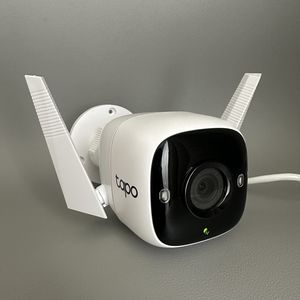
How to Turn On or Off Motion Detection on Tapo Link C310
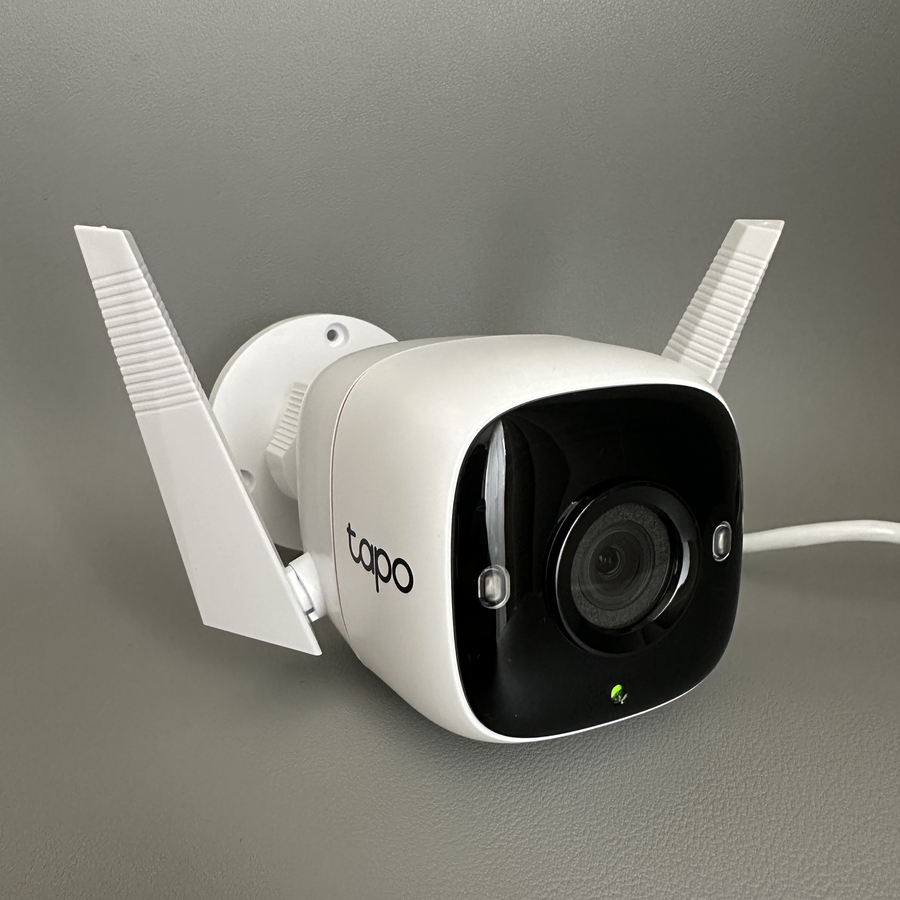
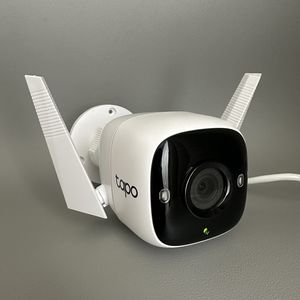
The Tapo Link C310 is a versatile security camera that offers motion detection to alert you of any movement in its view. Follow this guide to manage these settings on your Tapo Link C310 effectively.
Step 1: Open the Tapo App
Begin by unlocking your smartphone and locating the Tapo app. This app is vital for managing your Tapo Link C310 camera settings. Once found, tap on the app icon to open it and proceed to the next step.

Step 2: Access the Camera List
Within the Tapo app, you will see a list of all the cameras connected to your account. Locate your Tapo Link C310 camera from this list and tap on it to access its settings.

Step 3: Navigate to Settings
Next, look for the settings option represented by a gear icon, usually found in the top right corner of the screen. Tap on this icon to access a range of settings for your camera.

Step 4: Find Motion Detection Options
Find the Detection section. Here, you will see the Motion Detection option. This feature allows you to control the camera's ability to detect motion.

Step 5: Toggle Motion Detection
In the Motion Detection settings, you will notice a switch. Slide this switch to the right to activate motion detection, which will be indicated by a blue colour. Conversely, slide it to the left to deactivate the function, turning it grey. Adjust the sensitivity slider if required to customise (customize) alert sensitivity.