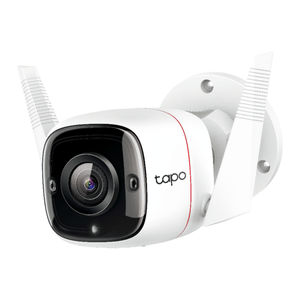
How to Update Firmware on Your Tapo Link C310 Camera
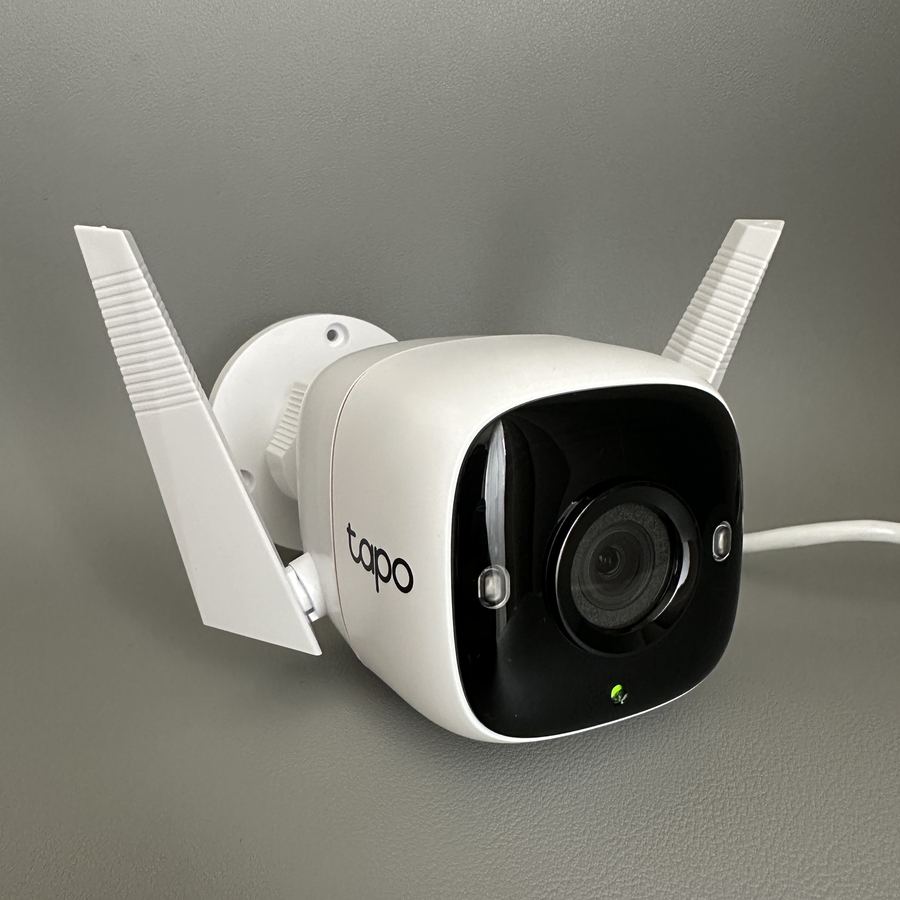
Firmware updates are essential for keeping your Tapo Link C310 camera running smoothly and securely. This guide will provide detailed instructions on how to update the firmware using the Tapo app on your smartphone, ensuring your camera has the most recent improvements and security patches.
Step 1: Open the Tapo App on Your Smartphone
To begin the update process, unlock your smartphone and locate the Tapo app. Its icon resembles a small camera and can usually be found on your home screen or within your apps folder. Tap on the icon to open the app and make sure your phone is currently connected to your camera.

Step 2: Select Your Camera
Once inside the Tapo app, you'll need to find your Tapo Link C310 camera from the list of connected devices. Simply tap on the camera name to select it. This will give you access to the specific settings for your camera model.

Step 3: Access Camera Settings
In the top right corner of your screen, you will see a gear icon. This icon represents settings. Tap on the gear icon to open the settings menu for your camera. Here, you will find several options and features that you can adjust.

Step 4: Check for Firmware Updates
Scroll down through the settings menu until you locate the option labelled "Firmware Update". Tap on it to check if there are any new firmware updates available for your Tapo Link C310 camera. If an update is available, you will see a "Download" (download) button.

Step 5: Download and Install Updates
If a new firmware version is found, simply tap the "Download" (download) button to begin downloading the update. The app will guide you through the installation process, ensuring your camera is updated to the latest version. If your firmware is already up-to-date, the app will notify you that no updates are necessary.