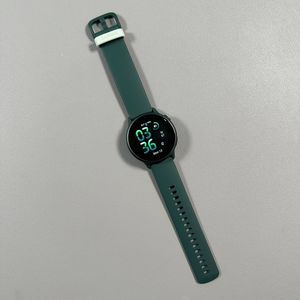
How to Lock the Screen on Your Garmin Vivoactive 6
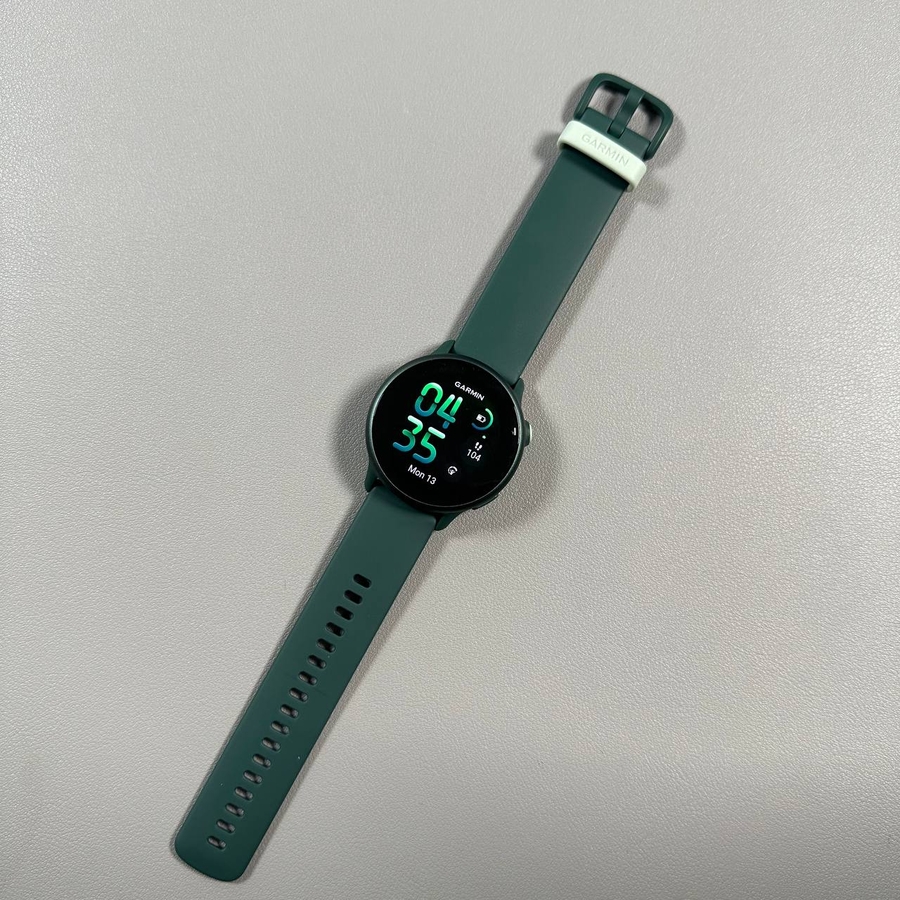
Are you finding yourself accidentally triggering actions on your Garmin Vivoactive 6 smartwatch by an inadvertent touch or button press? There's a simple way to prevent this by locking your device's screen. Follow this guide to learn how to lock and unlock your screen, ensuring it only responds when you want it to.
Step 1: Access the Menu
To begin locking the screen on your Garmin Vivoactive 6, start by pressing and holding the upper button on the right side of your device. Hold this button for approximately one second. This action will bring up a menu with several available options.

Step 2: Select the Lock Icon
Once the menu appears, look for the lock icon among the displayed options. This icon represents the function to lock your device. Carefully tap on the lock icon to activate the screen lock feature. Now, any accidental touches or button presses will not trigger actions on your smartwatch.

Step 3: Verify Screen Lock
With the lock feature activated, try touching the screen or pressing any buttons. You will notice that the device does not respond, confirming that the screen is successfully locked. This prevents any unintended operations while you're on the move.

Step 4: Unlock the Screen
If you wish to unlock your Garmin Vivoactive 6 to use it normally again, press and hold the same upper button for about two seconds. You'll see the lock option deactivated, allowing your watch to return to its standard operational state.