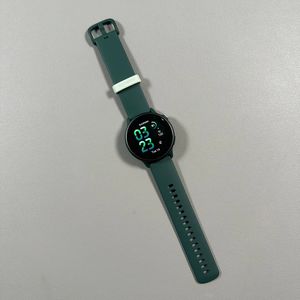
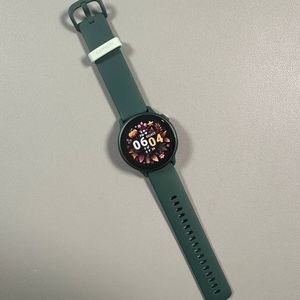
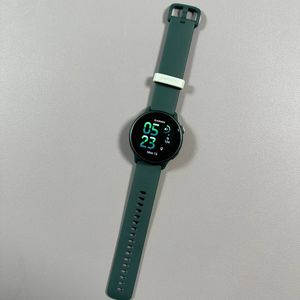
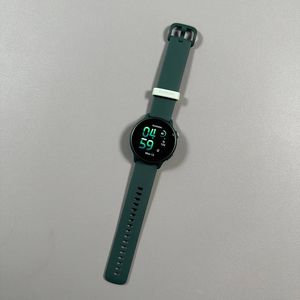
Garmin Vivoactive 6 - How to Change Watch Face
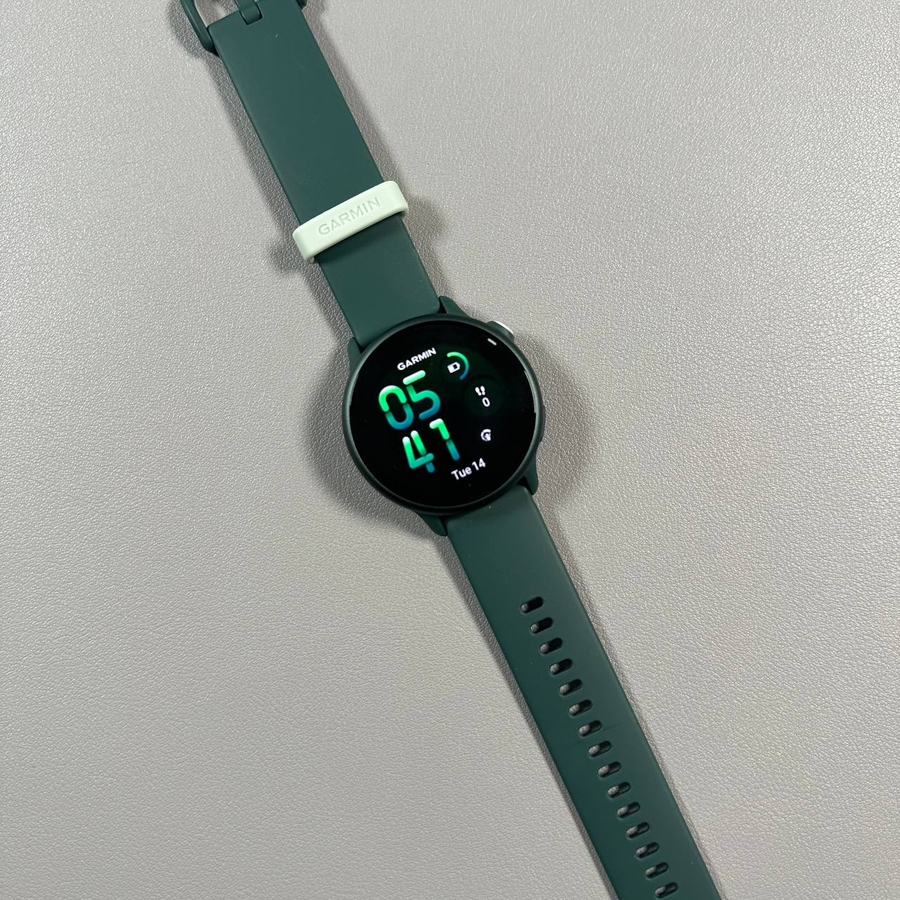
Welcome to this step-by-step guide on how to change the watch face on your Garmin Vivoactive 6. Whether you're looking to personalize your device or simply want a fresh look, follow along as we walk you through the process of changing, customizing, and even downloading new watch faces.
Step 1: Access the Menu
To begin, make sure your Garmin Vivoactive 6 is powered on. Locate the upper button on the side of your watch and give it a press. This button acts as a gateway to your watch's menu. Once the menu appears, you will be ready to proceed to the next step.

Step 2: Select Watch Face Option
Within the menu, scroll down until you see the option labeled "Watch Face." Tap on this option to open the watch face menu, where you can explore various pre-installed watch faces ready for you to choose from.

Step 3: Choose a New Watch Face
Inside the watch face menu, you have the option to explore different styles. By default, there might only be one or two options visible. To find a new watch face template that suits your style, tap "Add New" and browse through various templates available. Once you find one that you like, press the upper button to add it to your list of available watch faces.

Step 4: Apply and Customize the Watch Face
After selecting a new watch face, it's time to apply it and make it your own. Tap on the new face to select it, and then use the upper button again to confirm. To personalize it further, press the button once more to open the edit menu. Here, you can change data fields like the step counter, modify the accent colors, and much more. Once you're satisfied, tap "Apply" to set it as your current watch face.

Step 5: Downloading Additional Watch Faces
If you wish to expand your selection, you can download additional watch faces from the Garmin Connect IQ Store. First, ensure you have the Garmin Connect IQ app installed on your phone. In the app, search for "Watch Faces" and explore both free and paid options. Select the watch face you prefer, click to install, and allow a few minutes for it to sync to your watch. Once done, you can select and customize it just like any other watch face.


By following these steps, you can easily change, customize, and download exciting new watch faces on your Garmin Vivoactive 6. Enjoy the added functionality and settings to make your watch truly yours!