How to Enable or Disable Always-on Display on Garmin Vivoactive 6
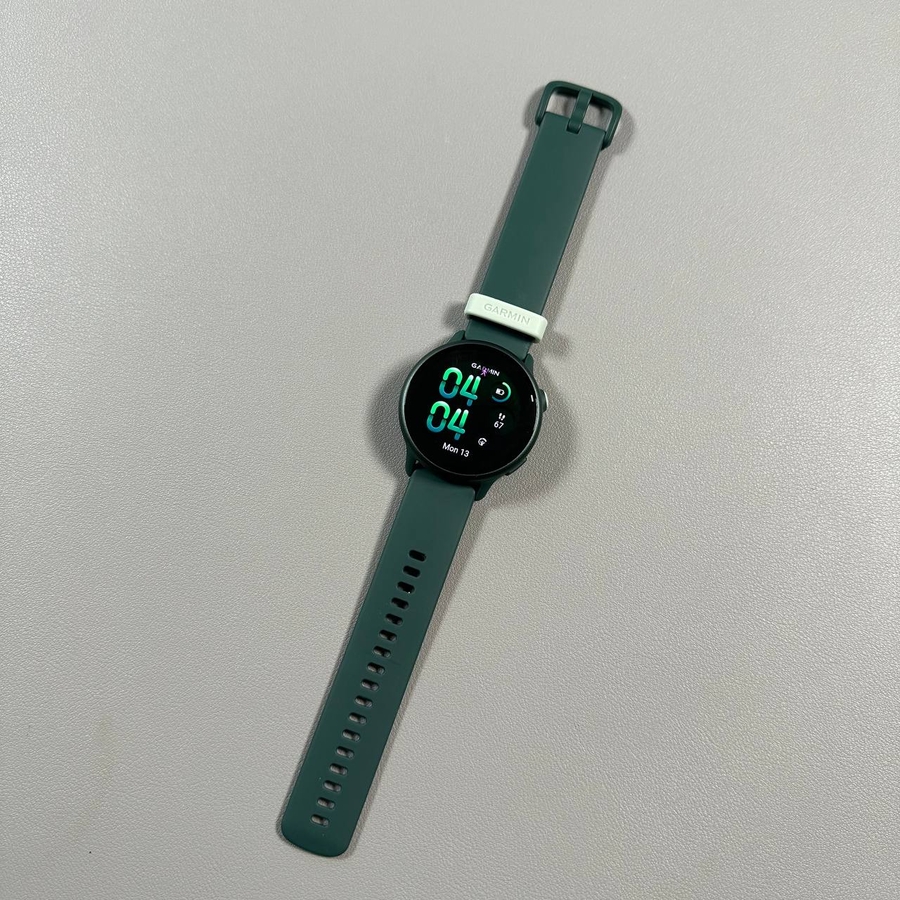
Discover how to conveniently manage the always-on display setting on your Garmin Vivoactive 6 for optimal visibility and battery efficiency. Our easy guide will have you customizing your display preferences in no time.
Step 1: Access the Garmin Vivoactive 6 Settings
To begin, locate the upper button on the side of your Garmin Vivoactive 6 device. Press this button once to unlock the display and bring up the menu. Once the menu is visible, use the touch screen to scroll through the options until you find the 'Settings' menu. Tap on 'Settings' to enter.


Step 2: Navigate to Display & Brightness
Within the 'Settings' menu, continue scrolling to locate the 'Display & Brightness' option. Select this option to explore various settings related to the screen of your smartwatch. This is where you can adjust how your display functions, including managing the brightness levels.

Step 3: Enable or Disable Always-on Display
Once in the 'Display & Brightness' section, you'll find the 'Always-on Display' toggle. Turn it ON to keep your watch face visible at all times or OFF to save battery. Your selection is saved automatically, and no confirmation is needed.