Garmin Approach S2 - Golf Watch Manual
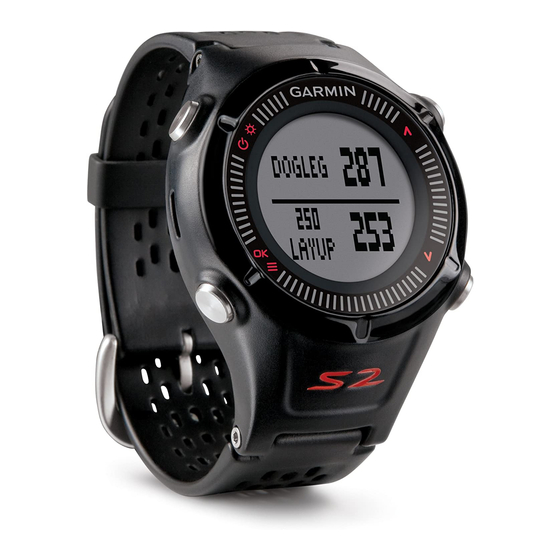
Getting Started

See the Important Safety and Product Information guide in the product box for product warnings and other important information.
When using the device the first time, complete these tasks.
- Charge the device.
- Turn on the device.
- Start a round.
Charging the Device
This device contains a lithium-ion battery. See the Important Safety and Product Information guide in the product box for product warnings and other important information.
NOTICE
To prevent corrosion, thoroughly dry the contacts and the surrounding area before charging or connecting to a computer
- Plug the USB cable into a USB port on your computer.
- Align the charger posts with the contacts on the back of the device, and press the charger
![]() until it clicks.
until it clicks.

- Charge the device completely.
 until it clicks.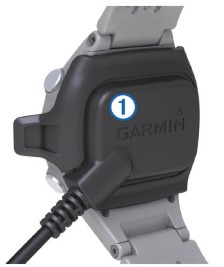
Turning on the Device
The first time you use the device, you are prompted to choose your language.
NOTE: The time of day and date are set automatically when you are outdoors. You can also set them manually.
- Hold
![]() .
. - Select your language.
- Play a game of golf.
 .
.Keys
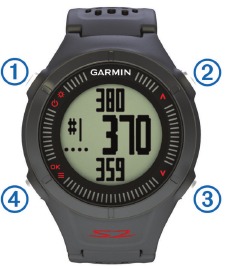
 |  | Hold to turn the device on and off. |
 | Select to turn on the backlight. | |
 |  | Select to scroll through menus, holes, and settings. |
 |  | Select to scroll through menus, holes, and settings. |
 |  | Hold to open the menu for the current screen. |
| OK | Select to choose menu options and acknowledge messages. |
Icons
 | Battery is low. |
 | Odometer is measuring distance and time (GPS active). |
 | Alarm is on. |
Playing Golf
Before you can play golf, you must wait until the device acquires satellite signals, which may take 30–60 seconds.
- Hold
![]() .
. - Select Start Round.
- Select a course from the list.
The device automatically starts on the hole closest to your present location.
 .
.Hole View
The device shows the current hole you are playing, and automatically transitions when you move to a new hole.
NOTE: Because pin locations change, the device calculates the distance to the front, middle, and back of the green, but not the actual pin location.
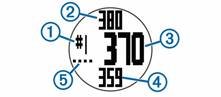
 | Current hole number. |
| | Distance to the back of the green. |
| | Distance to the middle of the green. |
| | Distance to the front of the green. |
 | Par for the hole. |
Measuring a Shot
- Hold
![]() .
. - Select Measure Shot.
- Walk to your ball.
The distance automatically resets when you move to the next hole.
Viewing Layup and Dogleg Distances
You can view a list of layup and dogleg distances for par 4 and 5 holes.
From the hole view, select  .
.
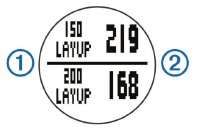
Layup  and distance to reach the layup
  appear on the screen.
NOTE: Distances are removed from the list as you pass them.
Keeping Score
Before you begin keeping score, you must start a round.
- From the hole view, hold
![]() .
. - Select Start Scoring.
- Select
![]() or
or ![]() to set the score. Your total score
to set the score. Your total score ![]() is updated.
is updated.

 or
or  to set the score. Your total score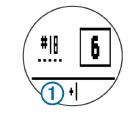
Reviewing Scores
You can edit individual scores but not the total score.
- Hold
![]() .
. - Select Scorecard.
- Select
![]() or
or ![]() to select the hole.
to select the hole. - Select OK to edit.
 or
or  to select the hole.
Viewing Scorecards on a Computer
You can view all saved scorecards on your computer.
- Connect the device to a USB port on your computer using the charging cradle.
- The device appears as a removable drive in My Computer on Windows® computers, and as a mounted volume on Mac® computers.
- Open ScorecardViewer.html to view your scorecards.
Using the Odometer
You can use the odometer to record the time and distance traveled. The odometer automatically starts and stops when you start or end a round, and you can also start and stop it manually.
- Hold
![]() .
. - Select Odometer to view or start the odometer.
- Select an option:
• Select![]() > Continue to keep using the odometer.
> Continue to keep using the odometer.
• Select![]() > Turn Off to stop the odometer.
> Turn Off to stop the odometer.
• Select![]() > Reset to reset the time and distance.
> Reset to reset the time and distance.
 > Continue to keep using the odometer.
Customizing Your Device
Settings
Hold , and select Setup.
Time: Sets the time to automatic or manual.
Format: Sets the time format to 12- or 24-hour.
Tones: Turns audible tones on or off.
Language: Sets the language.
Units: Sets to measure distance in yards or meters.
Setting the Time Manually
By default, the time is set automatically when the device acquires satellite signals.
- Hold
![]() .
. - Select Setup > Time > Manual.
- Select
![]() or
or ![]() to set the hour and minute.
to set the hour and minute. - Select AM or PM.
 or
or Setting the Alarm
- Hold
![]() .
. - Select Alarm > Set.
- Select
![]() or
or ![]() to set the hour and minute.
to set the hour and minute. - Select AM or PM.
- Verify the alarm is set to On.
 to set the hour and minute.
Viewing Device Information
You can view the software version and unit ID.
- Hold
![]() .
. - Select About.
Appendix
Device Care
NOTICE
Avoid extreme shock and harsh treatment, because it can degrade the life of the product.
Avoid pressing the keys under water.
Do not use a sharp object to clean the device.
Avoid chemical cleaners, solvents, and insect repellents that can damage plastic components and finishes.
Thoroughly rinse the device with fresh water after exposure to chlorine, salt water, sunscreen, cosmetics, alcohol, or other harsh chemicals. Prolonged exposure to these substances can damage the case.
Do not store the device where prolonged exposure to extreme temperatures can occur, because it can cause permanent damage.
Cleaning the Device
- Wipe the device using a cloth dampened with a mild detergent solution.
- Wipe it dry.
Specifications
| Battery type | Lithium-ion |
| Battery life | Watch only: 3 weeks Playing golf: 8 hours NOTE: The actual battery life of a fully charged battery depends on how much time you use GPS, the backlight, and power save mode. Exposure to extremely cold temperatures will also reduce battery life. |
| Operating temperature | From -4º to 140º F (from -20º to 60º C) |
| Charging temperature | From 40º to 104º F (from 5º to 40º C) |
| Water resistance | 32.8 ft. (10 m) NOTE: The device is not intended to be used while swimming. |
Power Save
After a period of inactivity, the device goes into power save mode. The device displays the time and date but does not use GPS. The device will not enter power save mode if the odometer is on. You can select to exit power save mode.
Clearing User Data
NOTE: This deletes all user-entered data.
- Hold
![]() and
and ![]() simultaneously.
simultaneously. - Select Yes.
Getting More Information
- Go to www.garmin.com/intosports.
- Go to www.garmin.com/learningcenter.
- Go to http://buy.garmin.com, or contact your Garmin® dealer for information about optional accessories and replacement parts.
Registering Your Device
Help us better support you by completing our online registration today.
- Go to http://my.garmin.com.
- Keep the original sales receipt, or a photocopy, in a safe place.
Updating Software and Courses
Before you can update your device software, you must download Garmin CourseView Updater.
Go to http://www.garmin.com/support/courseview_updater.html for more information.
- Connect the device to a USB port on your computer using the charging cradle.
- Start CourseView Updater.
- Follow the on-screen instructions.
Software License Agreement
BY USING THE DEVICE, YOU AGREE TO BE BOUND BY THE TERMS AND CONDITIONS OF THE FOLLOWING SOFTWARE LICENSE AGREEMENT. PLEASE READ THIS AGREEMENT CAREFULLY.
Garmin Ltd. and its subsidiaries ("Garmin") grant you a limited license to use the software embedded in this device (the "Software") in binary executable form in the normal operation of the product. Title, ownership rights, and intellectual property rights in and to the Software remain in Garmin and/or its thirdparty providers.
You acknowledge that the Software is the property of Garmin and/or its third-party providers and is protected under the United States of America copyright laws and international copyright treaties. You further acknowledge that the structure, organization, and code of the Software, for which source code is not provided, are valuable trade secrets of Garmin and/or its third-party providers and that the Software in source code form remains a valuable trade secret of Garmin and/or its third-party providers. You agree not to decompile, disassemble, modify, reverse assemble, reverse engineer, or reduce to human readable form the Software or any part thereof or create any derivative works based on the Software. You agree not to export or re-export the Software to any country in violation of the export control laws of the United States of America or the export control laws of any other applicable country.
 | 913-397-8200 1-800-800-1020 |  | 0808 238 0000 +44 870 850 1242 |  | 1-866-429-9296 |  | +43 (0) 820 220 230 |
 | +32 2 672 52 54 |  | +45 4810 5050 |  | +358 9 6937 9758 |  | + 331 55 69 33 99 |
 | +49 (0)1805-427646-880 |  | + 39 02 36 699699 |  | 0800 - 023 3937 035 - 539 3727 |  | + 47 815 69 555 |
 | 00800 4412 454 +44 2380 662 915 |  | + 35 1214 447 460 |  | + 34 902 007 097 |  | + 46 7744 52020 |
Garmin International, Inc.
1200 East 151st Street
Olathe, Kansas 66062, USA
Garmin (Europe) Ltd.
Liberty House, Hounsdown Business Park
Southampton, Hampshire, SO40 9LR UK
Garmin Corporation
No. 68, Zhangshu 2nd Road, Xizhi Dist.
New Taipei City, 221, Taiwan (R.O.C.)

References
![www.garmin.com]() All Sport and Fitness Devices | Garmin
All Sport and Fitness Devices | Garmin![www.garmin.com]() Garmin Customer Support
Garmin Customer Support![buy.garmin.com]() Garmin International | Home
Garmin International | Home![my.garmin.com]() Garmin International | Account
Garmin International | Account![www.garmin.com]() Garmin Express - Windows | Garmin
Garmin Express - Windows | Garmin![www.garmin.com]() Garmin Customer Support
Garmin Customer Support

Download manual
Here you can download full pdf version of manual, it may contain additional safety instructions, warranty information, FCC rules, etc.
Download Garmin Approach S2 - Golf Watch Manual


