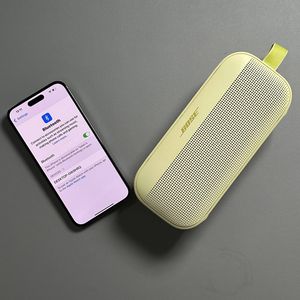
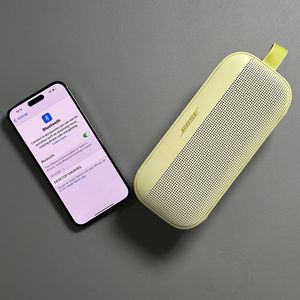
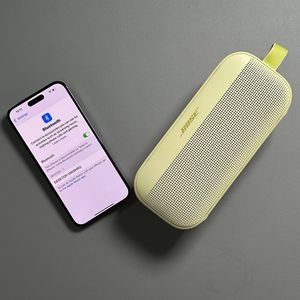
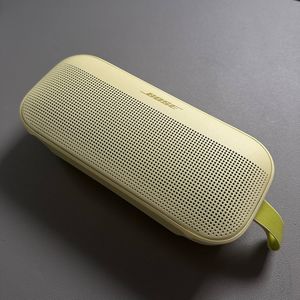
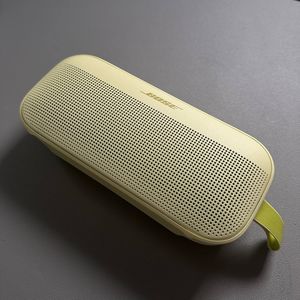
How to Connect Bose SoundLink Flex II to Your Windows Laptop
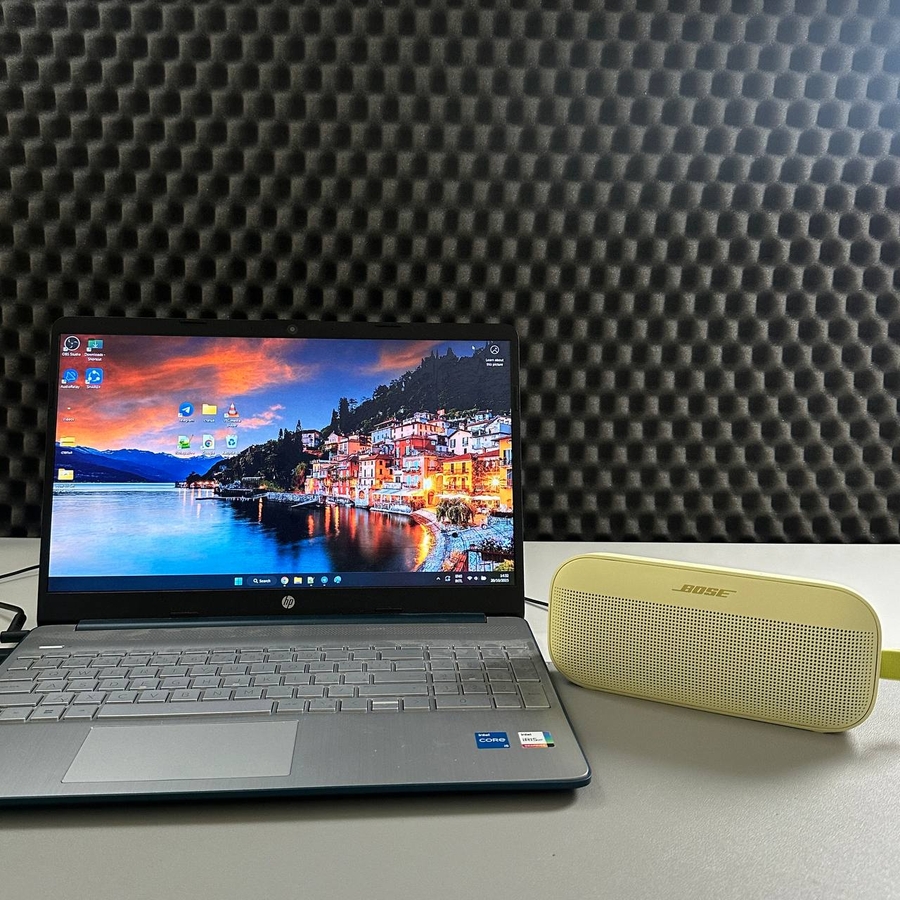
Welcome to our guide on seamlessly connecting your Bose SoundLink Flex II speaker to a Windows laptop or PC. Follow these simple steps to start enjoying your favorite tunes wirelessly.
Step 1: Open Bluetooth Settings on Your Windows Laptop
To begin, locate the WiFi Connection menu on your Windows laptop, which is typically found at the bottom right corner of your screen, displayed with a WiFi icon. Click on it and then look for the Bluetooth option.

Step 2: Navigate to Bluetooth Settings
Once you're in the Connection menu, find and click on Bluetooth.

Step 3: Turn on Your Bose SoundLink Flex II Speaker
Power on your Bose SoundLink Flex II speaker. To put it into pairing mode, press and hold the Bluetooth button on the speaker until you notice the Bluetooth indicator light beginning to blink blue. This signifies that your speaker is ready to pair with new devices.

Step 4: Connect the Speaker to Your Laptop
Back on your Windows laptop, in the list of available Bluetooth devices, you should see your Bose SoundLink Flex II speaker appear. Click on its name to initiate the connection process. Your speaker will display a solid white light once it successfully connects, and your laptop will notify you that the device is ready to use.


And there you have it! You are now connected and can enjoy your music or any other audio through your Bose SoundLink Flex II speaker.