Using Your Samsung Galaxy Watch 8 LTE as a Camera Remote
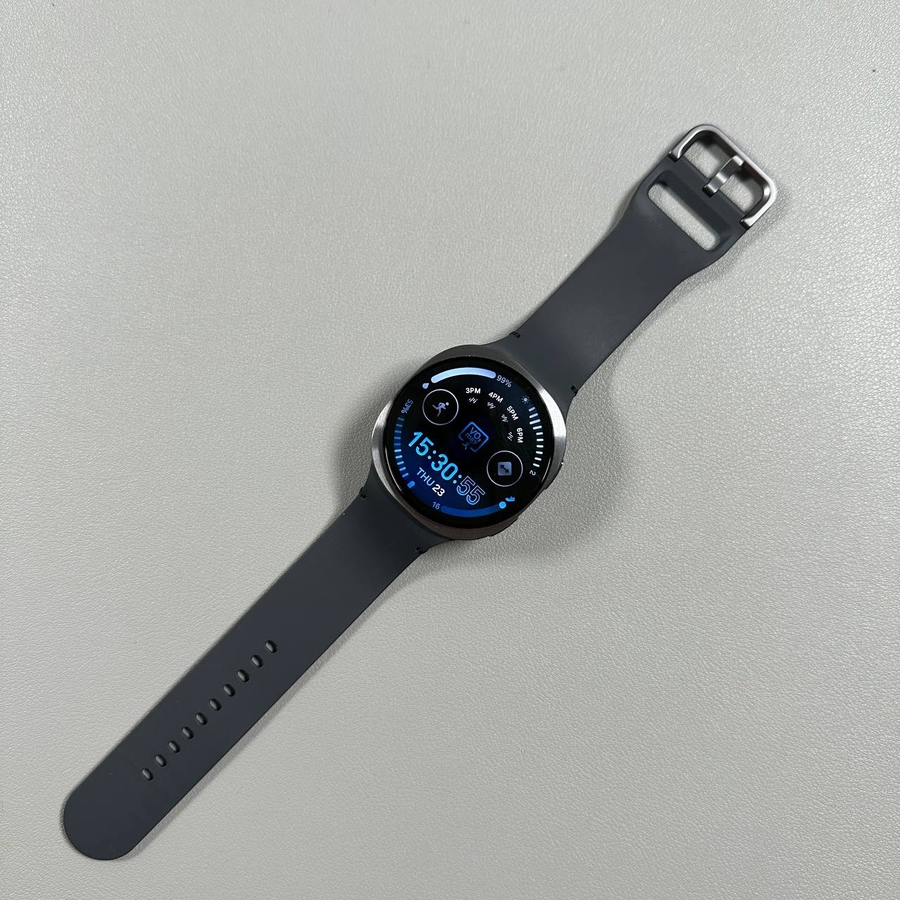
Did you know you can use your Samsung Galaxy Watch 8 LTE as a remote control for your phone's camera? This guide will show you how to set up and use this convenient feature to effortlessly capture photos and videos.
Connect Your Watch and Phone
First, ensure that your Samsung Galaxy Watch 8 LTE is connected to your smartphone. This connection will allow your watch to control the camera on your phone effectively. If you are unsure how to connect the devices, refer to the user manual for detailed instructions.

Open the Camera Controller App
Once connected, swipe up from the watch face to access your apps. Look for the built-in camera app and tap on it to open. If this is your first time using the app, you will be prompted to grant the necessary permissions. Make sure to allow any permissions requested so your device can perform correctly.

Enable Location Services
If your watch has location services turned off, it will prompt you to enable it. Simply toggle the location services on, which will then automatically launch the camera app on your watch and activate the camera on your phone.

Taking Photos with Your Watch
With the camera app open, you can now use your Samsung Galaxy Watch 8 LTE as a remote shutter. Tap the shutter button on your watch to take a photo with your connected phone. The app comes with a timer feature that is enabled by default, allowing you to disable it as needed. This functionality ensures you get the perfect shot every time.

Recording Videos
Recording videos is just as simple. Tap the record button on your watch, and it will start video recording on your phone. This effortless integration allows you to capture videos without having to fumble with your phone, ensuring you can catch moving moments with ease.

Viewing Photo Previews
Finally, you can see previews of the photos you've taken directly on your watch screen. This feature helps you ensure that you've captured the desired moments without needing to check your phone's gallery each time.