How to Measure Heart Rate on Samsung Galaxy Watch 8 LTE
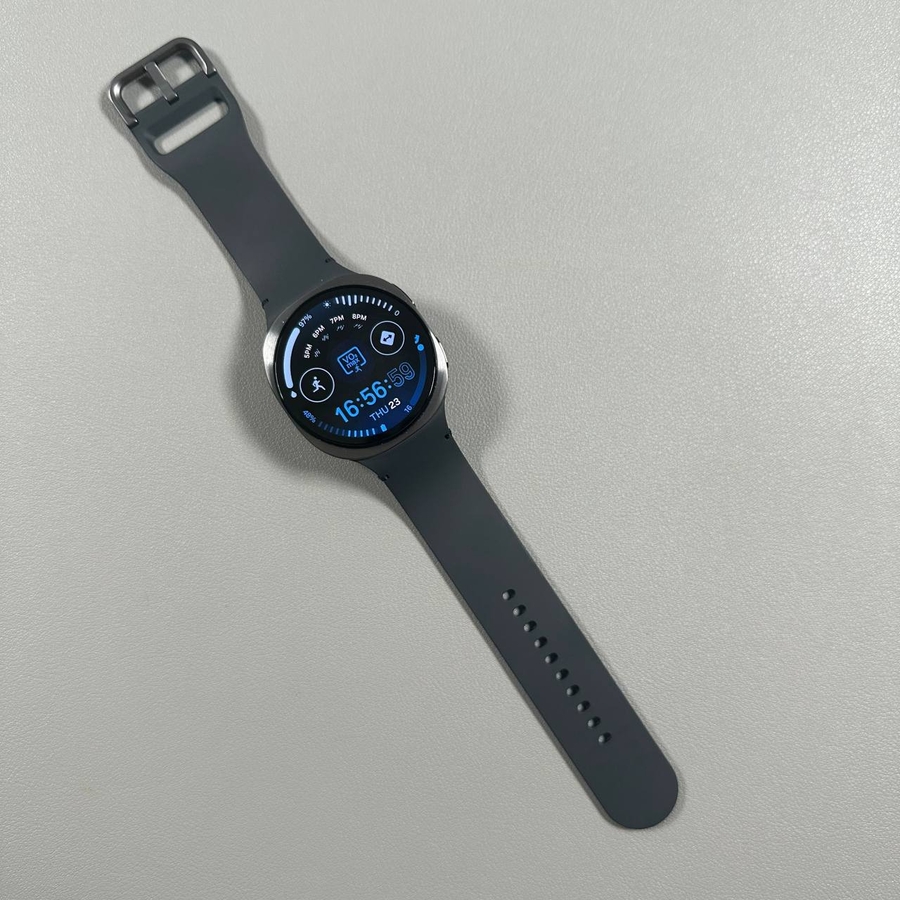
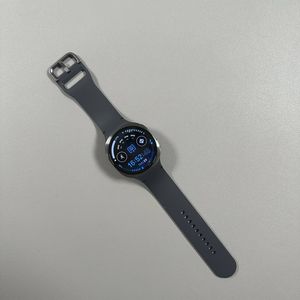
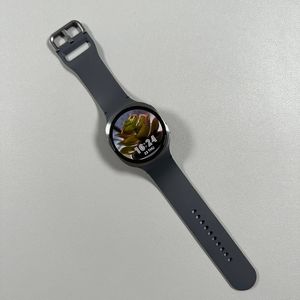
The Samsung Galaxy Watch 8 LTE offers a range of health and fitness features, including heart rate monitoring right on your wrist. This guide will walk you through the process of measuring your heart rate, whether manually or automatically, using simple steps. Follow along to make the most of your watch's health capabilities.
Step 1: Access the Applications Menu
To begin, gently swipe upwards from the bottom of the watch face to reveal the applications menu. This action will give you access to all the available apps on your Samsung Galaxy Watch 8 LTE.

Step 2: Enter Samsung Health
Once you've opened the app menu, look for the Samsung Health icon, which resembles a stack of steps or a heart. Tap on it to open the Samsung Health application, your hub for various health metrics.

Step 3: Navigate to Heart Rate
Inside the Samsung Health app, scroll down until you find the 'Heart Rate' section. This is where you'll be able to monitor your heart rate status.

Step 4: Measure Your Heart Rate Manually
To initiate a manual measurement of your heart rate, tap on the 'Heart Rate' section and then select 'Measure'. Stay still and wait for the sensor to complete the reading, at which point your heart rate information will be displayed on the screen.

Step 5: Set Automatic Measurements
If you prefer automatic heart rate tracking, return to the heart rate screen and scroll down to access 'Settings'. Here, you can configure the watch to measure your heart rate continuously, every 10 minutes, or only manually. Adjust the settings to fit your lifestyle and preferences.