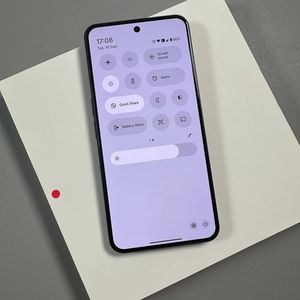
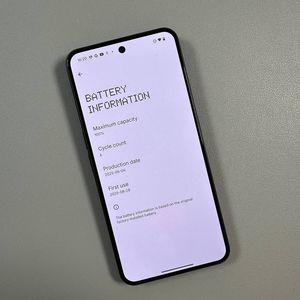
How to Enable or Disable Always On Display on Nothing Phone (3)
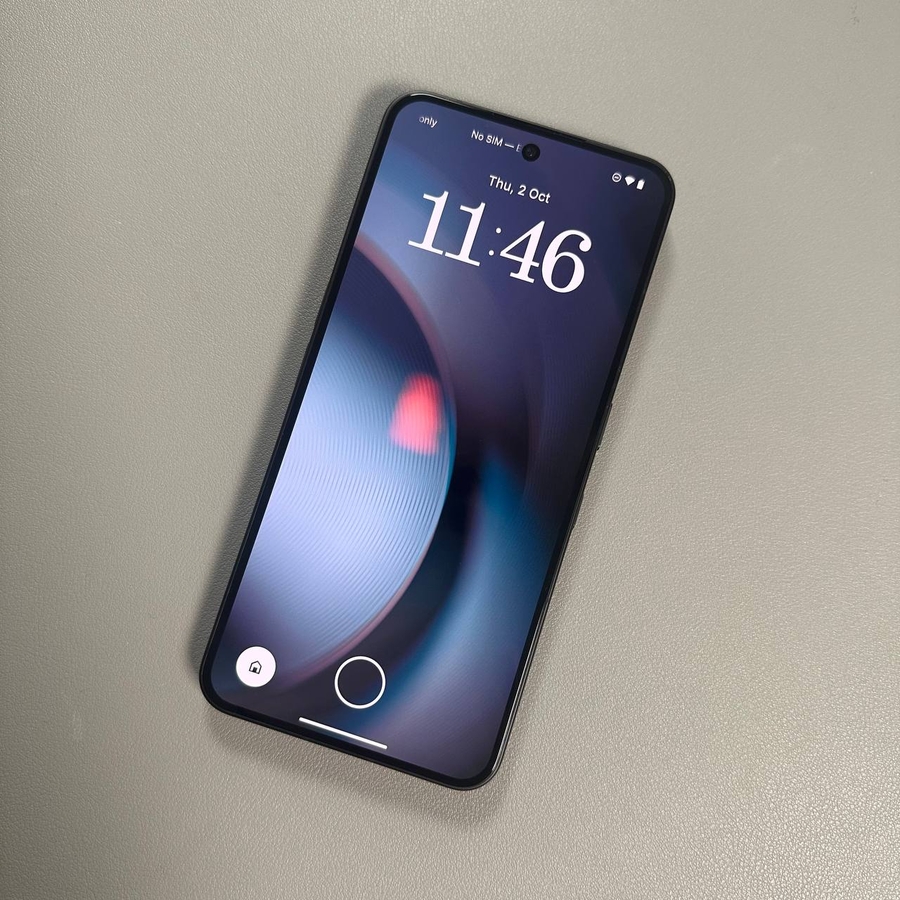
The Always On Display (AOD) feature on your Nothing Phone (3) allows you to see essential information like the time, date, and notifications at a glance without fully waking up your screen. This can be a significant time-saver and a great way to conserve a little battery life by avoiding unnecessary screen unlocks. Whether you want to turn it on, turn it off, or adjust when it appears, this comprehensive guide will walk you through the simple steps.
Steps to Manage Always On Display (AOD)
1. Open Settings on Your Device
First, open the Settings app on your Nothing Phone (3).

2. Navigate to the Lock Screen Settings
In the Settings menu, scroll down and tap on Lock screen.


3. Locate and Tap on Always show basic info on lock screen
Scroll down within the Lock screen settings until you find the option labeled Always show basic info on lock screen and tap on it. This option controls the AOD feature.

4. Enable or Disable the Always On Display
On the next screen, you will see a switch next to Always show basic info on lock screen. Tap the switch to:
- Enable the Always On Display (the switch should turn on/blue).
- Disable the Always On Display (the switch should turn off/gray).


5. Customize AOD Activation (Optional)
If you choose to enable the Always On Display, the options below the main switch will become active, allowing you to decide *when* the AOD should appear:
- After tapping on the screen: The AOD will only show briefly after you tap the screen.
- According to the set schedule: You can set specific start and end times for the AOD to be active (e.g., to turn off while you sleep).
- Always show (Default): The AOD is always active when the screen is off.
Tap on your preferred option to select it.

Thank you so much for reading this article. We hope this guide was helpful in managing the Always On Display on your Nothing Phone (3).