How to Take Screenshots on the Nothing Phone (3)
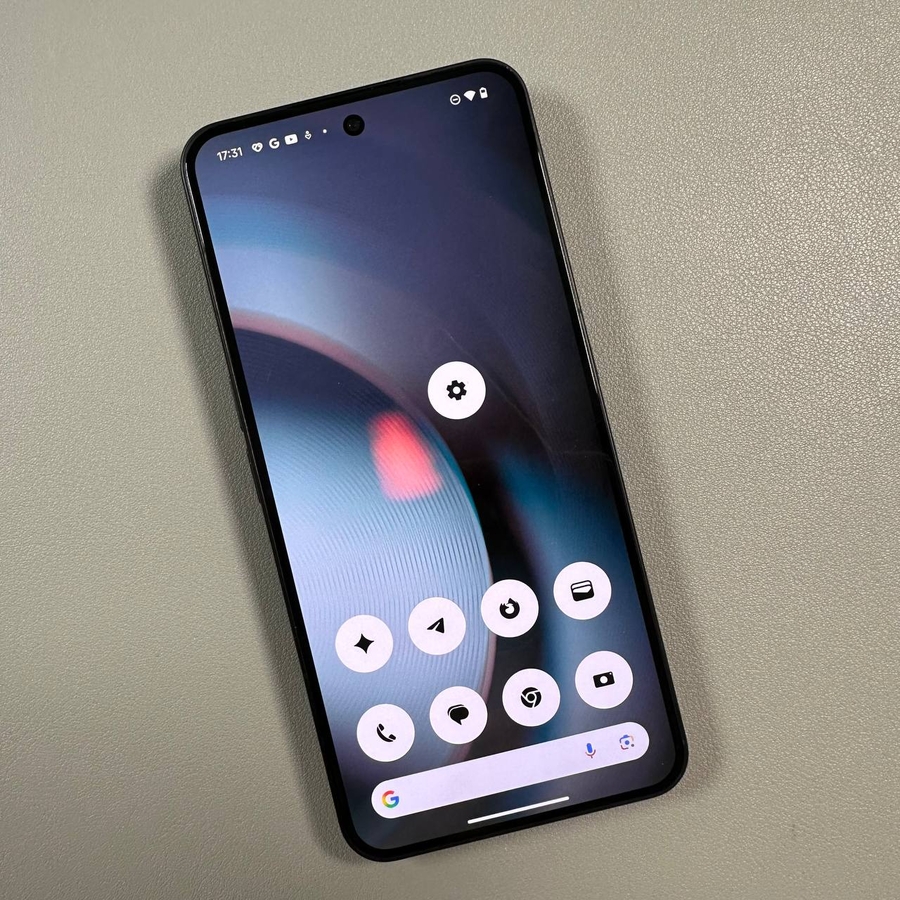
Taking screenshots on the Nothing Phone (3) is a straightforward process, whether you're capturing a quick snapshot or a lengthy page. This guide will walk you through several methods so you can choose the one that best fits your needs, ensuring you capture the moment with ease.
Method 1: Using the Button Combination
Start by identifying the Power and Volume Down buttons on your Nothing Phone (3). To take a screenshot, press and hold these two buttons simultaneously. You should see the screen blink briefly, indicating that the screenshot has been taken successfully. A small preview of the screenshot will appear on the screen, giving you the option to edit it right away.


Method 2: Using Gestures
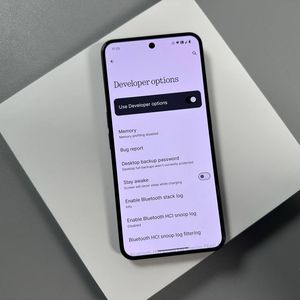
If you prefer a touch-based method, the Nothing Phone (3) supports gesture controls for taking screenshots. First, access the Settings app on your device. Navigate to the Special Features section and tap on Gestures.


IHere, you can activate the Screenshot Gesture by enabling the 'Three-finger swipe' option. Once activated, simply swipe down with three fingers on the screen to capture your screenshot.


Available languages
Method 3: Taking Screenshots from the Recent Apps List
Open the app of your choice and bring up the recent apps list. Beneath the app you are currently using, you will see several options, including a screenshot icon. Tap this icon to capture your screen effortlessly.


Method 4: Capturing Long Screenshots
Long screenshots are great for capturing extended content that won't fit on a single screen. You can utilize any of the methods above to initiate a screenshot. When the preview appears, look for arrow icons or prompts that allow you to start a long screenshot. Continue scrolling to capture more of the content, using the controls provided to adjust the captured length as you desire.

Where to Find Your Screenshots
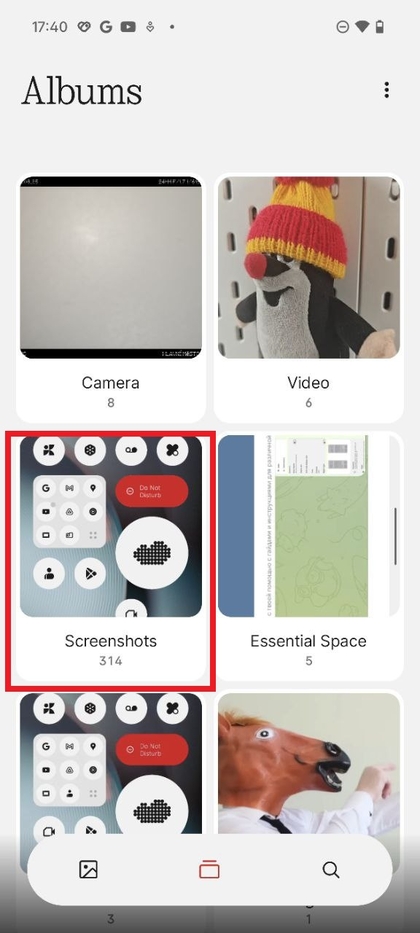
After taking your screenshots, you can conveniently find them saved within any standard photo gallery app on your device. Whether you use Google Photos or the default gallery app provided by Nothing Phone (3), all screenshots are stored automatically in a designated album or folder, making them easy to access whenever you need them.